Fortnite Oathbound Bonus Rewards – Complete Guide – Chapter 4 Season 1 – Part 1, 2 ,3 and 4

We kick off this great new season with, Fortnite Oathbound Bonus Rewards. By the looks of things this is going to be a very long quest line, hopefully with some Free Fortnite items to be collected along the way.
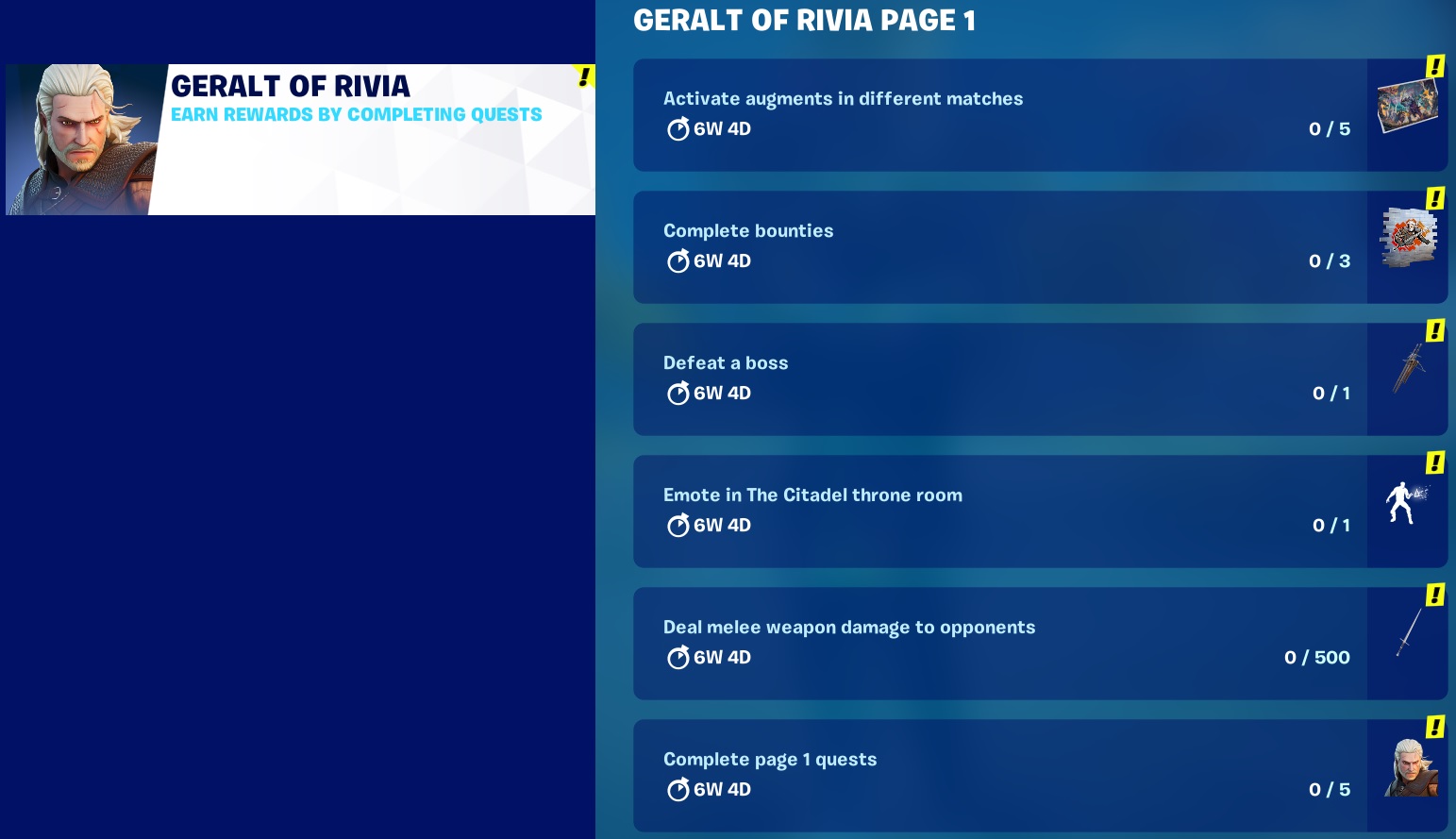
You can see that it’s at least a 4 Part quest line with 5 stages in part 1, covering over 35 Days! You will receive the first reward, a spray emote after completing 4 stages, let’s hope this is just a warm up for some good items.
The XP for some of these stages looks pretty good as well at 20K a pop for some simple tasks around the island.
If you’re interested, also check out my proppa genuine guides on how to get some Fortnite FREE V-Bucks or maybe even a FREE Fortnite Battlepass
Oathbound Bonus Rewards – Part 1 – Stage 1 of 5 – Make Contact with AMIE at a Hologram Brazier
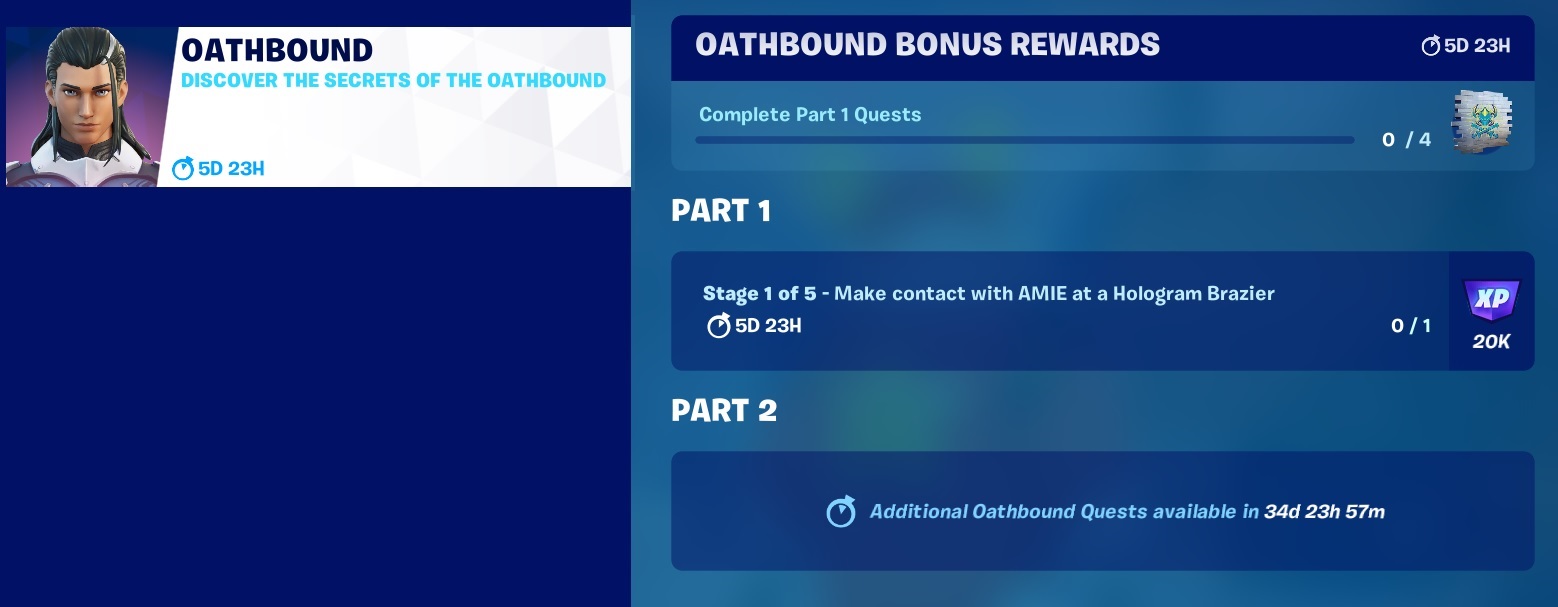
The Oathbound rewards are received after completing 4 Parts within the major PART 1 Quest line, broken down into sub quests that there are 5.
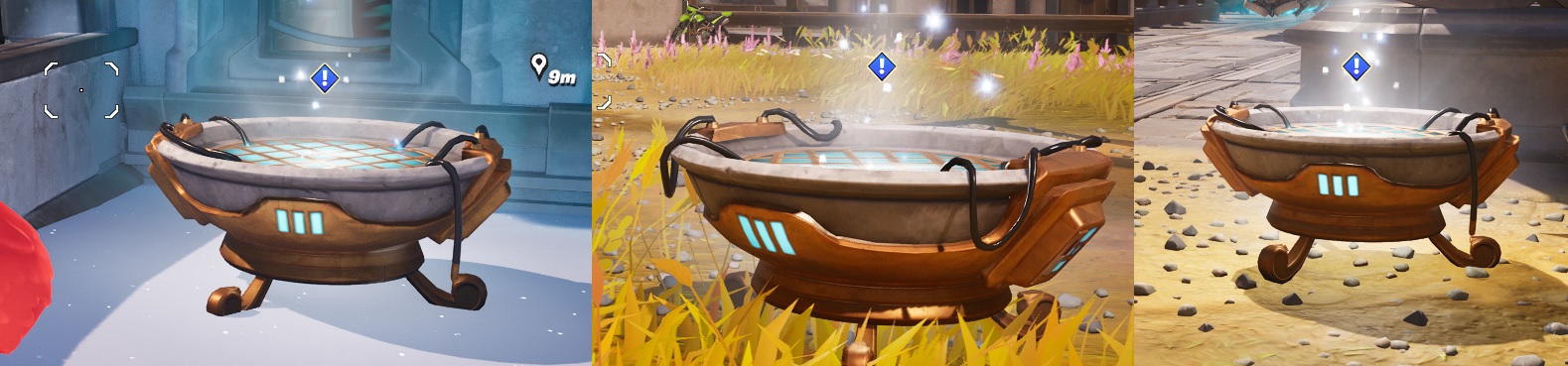
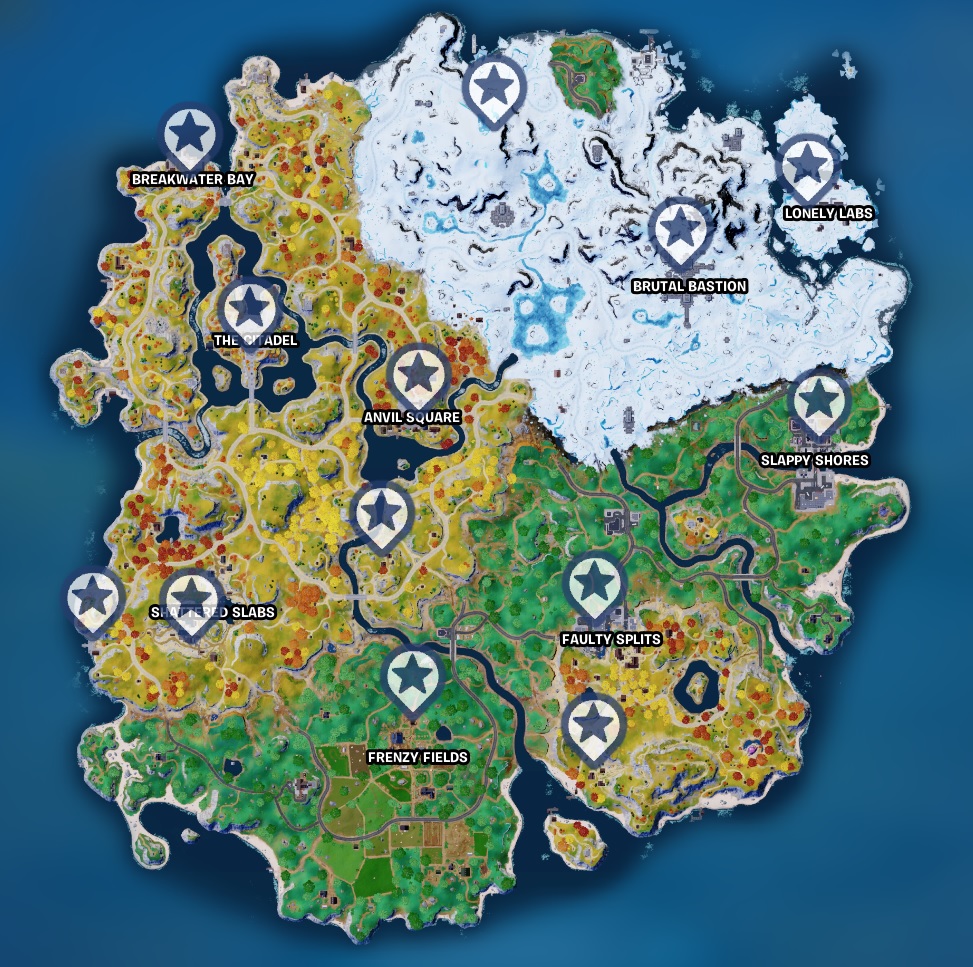
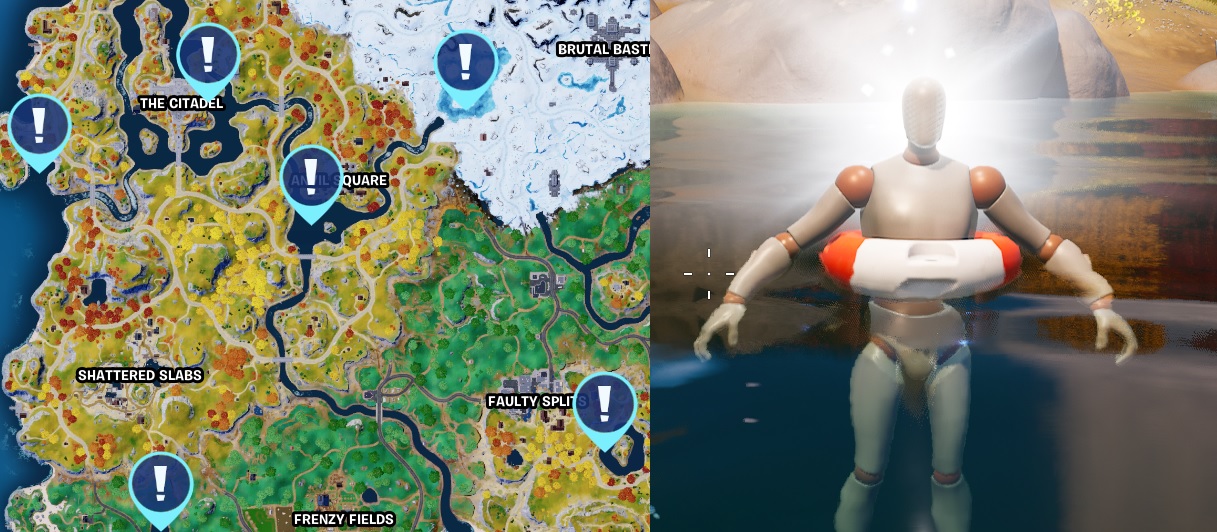
Stage 1, use the “track quest” option in the quest menu and check the map for the locations of the Hologram Brazier. You only need to go to one of these locations and interact with the Hologram Brazier
Oathbound Bonus Rewards – Part 1 – Stage 2 of 5 – Download Pieces of Paradigm’s encypted message from Data Beacons
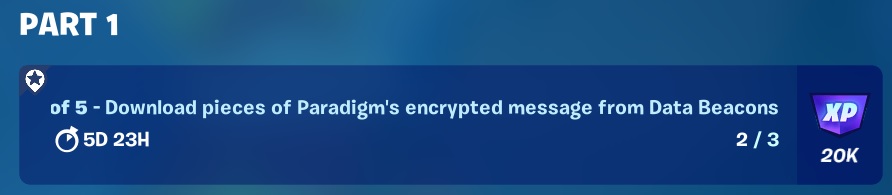
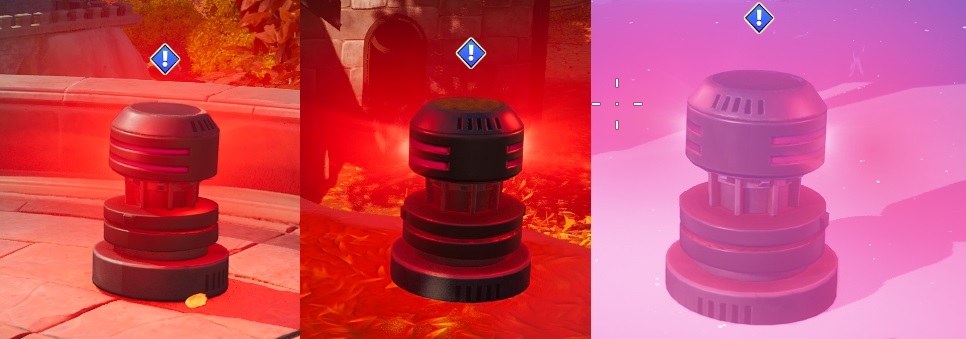
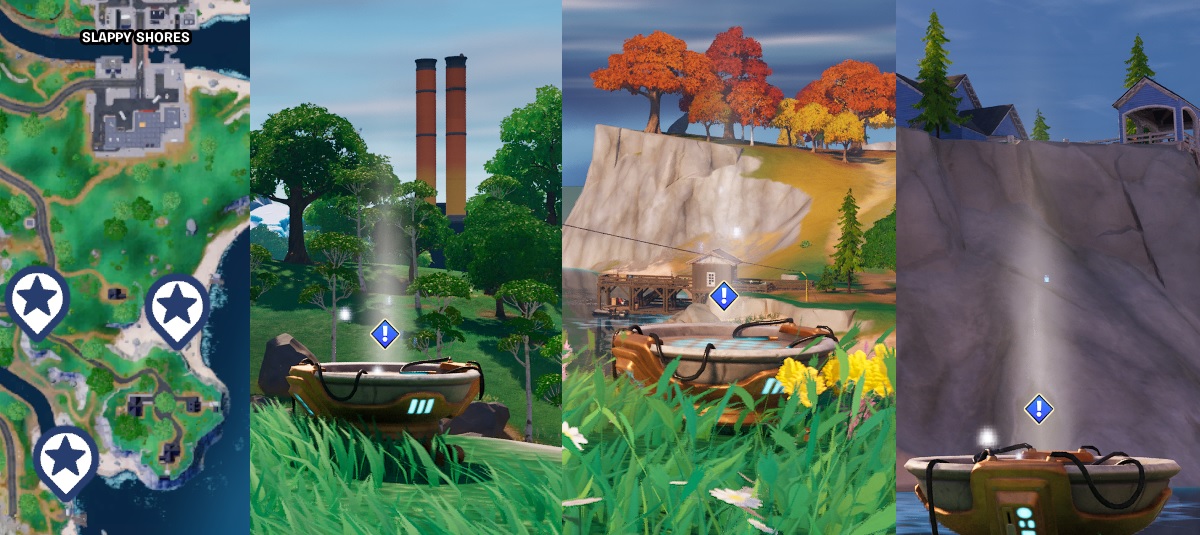
Stage 2, you’re going to need to collect the encrypted messages from 3 Data Beacons. Track Quest and check the map again for drop locations as you have 6 you can use. Pick your favourite map location and head out. You should be able to collect all 3 in a single match, they look like these.
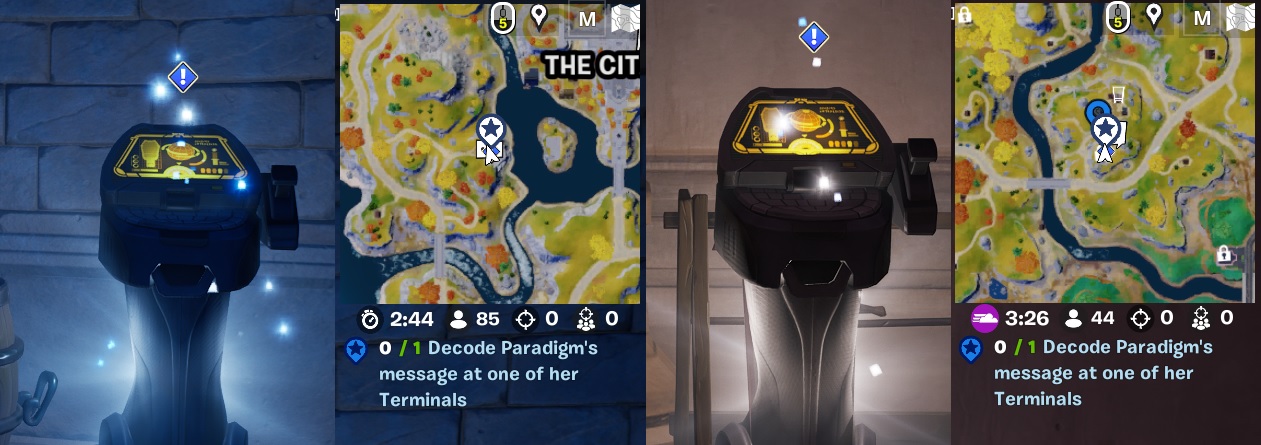
Oathbound Bonus Rewards – Part 1 – Stage 3 of 5 – Decode Paradigm’s message at one of the Terminals
You should be able to complete part 3 and part 4 in the same match as they are pretty close. Read ahead so you know what to expect, you maybe able to complete stage 5 if you are quick

You have a selection of 3 places to decode the message.
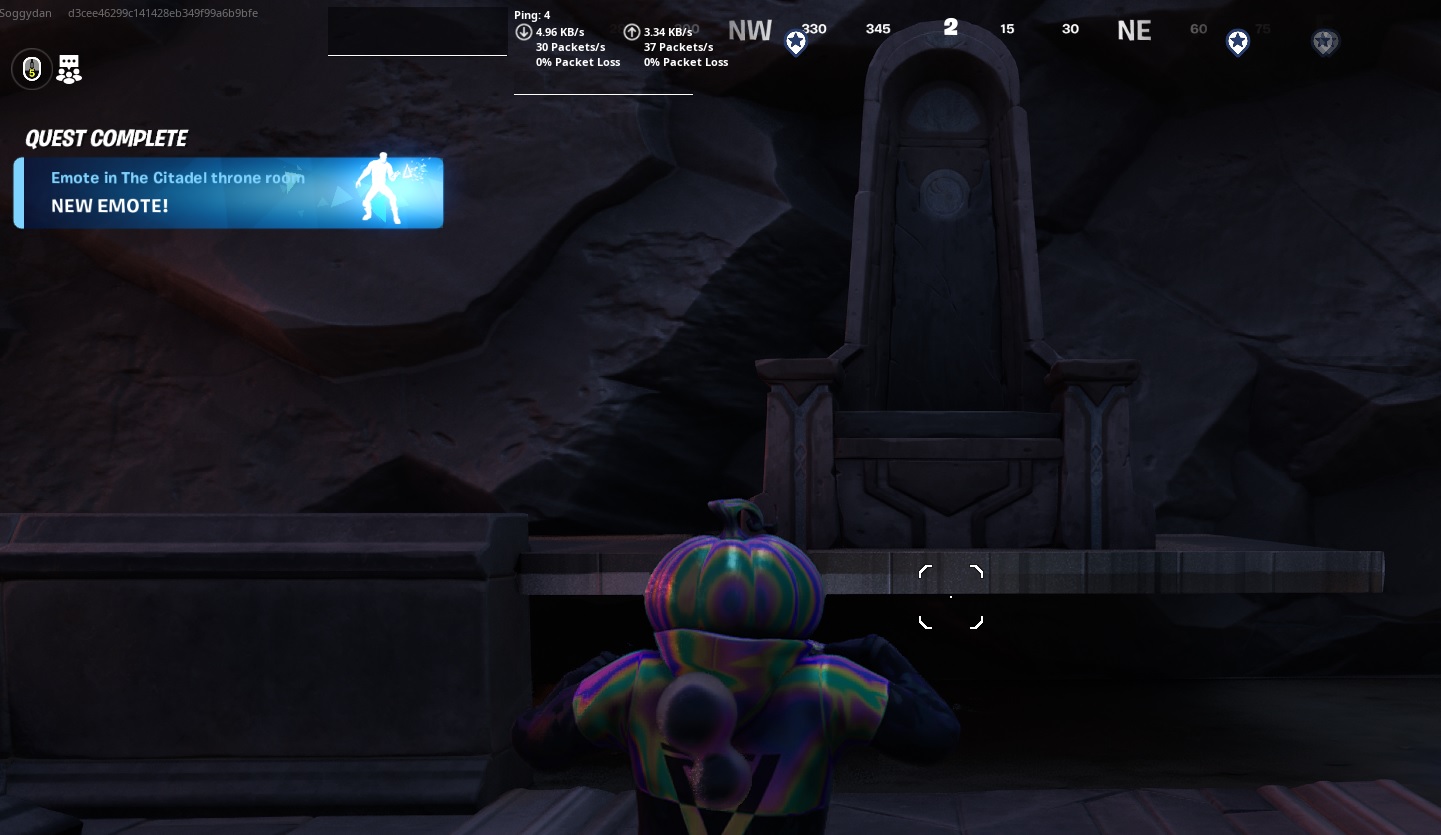
- West of The Citadel in the basement of the Tower
- 1st Floor of the Tower at Plesent Passage
- ???
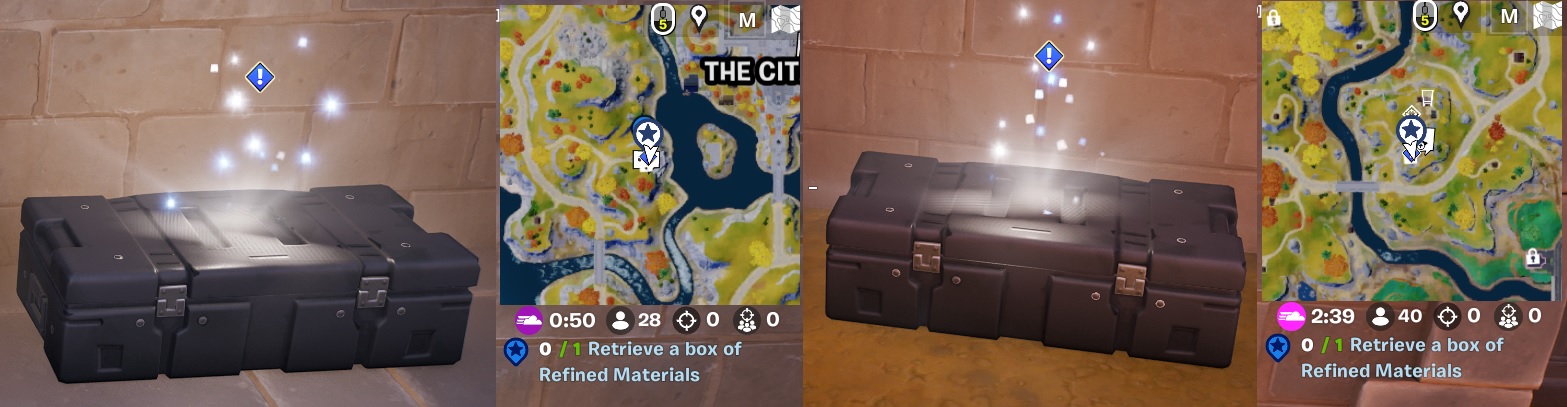
Oathbound Bonus Rewards – Part 1 – Stage 4 of 5 – Retrieve a box of Refined Materials

The box you are looking for is directly outside the tower you have just found the console in, quick dash outside and BOOM, next one completed
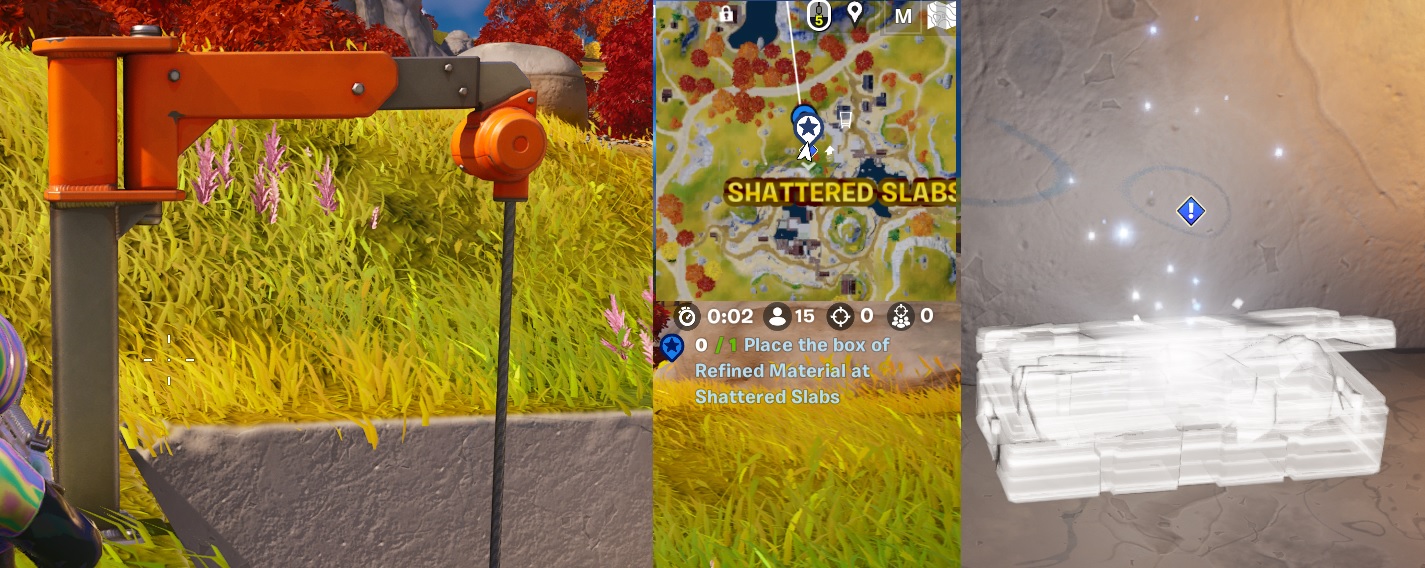
Oathbound Bonus Rewards – Part 1 – Stage 5 of 5 – Place the box of Refined Materials at Shattered Slabs

This one takes you on a journey to Shattered Slabs to an area if it was not for this quest, I would have never visited. Another reason to do the quests! Use the Zip line to drop down into the dig site, drop off the mats to the location.
Oathbound Bonus Rewards – Complete Part 1 Quests – 1/4
The Quest naming gets a bit odd here as we are still on Part one, but completed the 1/4 of Part one so is now Stage 1 of 2. Most odd, should this not be part 2?
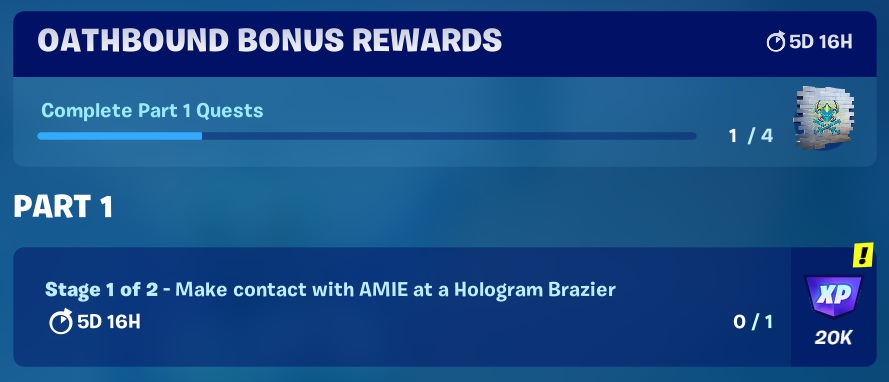
Oathbound Bonus Rewards – Part 1.1 – Stage 1 of 2 – Make Contact with AMIE at a Hologram Brazier

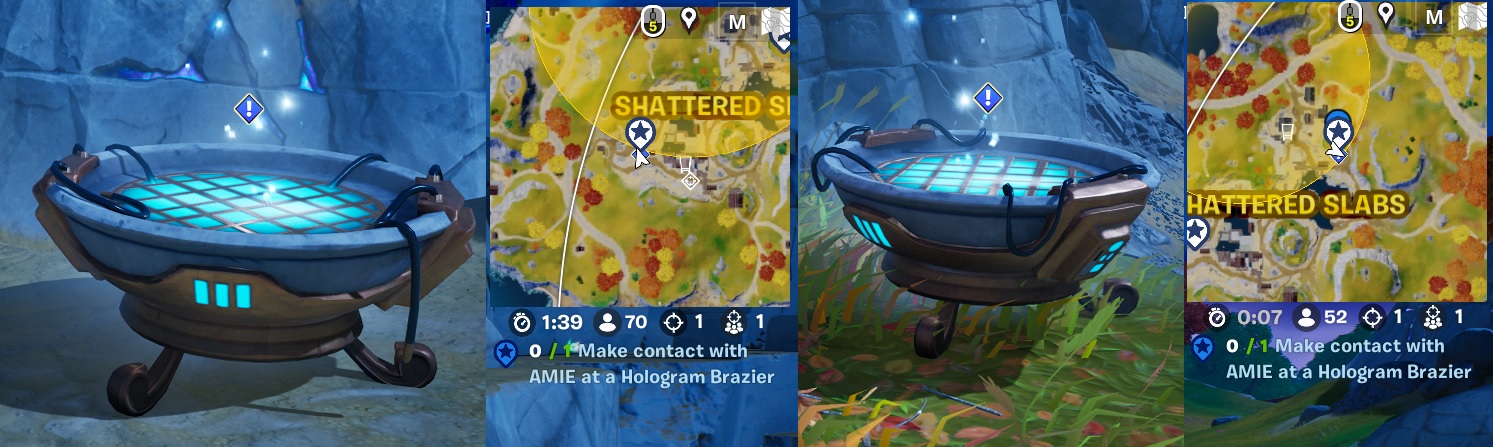
You are going to need to find those Hologram Brazier’s again, the cauldron looking search lights! 2 On the island at Shattered Slabs.
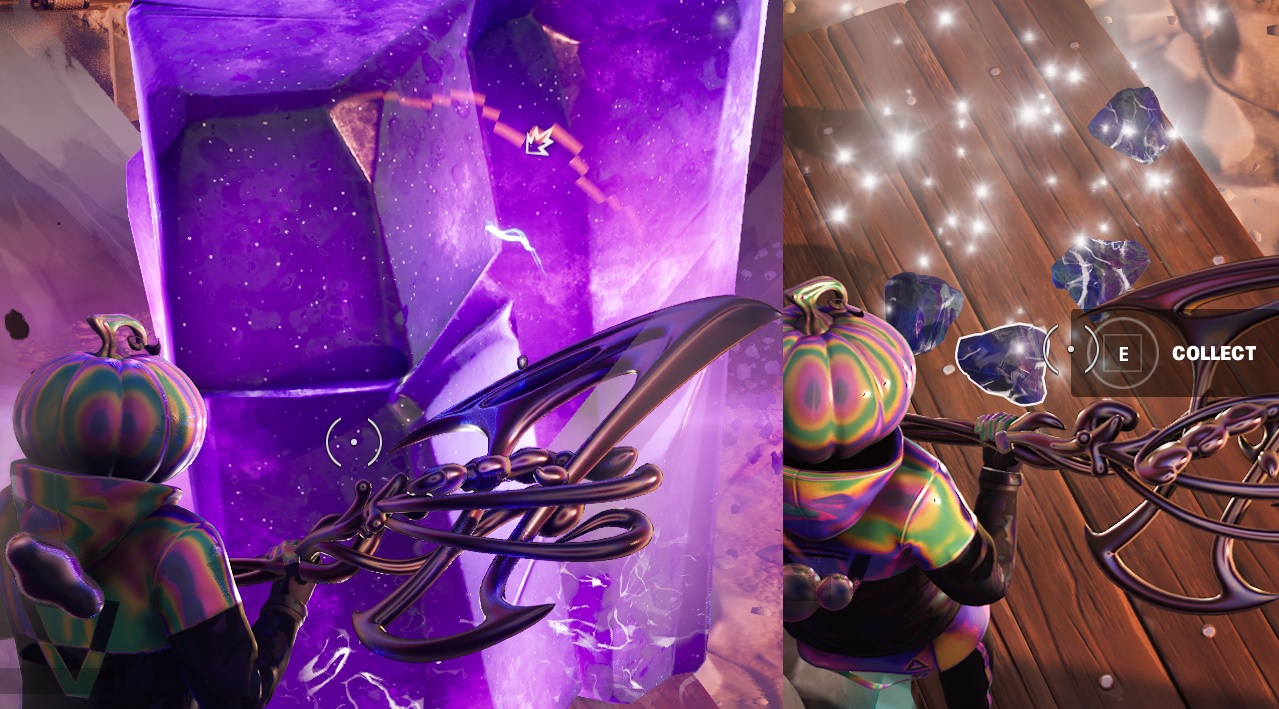
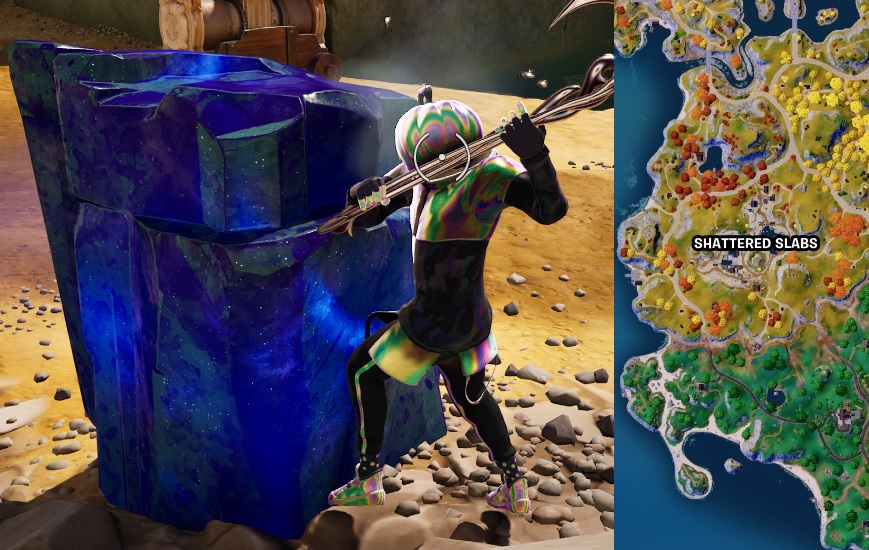
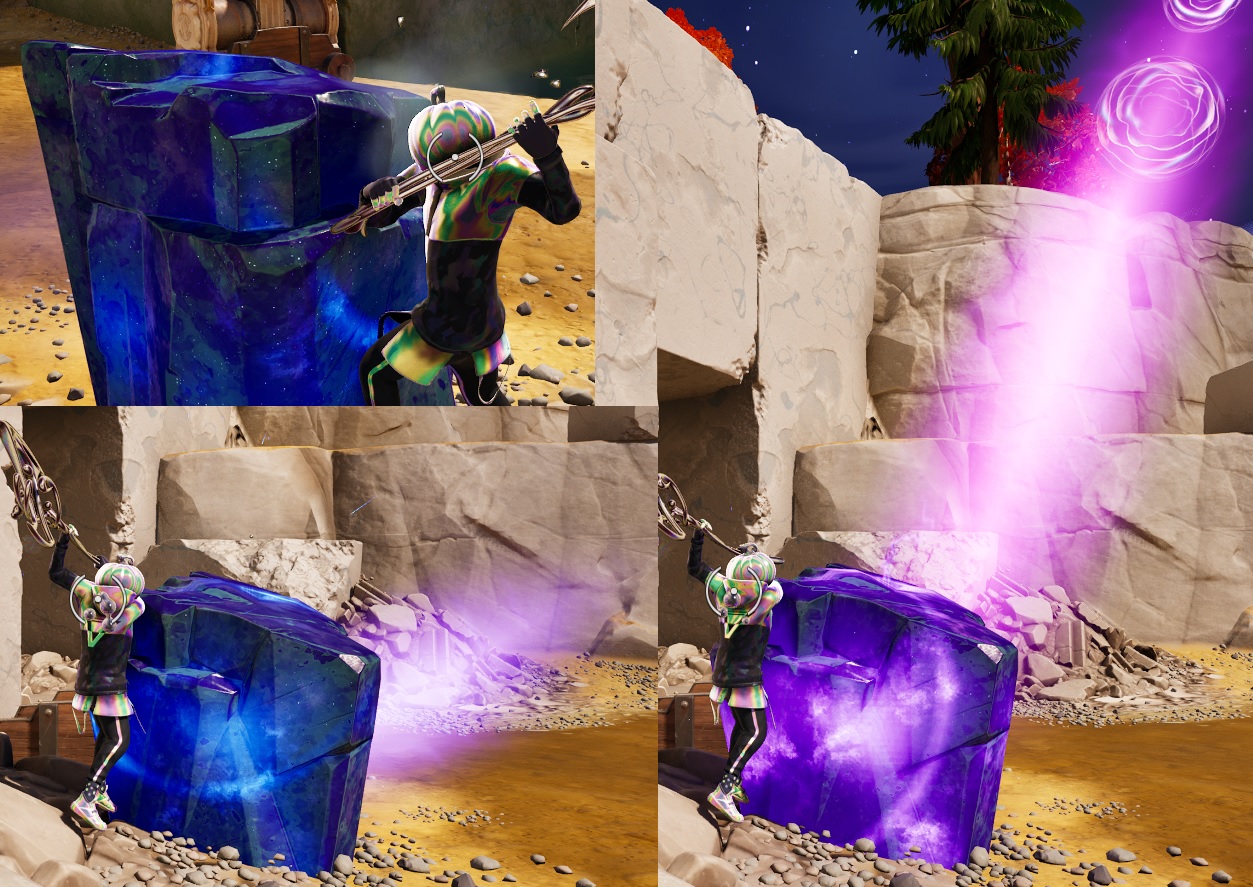
Oathbound Bonus Rewards – Part 1.1 – Stage 2 of 2 – Hit Kinetic Ore with your harvesting tool to collect dropped Kinetic Chunks

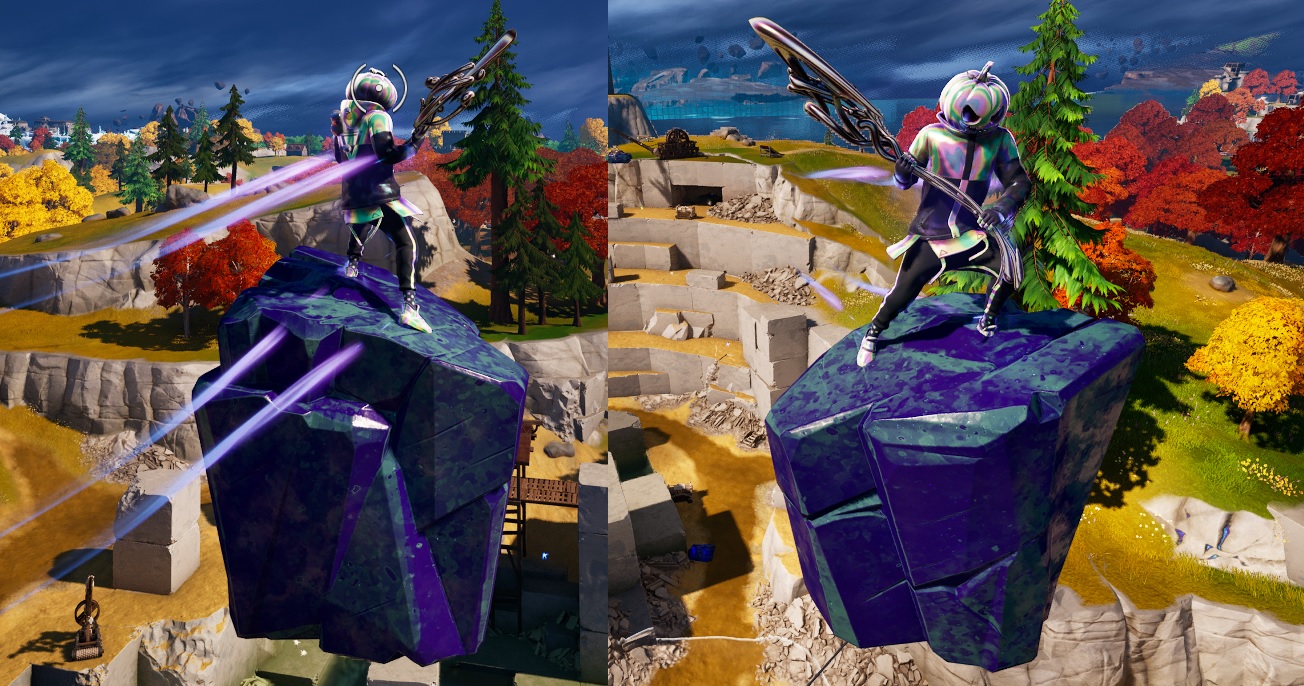
At the Shattered Slabs mine, look for the large purple/pink monoliths (Big Huge Rocks) and smash one of them with your harvesting tool to get some small rocks that you can collect.
Oathbound Bonus Rewards – Part 1.2 – Stage 1 of 4 – Make Contact with AMIE at a Hologram Brazier

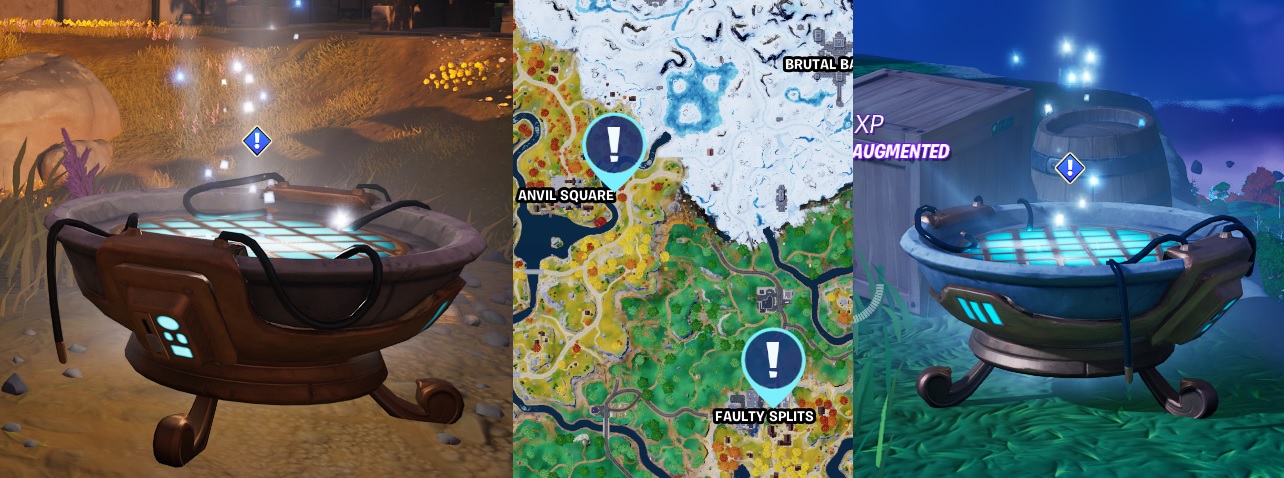
Another Hologram thingy to visit and activate to receive another message for instructions
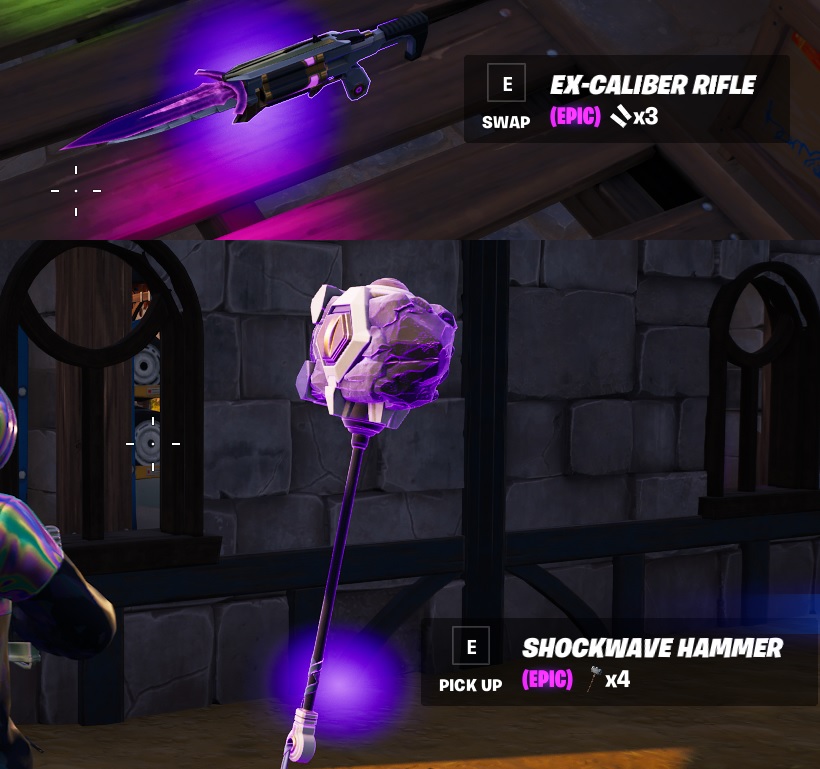
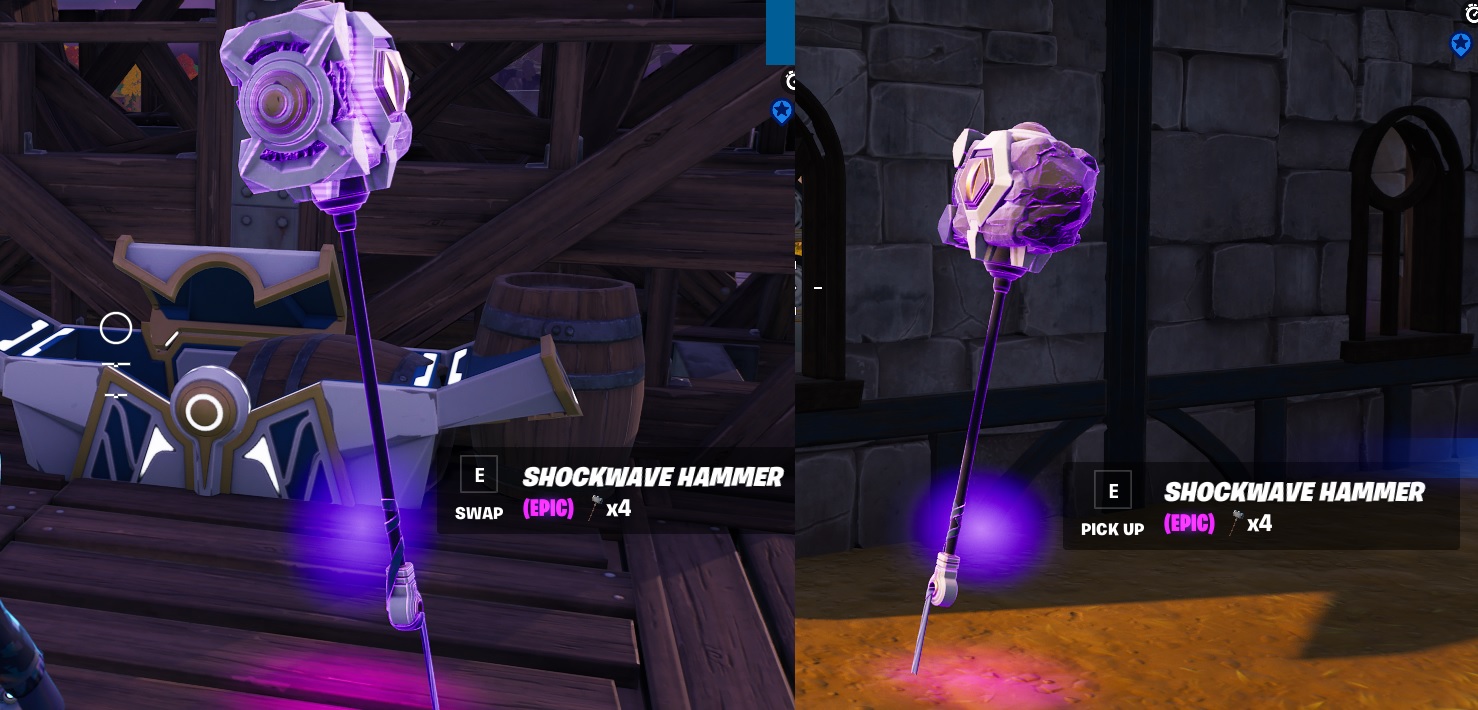
Oathbound Bonus Rewards – Part 1.2 – Stage 2 of 4 – Collect a Shockwave Hammer

Hammers can be found all over the island, but a good place to start looking is in the Oathbound Chests, these have a good change to contain one.
Pic of chest and hammer
Oathbound Bonus Rewards – Part 1.2 – Stage 3 of 4 – Travel 150 meters by bouncing with a Shockwave Hammer

Should be easy enough, combinations of both Fire and aim “Fortnite Keybinds” will perform different actions, get the combo right and you can go for a bounce.
Oathbound Bonus Rewards – Part 1.2 – Stage 4 of 4 – Damage opponents with the Shockwave Hammer

Grab that Shockwave Hammer and go bounce, then end in an earth slam to do damage to close structures and for this quest opponents!
Oathbound Bonus Rewards – Part 1.3 – Stage 1 of 2 – Make Contact with AMIE at a Hologram Brazier

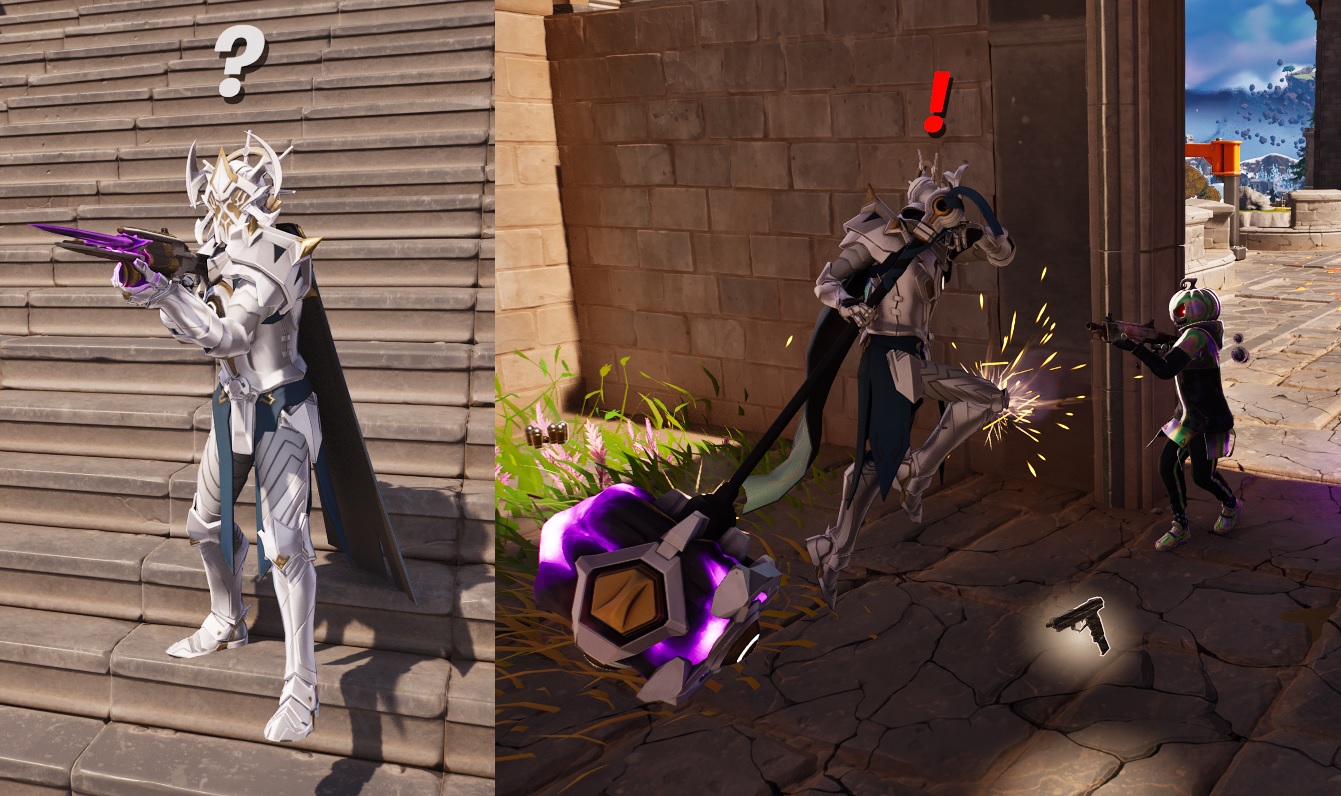
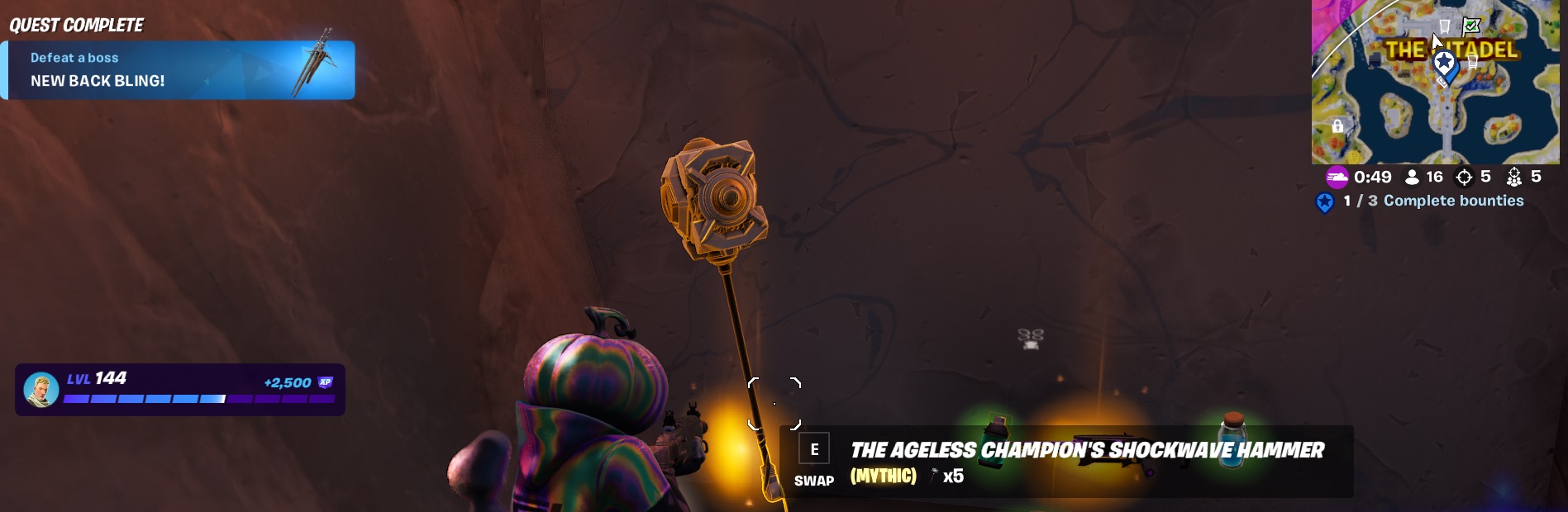
Another contact quest, listen to the message but be ready for a fight, the boss is going to attack you. Make sure you have good health, shields and weapons/ammo for this, especially if you are solo. I wasn’t expecting this so was not really tooled up, but I still defeated him, he’s not that Ageless anymore…
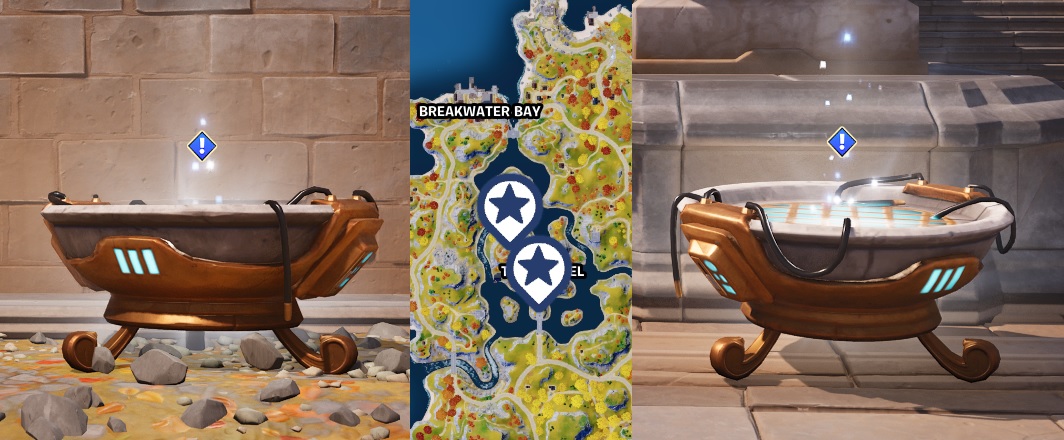
Oathbound Bonus Rewards – Part 1.3 – Stage 2 of 2 – Assist in defeating The Ageless Champion

There wasnt much assisting going on here, you should be able to solo The Ageless Champion if you have the right tools
Tips to solo The Ageless Champion
- Make sure your ready to fight, full health, shields, weapons and ammo
- When the Champion gets the Hammer out ready to strike, make sure you have your back against a wall to minimise the knock back.
- Jump in the air when he Hammer strike hit the floor to minimise any damage
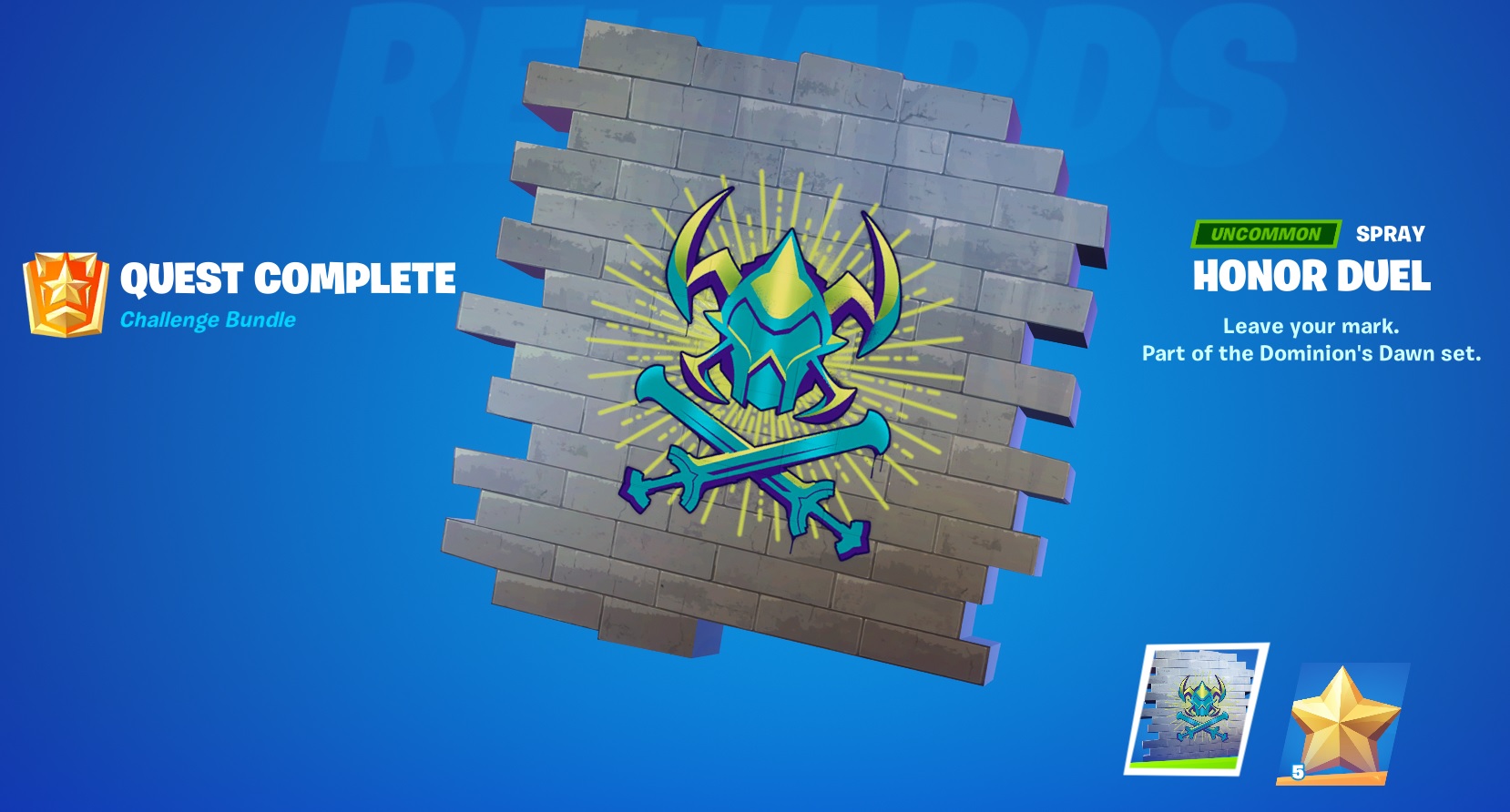
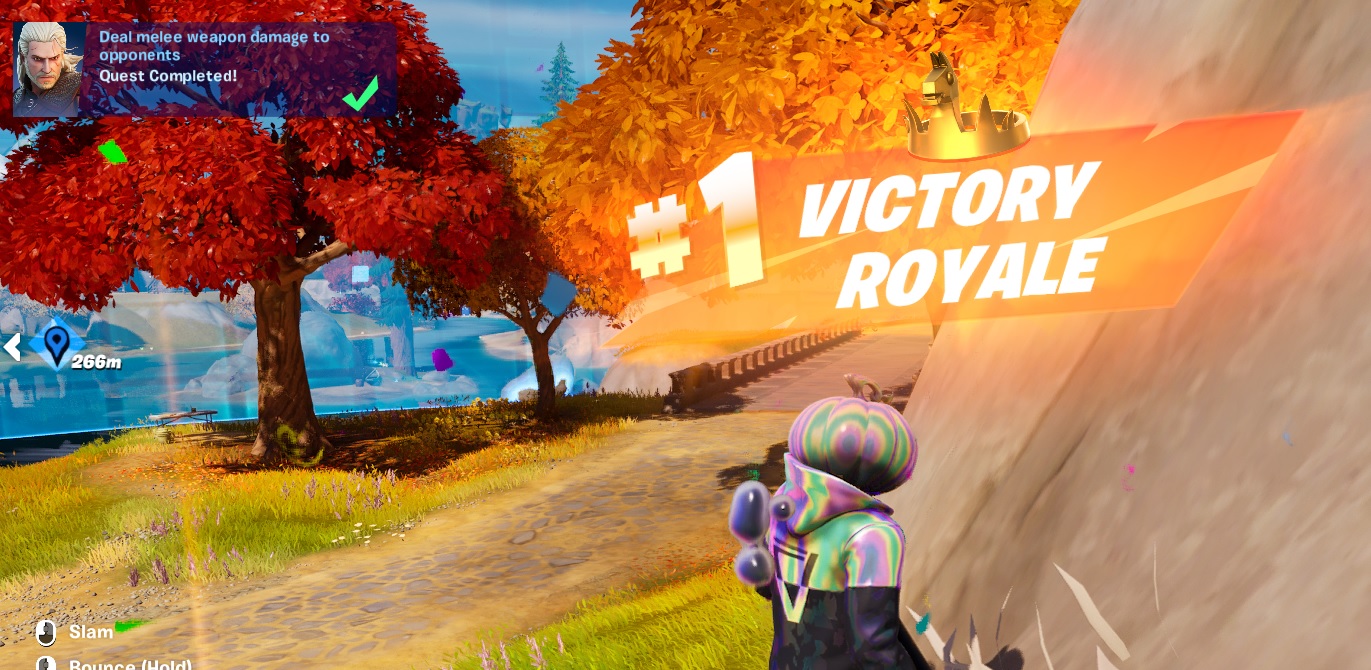
Oathbound Bonus Rewards – Part 1 – Quest Completed
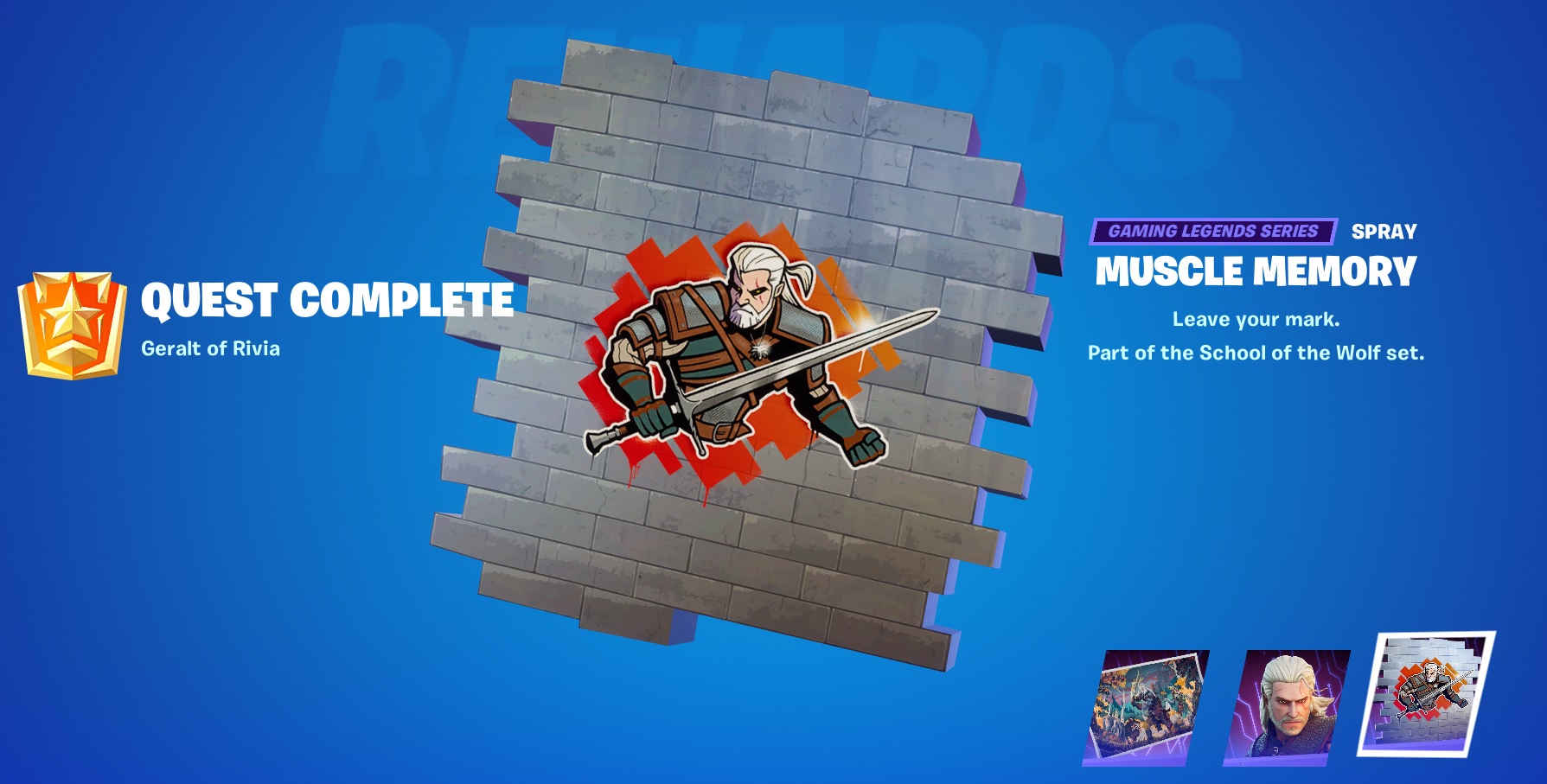
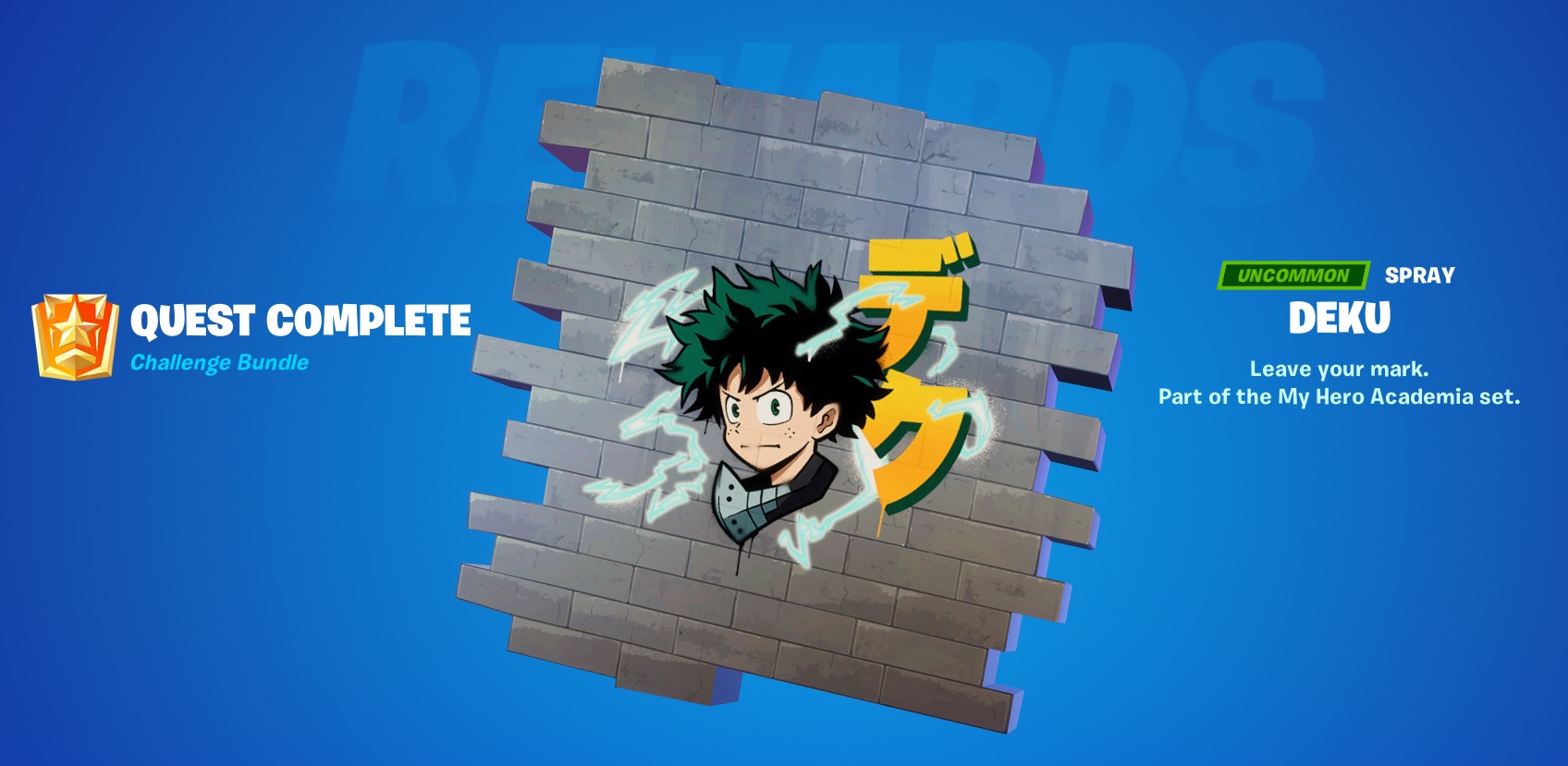
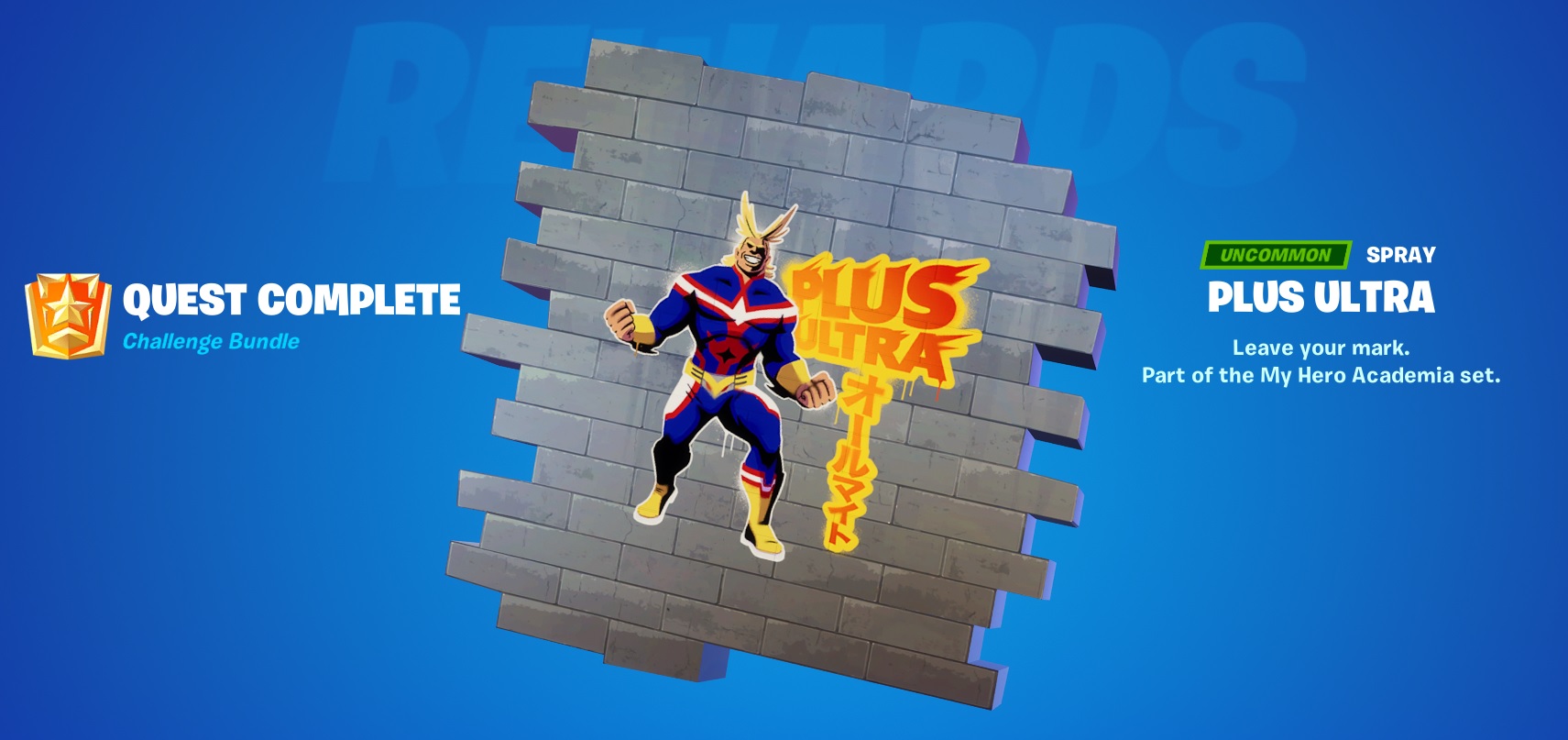
And there you have it, Quest completed and a new FREE Spray. I do wish Epic would add more story and possible closing scene to these quests, make them a bit deeper and so will make them more interesting.
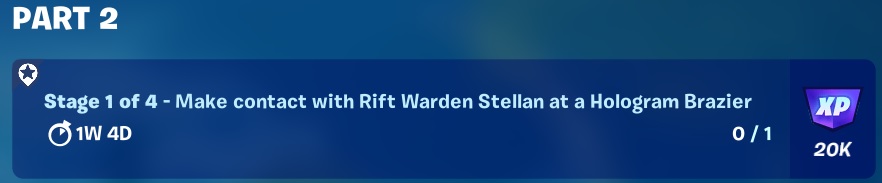
Oathbound Bonus Rewards – Part 2 – Stage 1 of 4 – Make Contact with Rift Warden Stellan at a Brazier
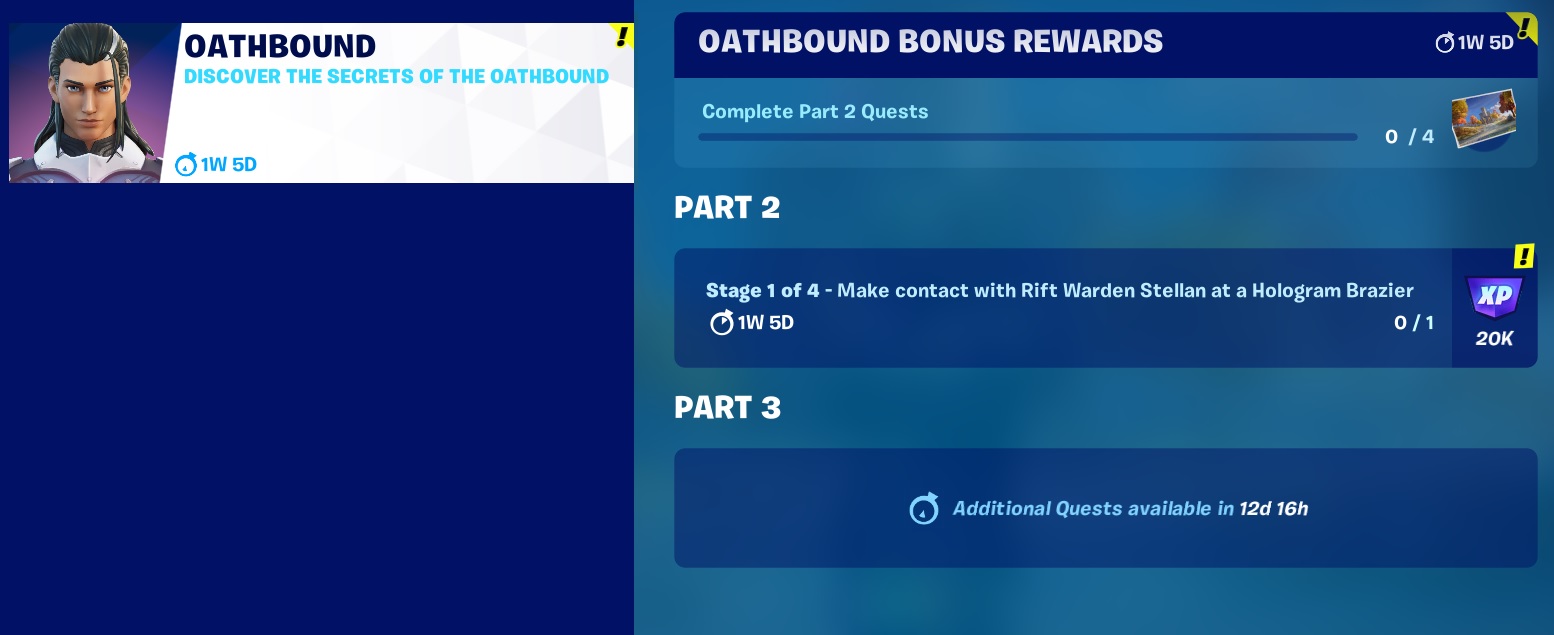
The Wallpaper reward is received after completing 4 Parts within the major PART 2 Quest line, broken down into sub quests that there are 4.
Stage 1, use the “track quest” option in the quest menu and check the map for the locations of the Hologram Brazier. You only need to go to one of these locations and interact with the Hologram Brazier

Oathbound Bonus Rewards – Part 2 – Stage 2 of 4 – install construction materials at the gate
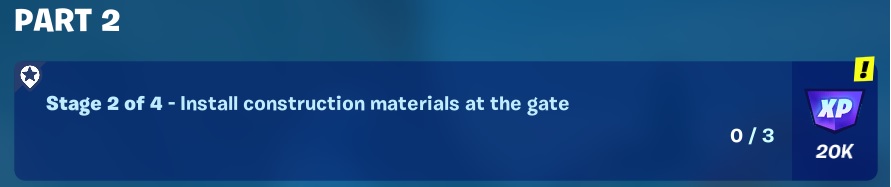
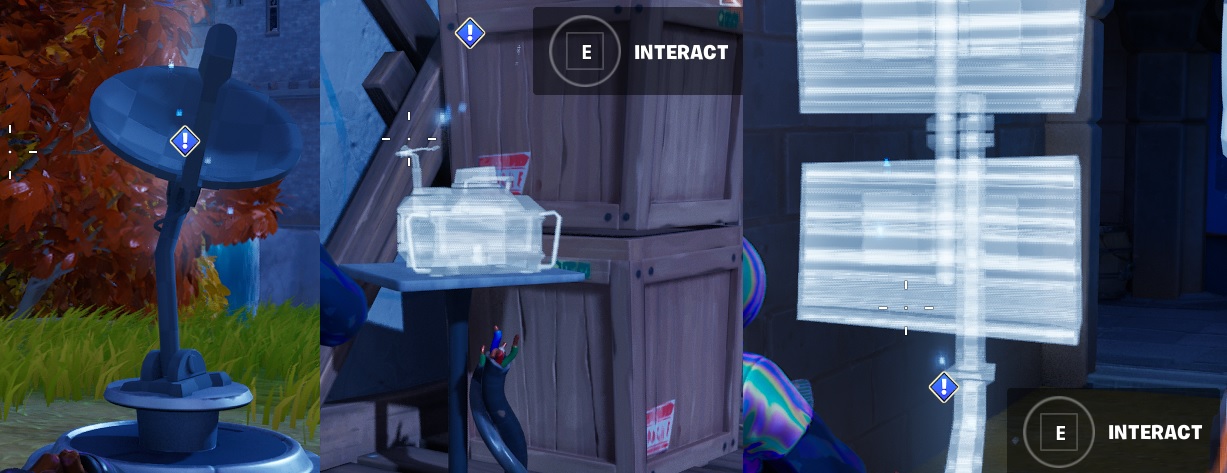
Use the “track quest” option in the quest menu and drop on the location to the east of The Citadel. All 3 construction materials are close together at the base of the tower. You have 3 items to interact with.
Oathbound Bonus Rewards – Part 2 – Stage 3 of 4 – Repair malfunctioning electronics by damaging them
Come on Epic, couldn’t come up with anything better? repair by damage! /sigh

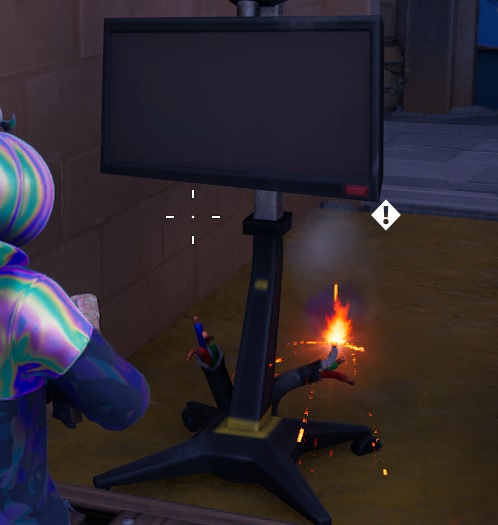
Same location so you should be able to complete in the same match. Give the damaged wires a whack with your harvesting tool!
Oathbound Bonus Rewards – Part 2 – Stage 4 of 4 – Calibrate signal tech

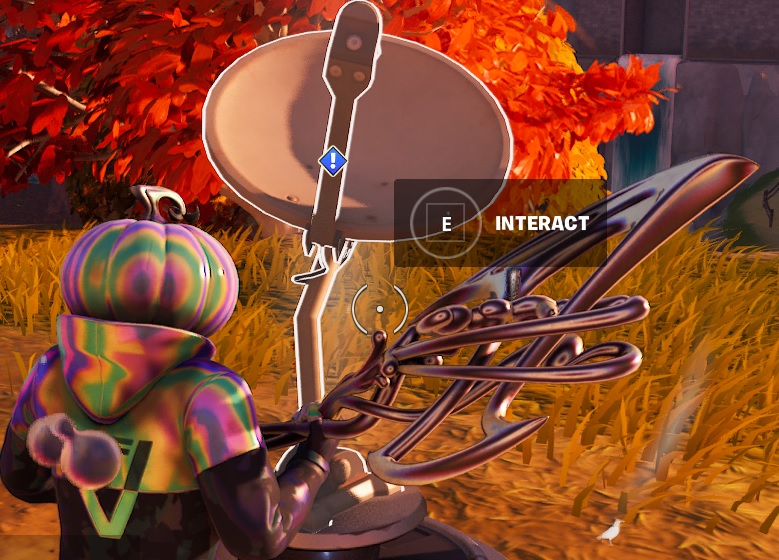
Find some more tech to interact with. They will be close by
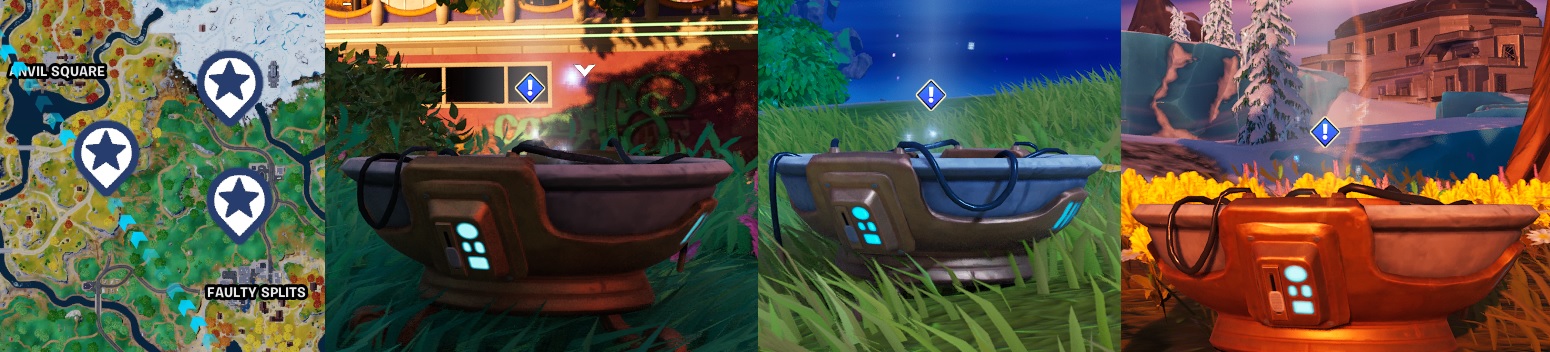
Oathbound Bonus Rewards – Part 2.1 – Stage 1 of 4 – Make contact with Rift Warden Stellan at a Hologram Brazier
More Hologram Brazier message thingies to find and listen too. You only need to go to one of them.
Oathbound Bonus Rewards – Part 2.1 – Stage 2 of 4 – Plant star sensors and cosmic monitor

In the same location, have a look around for some “ghost” outlines of equipment and interact with them to deploy them

Oathbound Bonus Rewards – Part 2.1 – Stage 3 of 4 – Align Star Sensors by damaging them in the correct order
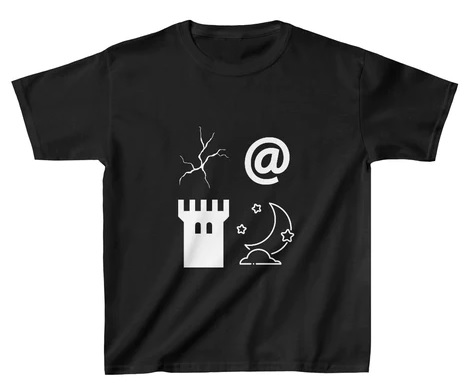
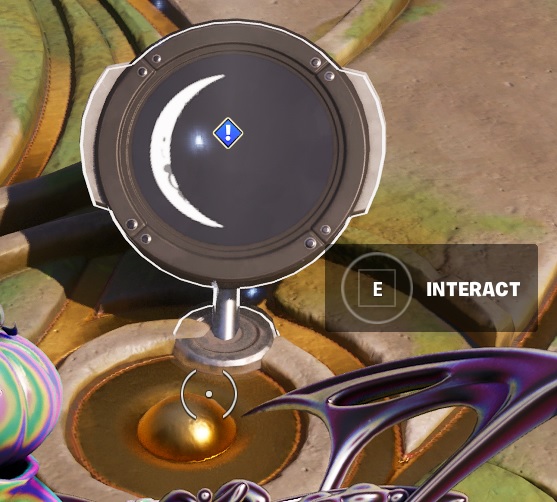
Now this is a bit more interesting Quest and a lot like the Indiana Jones one from Chapter 3. You need to wake the moon symbols in a sequence. If you get it right them, they change color slightly and will look the moons here. If they are not in the right order, they will not change color.
This is the order you need to whack the stones in:

Oathbound Bonus Rewards – Part 2.1 – Stage 4 of 4 – Interact with cosmos monitor
Finally, return to the centre dial and complete the sequence. All the moon stages should be flashing in their correct order to complete.
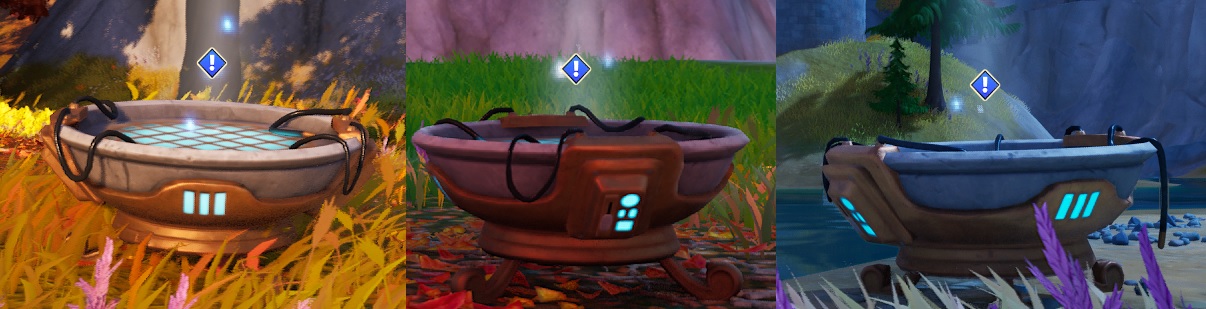
Oathbound Bonus Rewards – Part 2.2 – Stage 1 of 2 – make contact with AMIE at a Hologram Brazier

More Hologram messages to listen too, for short story progression. Just need to find one, not all three. Track the quest and check your location for a good drop zone.
Oathbound Bonus Rewards – Part 2.2 – Stage 2 of 2 – Collect three objects to act as AI test vessels in a single match

Track the quest and check the map. Drop at the far west beach and work your way in-land to collect:
- Shell on the beach
- Taco on the floor next to a market stall
- Pink Teddy inside the house
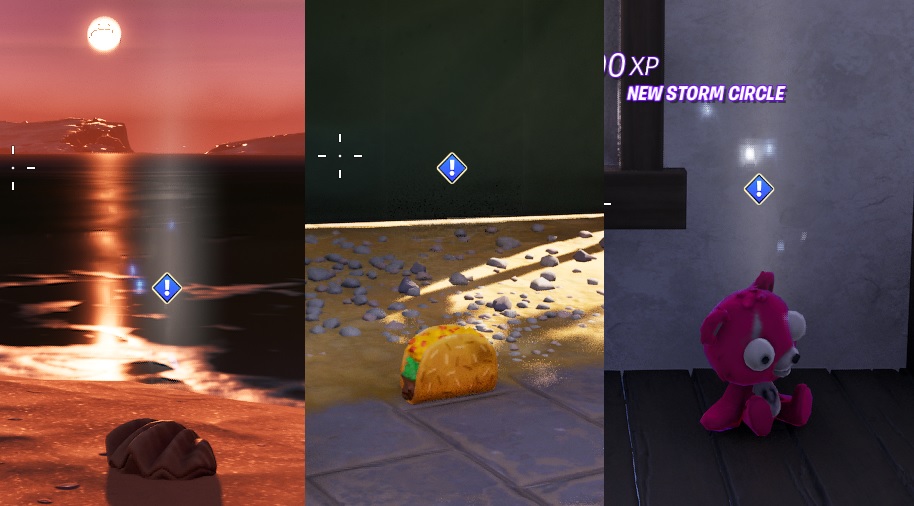
Oathbound Bonus Rewards – Part 2.3 – Stage 1 of 3 – make contact with AMIE at a Hologram Brazier

Track the quest and check the map, looking for more Hologram Brazier so you can get further orders
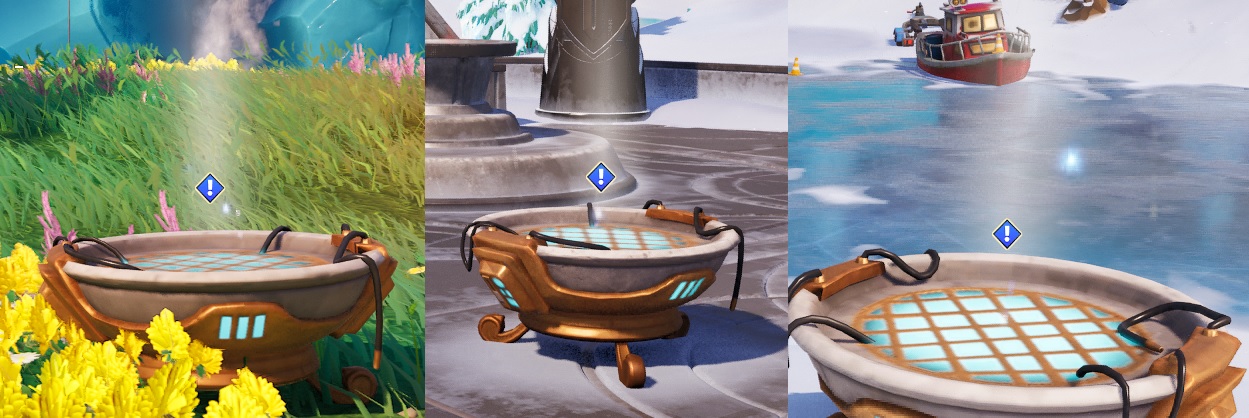
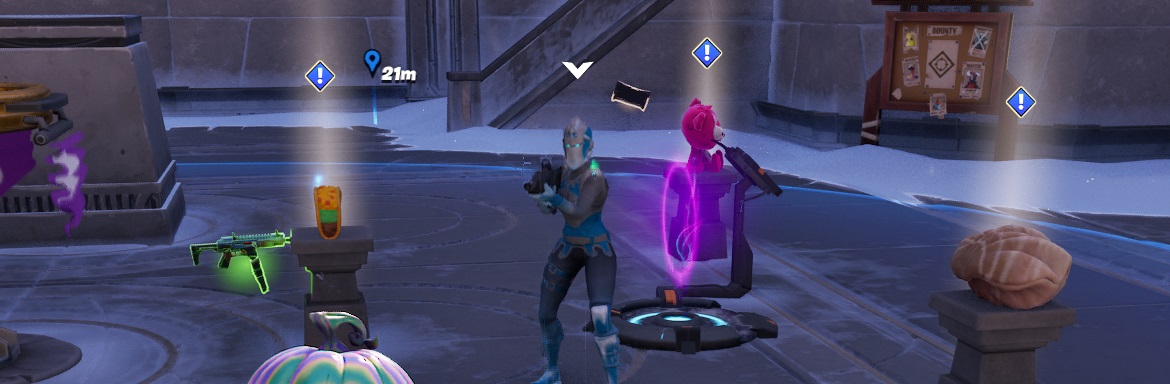
Oathbound Bonus Rewards – Part 2.3 – Stage 2 of 3 – Send the test vessels through AMIE’s test Rift

Now this is getting a bit more interesting! Head to Brutal Bastion, it’s a Hot Drop so there is going to be action, but pick up Frozen Red Knight to help you out, and also grab the Fortnite capture point for some loot. All the items you need to interact are in the main court yard.
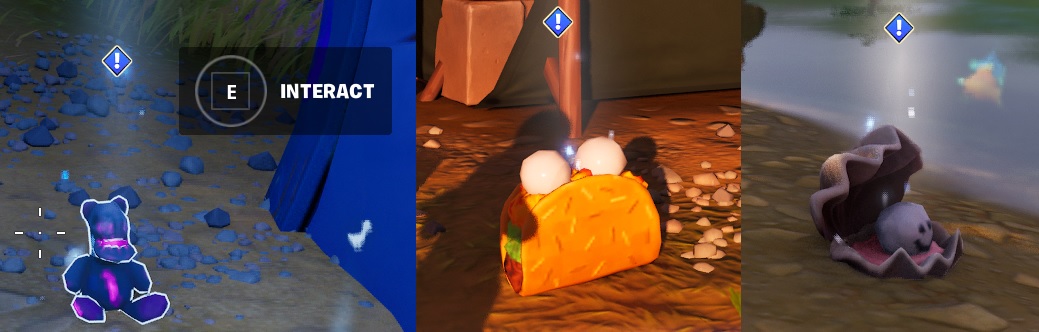
Oathbound Bonus Rewards – Part 2.3 – Stage 2 of 3 – Recover AMIE’s test vessels and observe the results

Track the quest and check the map, you need to head to 3 locations to collect the rifted items. They didn’t look like this before they went in!
Oathbound Bonus Rewards – Part 2 Completed!
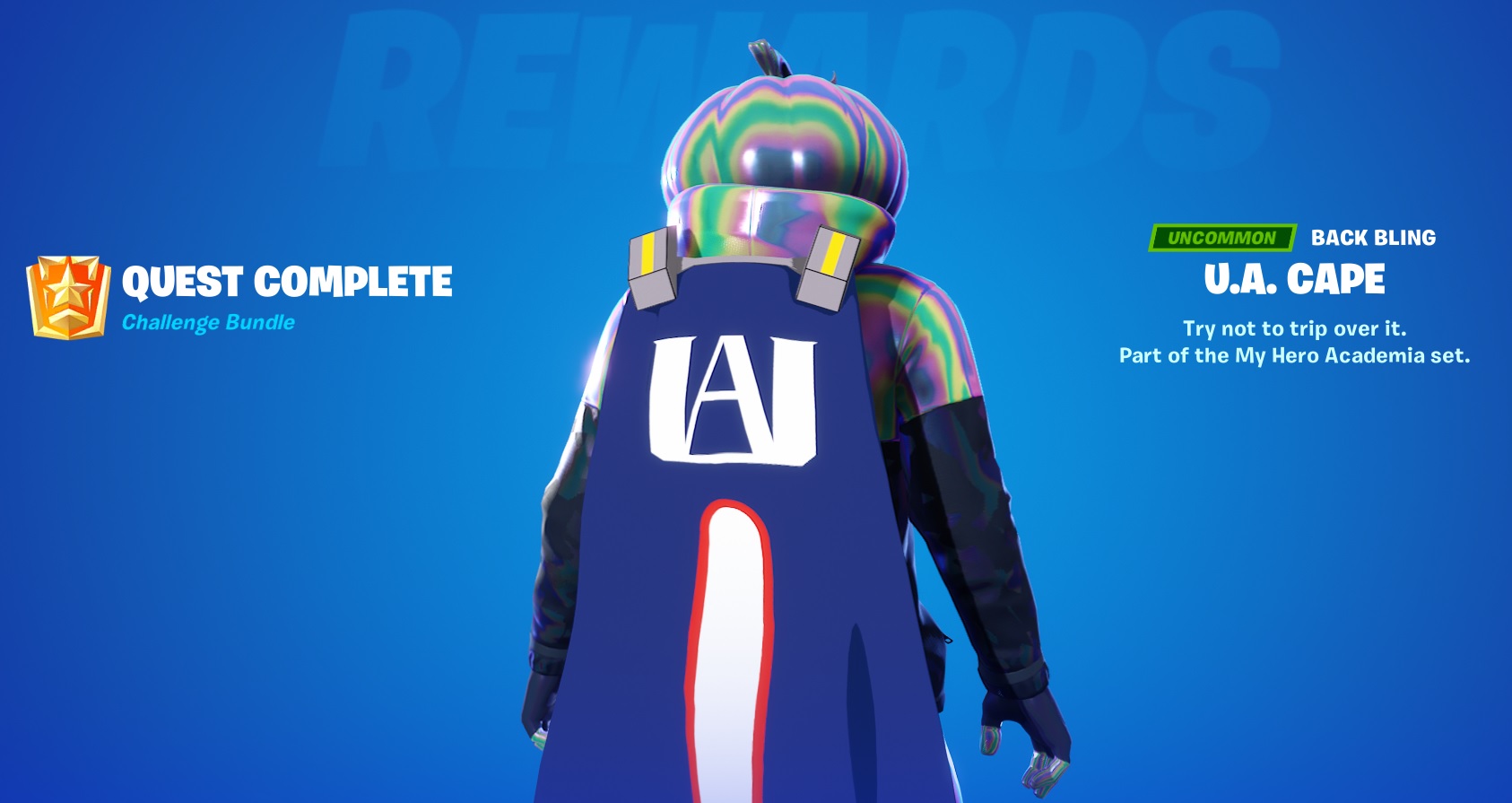
Well, not a great reward, would much prefer a skin or wrap but it all adds to the collection! have you collected ALL the Fortnite Characters Locations ??
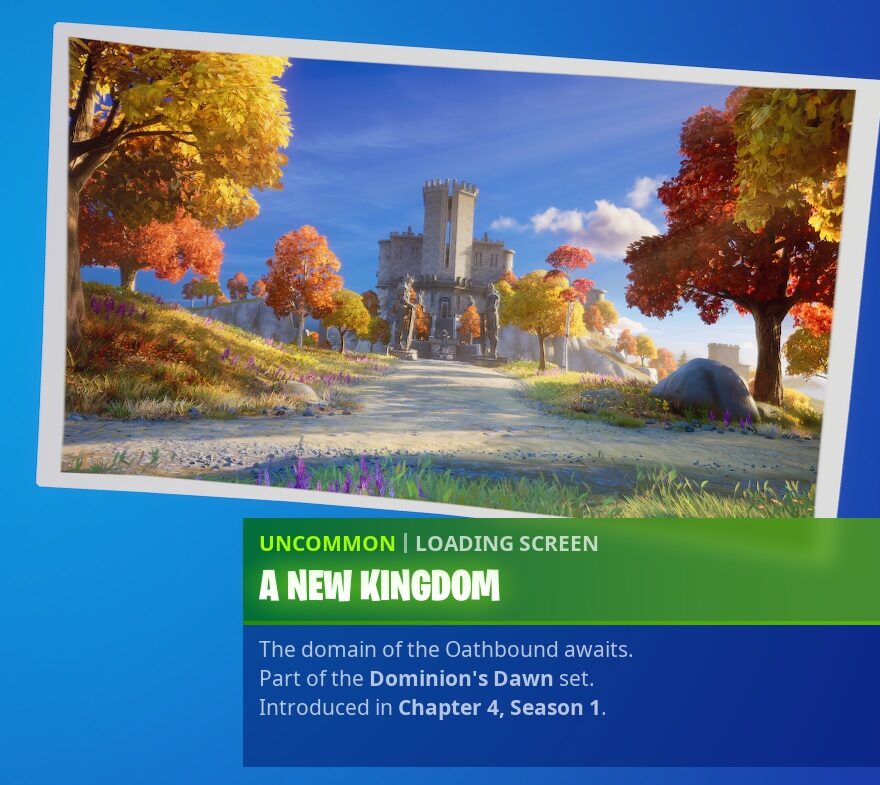
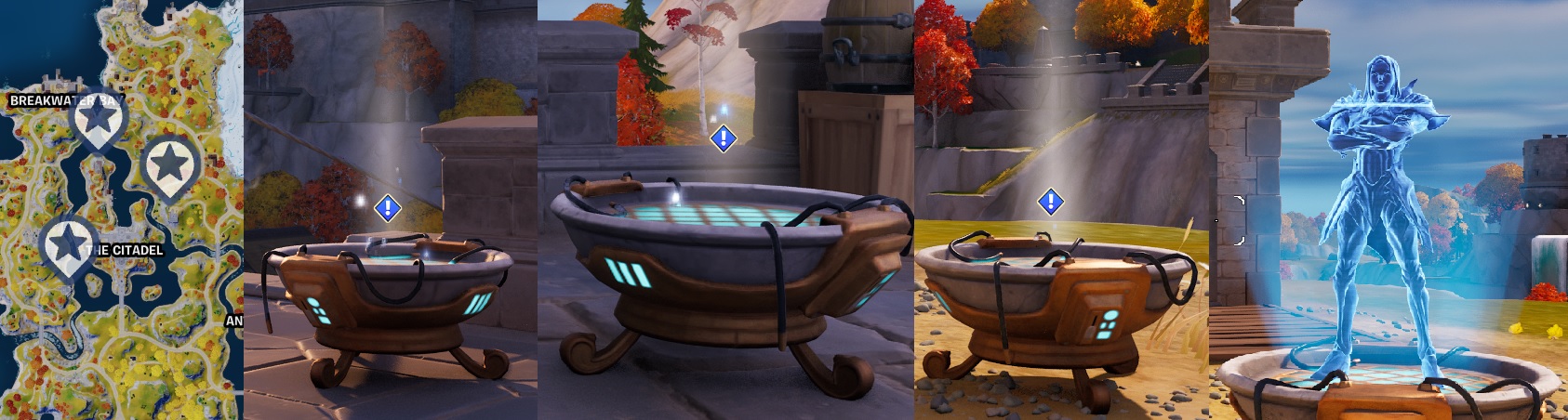
Oathbound Bonus Rewards – Part 3 – Stage 1 of 4 – Make Contact with Rift Warden Stellam at a Hologram Brazier
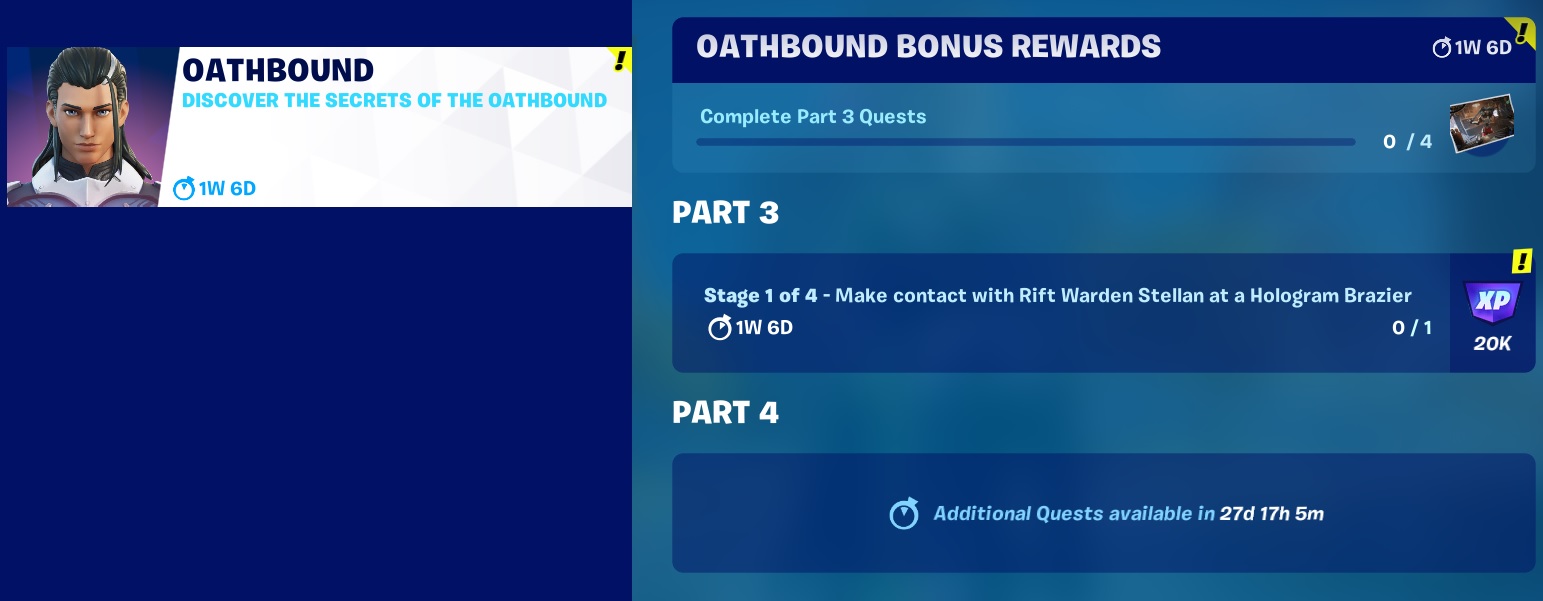
Wallpaper loading screen up for grabs this time, and another round of messages at the Hologram Brazier. Track the quest and check your map, 3 drop locations to choose from, drop at one and listen to the message
Oathbound Bonus Rewards – Part 3 – Stage 2 of 4 – Outfit The Citadel with tech equipment

You need to collect 2 bits of Tech equipment, they are Under the Stairs at the main entrance. Look to the side of the stairs and you will find a passageway, and an Oathbound chest sometimes, totaly hotspot so watch out!
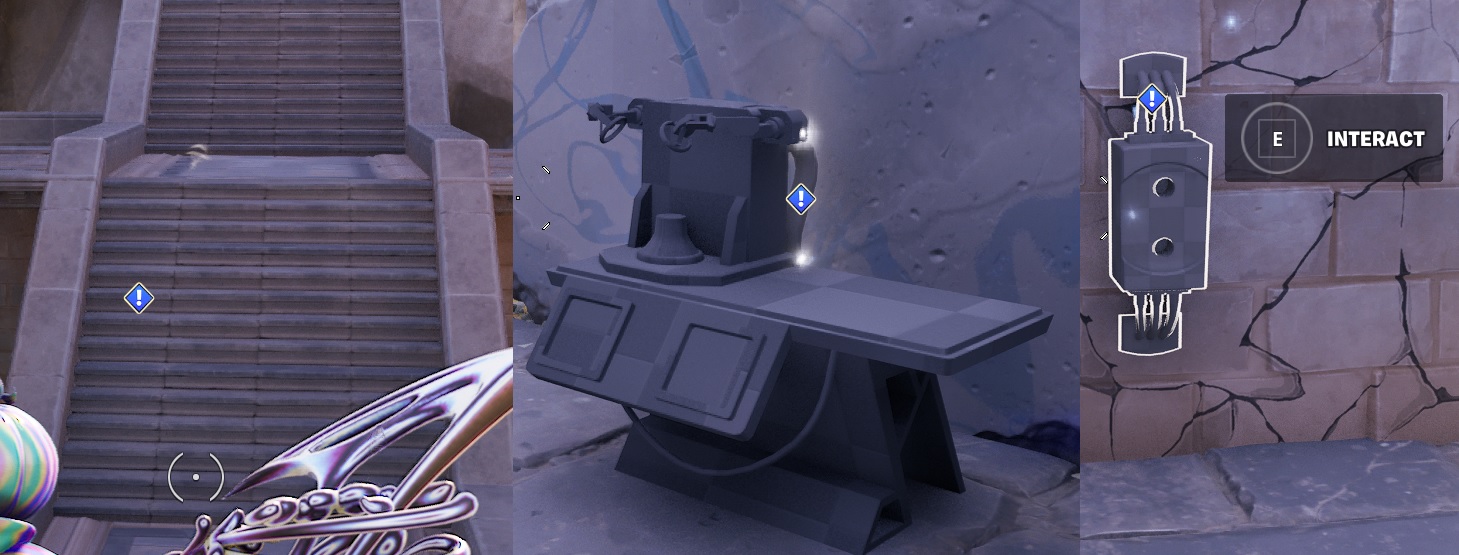
Oathbound Bonus Rewards – Part 3 – Stage 3 of 4 – Find a power plug

There are a 2 plugs around The Citadel, you may need to hunt around but they are not far.
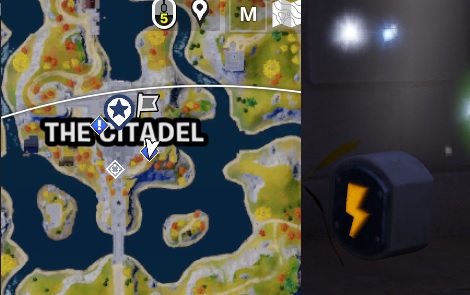
Oathbound Bonus Rewards – Part 3 – Stage 4 of 4 – Place the plug in the power socket

Back to the location under the front entrance main stairs. Interact to plug the plug in, BOOM, Part 3.1 done!
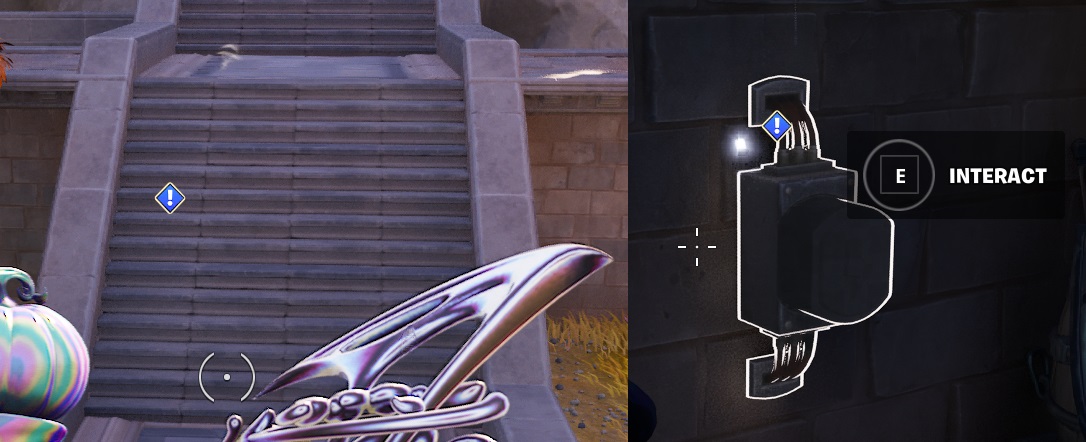
Oathbound Bonus Rewards – Part 3.1 – Stage 1 of 2 – Make Contact with the Rift Warden Stellam at a Hologram Brazier

Track the Quest and check the map, another 3 locations to choose from
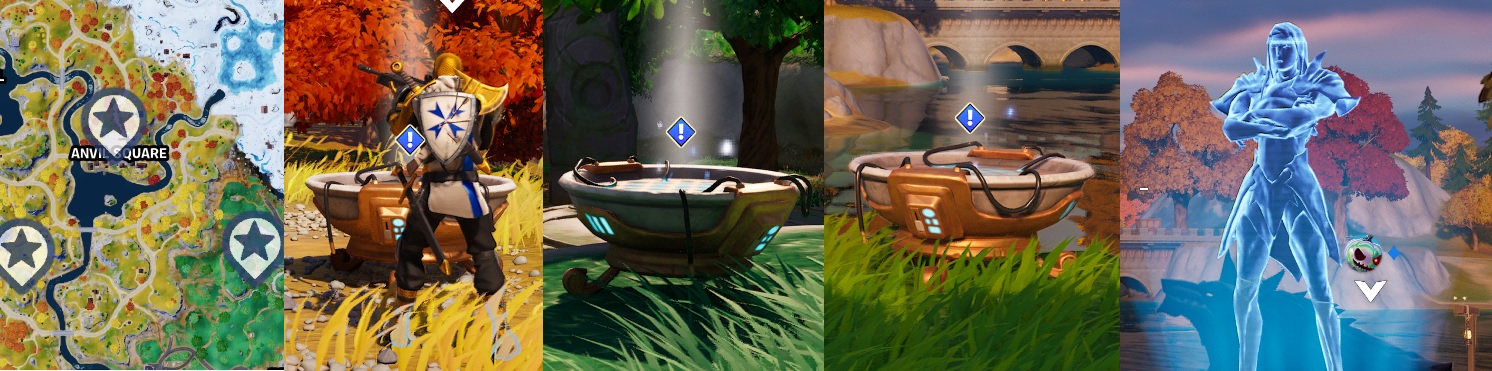
Oathbound Bonus Rewards – Part 3.1 – Stage 2 of 2 – Set up conduits at Brutal Bastion, Faulty Splits and Shattered Slabs

Little more interesting this one, travel to the 3 hot spots shown on the map, all out in the open and easy to spot, click on the conduits. They looks like Moisture vaporator on Tatooine

Oathbound Bonus Rewards – Part 3.2 – Stage 1 of 5 – Make Contact with Rift Warden Stellam at a Hologram Brazier

Another Brazier Quest, track the quest, check the map and pick a drop location. Nice drop location to grab the new Hired NPC Character

Oathbound Bonus Rewards – Part 3.2 – Stage 2 of 5 – Damage metal stuctures to collect alloy pieces

Find any metal structure, and use your harvesting tool. Eventualy some black ore should drop to the ground, pick up up fast, it wont stick around long, you have 5 to collect.
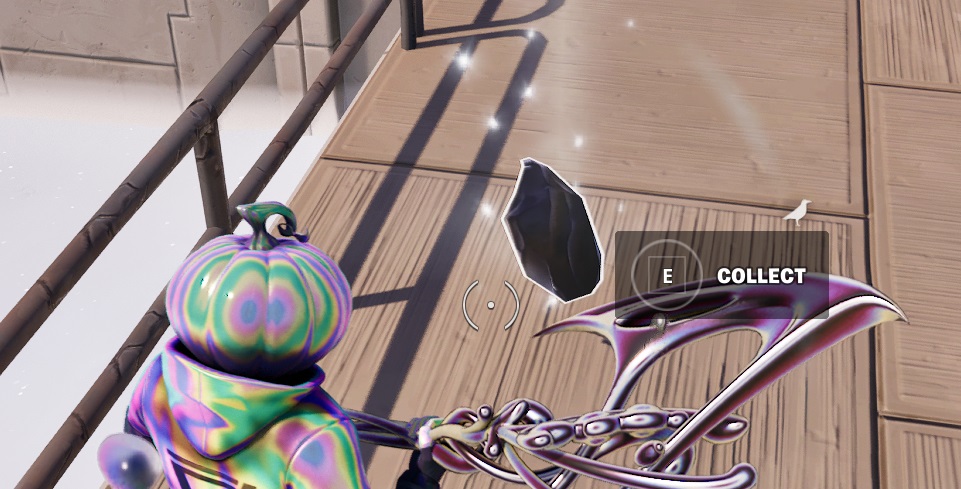
Oathbound Bonus Rewards – Part 3.2 – Stage 3 of 5 – Place the alloy in a Forge Brazier to heat the metal

You ahve 2 forge’s to choose from. Both at hot spots so good luck and be FAST, in and out. These few quest stages can be completed together in one match if you are fast. All parts are located in the Blacksmiths area.
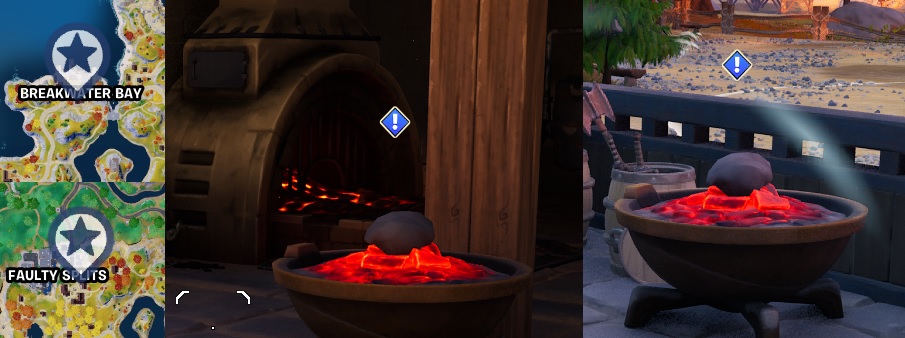
Oathbound Bonus Rewards – Part 3.2 – Stage 4 of 5 – Place the heated alloy on an anvil

Very close to the Forge, you should find an anvil, interact with it to complete the next stage
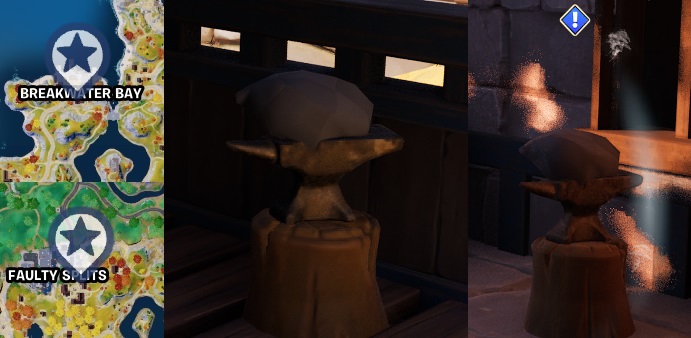
Oathbound Bonus Rewards – Part 3.2 – Stage 5 of 5 – Refine the alloy by hitting it with the harvesting tool

Give the Ore a wack with your harvesting tool, 5 times.

Oathbound Bonus Rewards – Part 3.3 – Stage 1 of 4 – make contact with AMIE at a Hologram Brazier

Find one of the locations and make contact, the status at the west locations looks cool
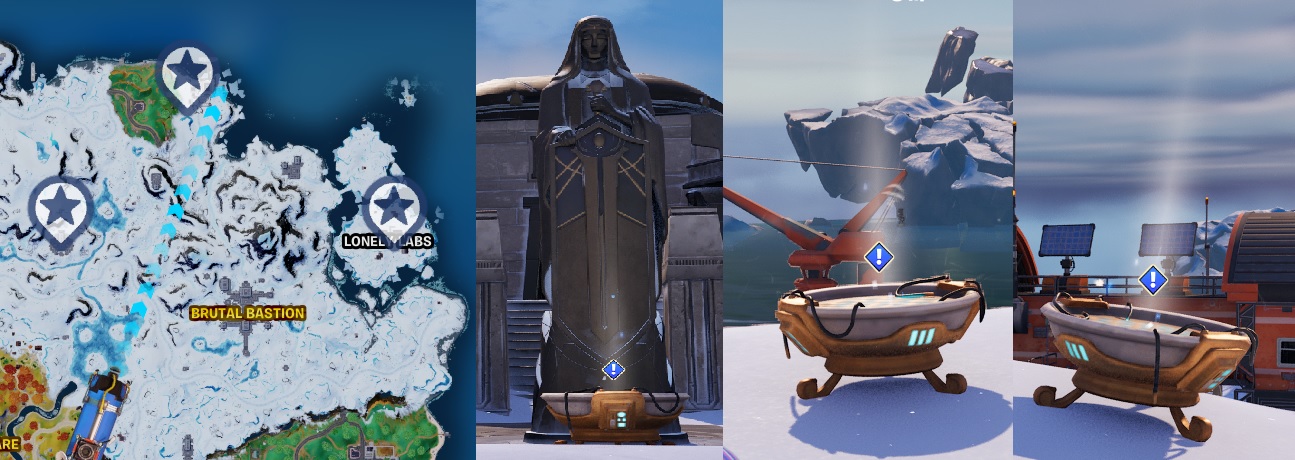
Oathbound Bonus Rewards – Part 3.3 – Stage 2 of 4 – Scan Players with a Falcon Scout and collect their schematic
Rebel, one of the new NPC Characters you can hire will help out here as she sells the Falcon scount for 250 gold. Check Fortnite Character Locations for the location

This quest is a little trickier, obtain a Falcon Scout, Hire Rebel is you can, find a hiding spot to launch the Scout. You need to find a player in close proximity and scan them, they should drop a Blue Print style plan, seems you can use the Falcon Scout to pick up the plans so you need to dismiss the Falcon Scout really quick and run over to collect it.
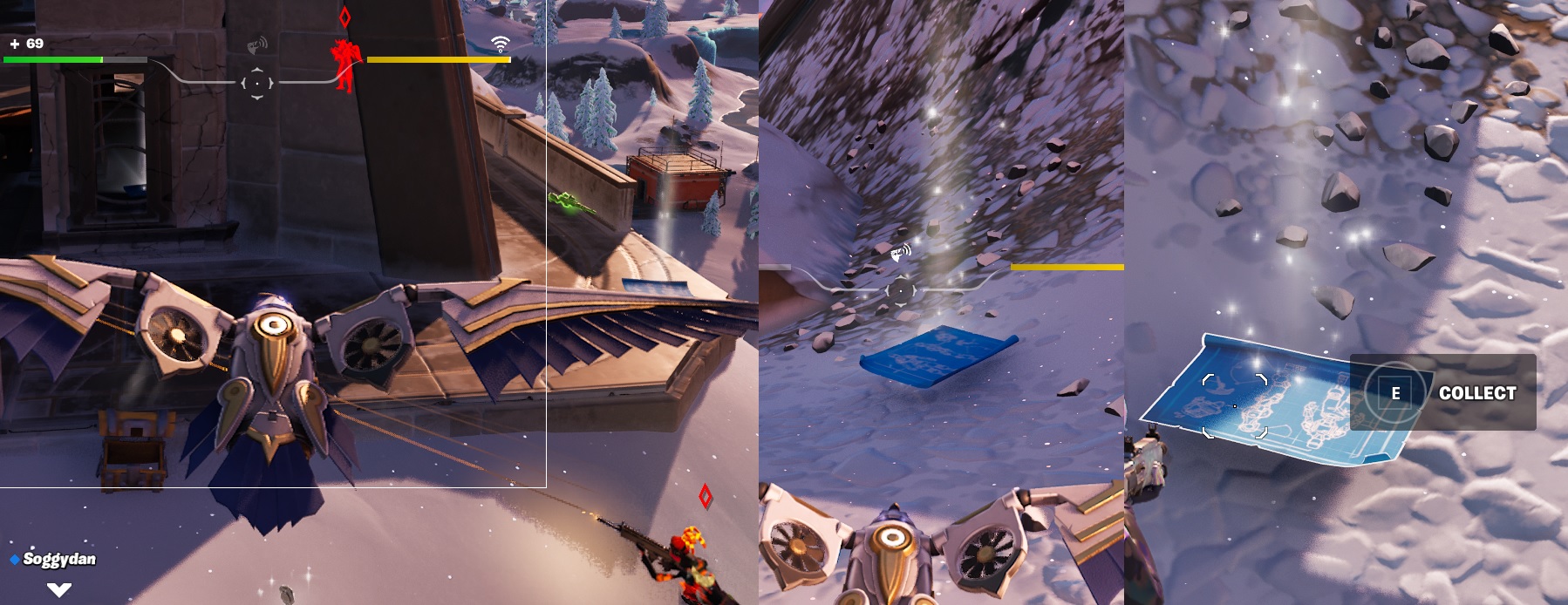
Oathbound Bonus Rewards – Part 3.3 – Stage 3 of 4 – Damage Guardian Shields and collect dropped micro chips

Slightly tricky this one, find a Guardian shield, more seem to be found in the medievil area of the map, deploy it and then shoot at it. Collect some chips that fall out.

Oathbound Bonus Rewards – Part 3.3 – Stage 4 of 4 – Activate AMIE’s body construction program

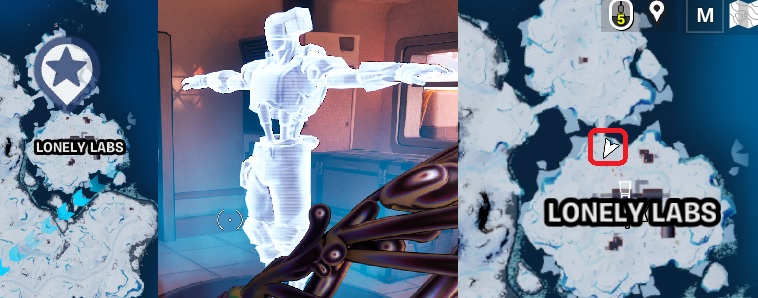
last stage of this quest line, drop in at Lonely Labs, thats not so Lonely anymore, its become a super hot spot since this quest, so be ready. The building you need is at the North side of the complex, in a small shack. Pop in and activete the floot panel.
Oathbound Bonus Rewards – Part 3 Completed!
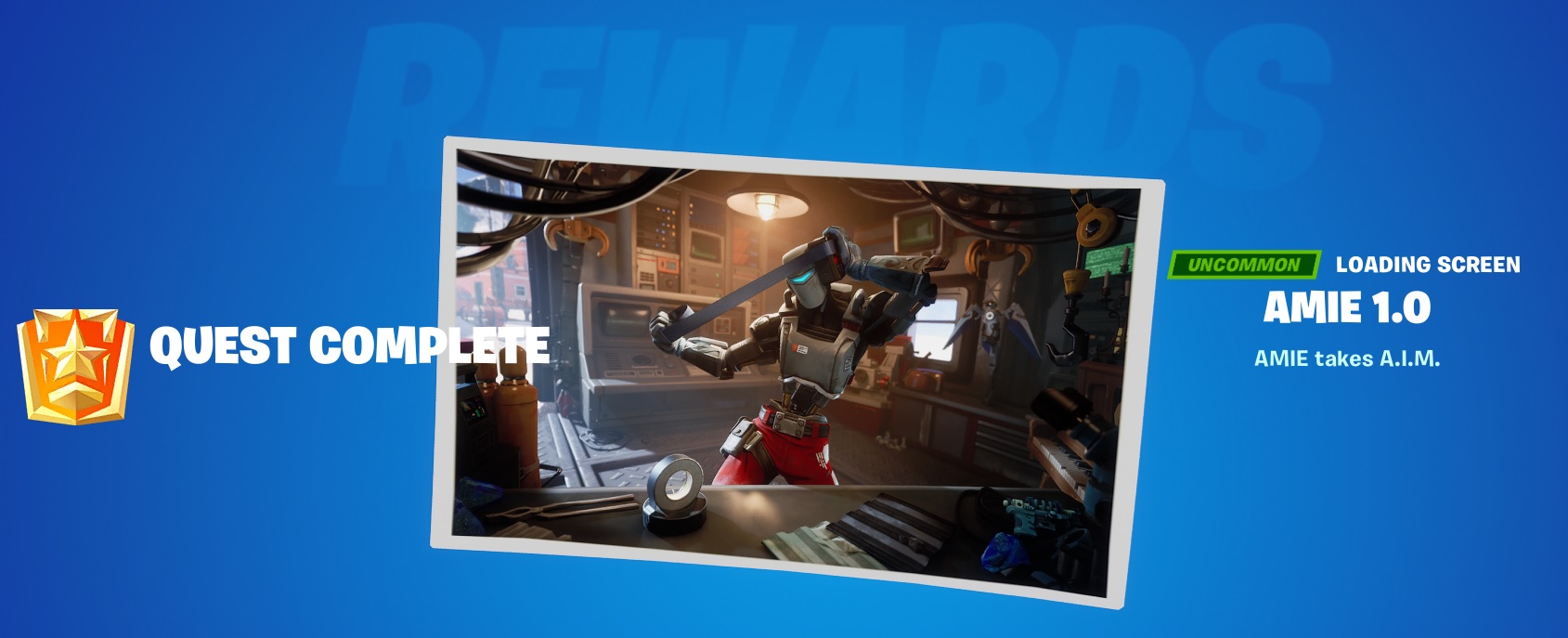
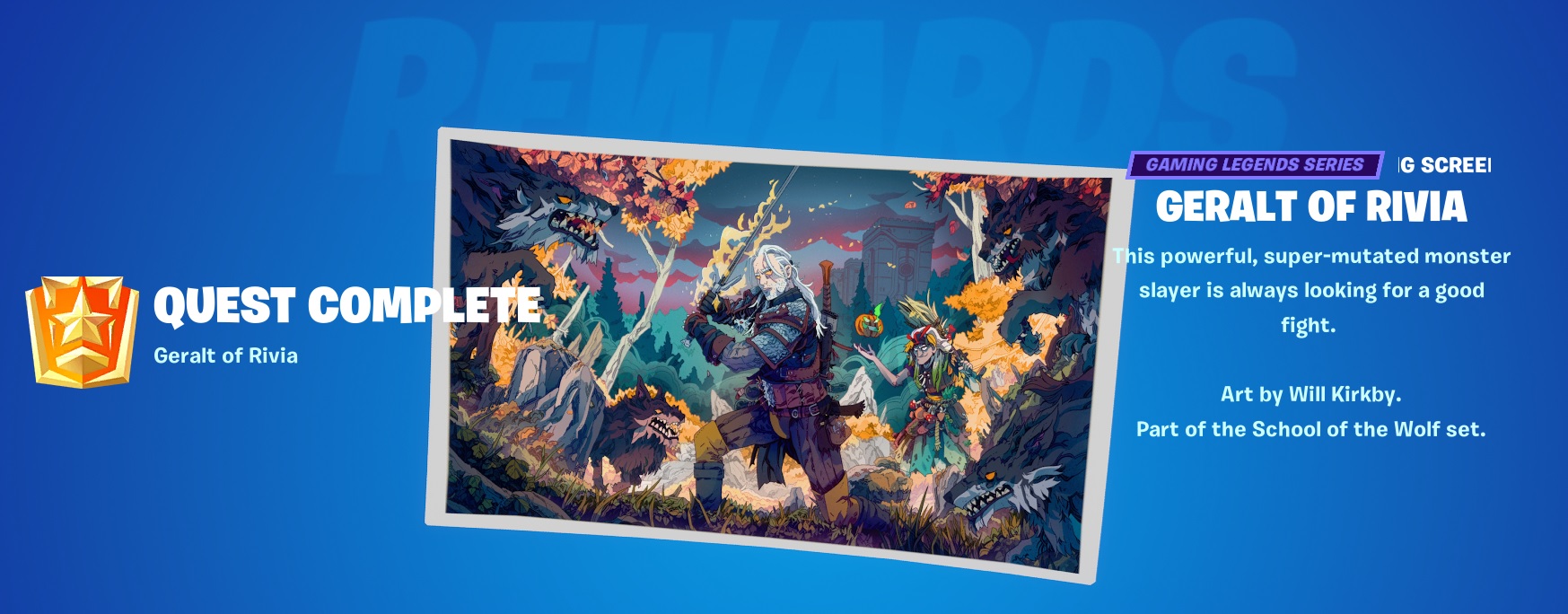
Another loading screen wallpaper thingy, pretty sweet laoding screen.
Oathbound Bonus Rewards – Part 4 – Stage 1 of 5 – Make Contact with Rift Warden Stellan
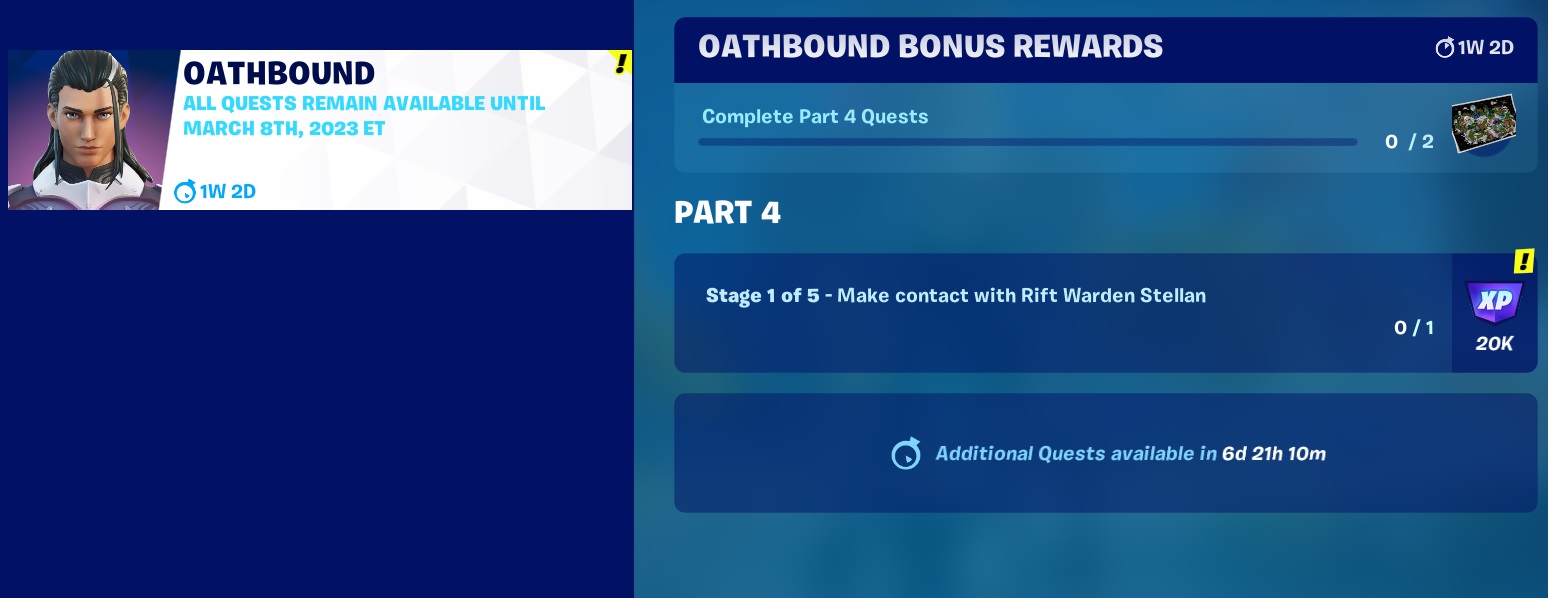
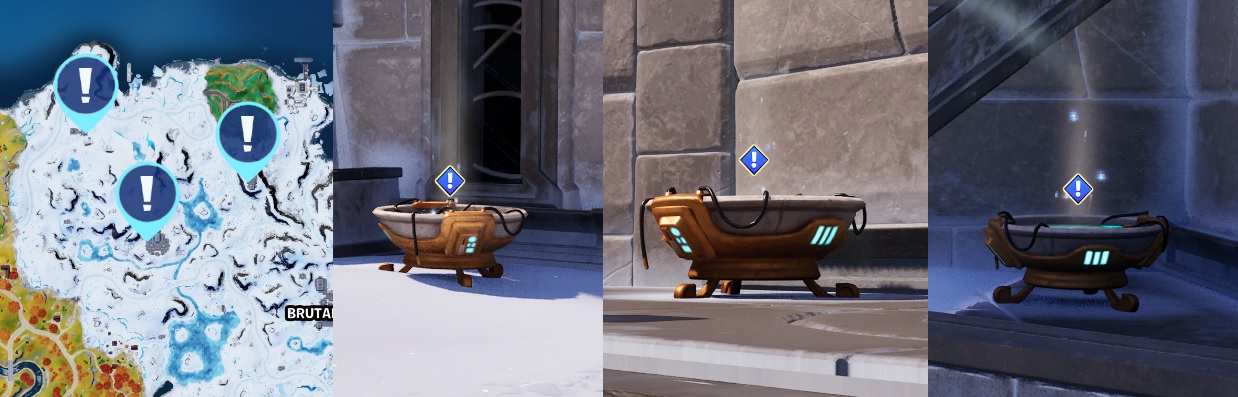
Another wallpaper loading screen up for grabs this time, and another round of messages at the Hologram Brazier. Track the quest and check your map, 3 drop locations to choose from, drop at one and listen to the message
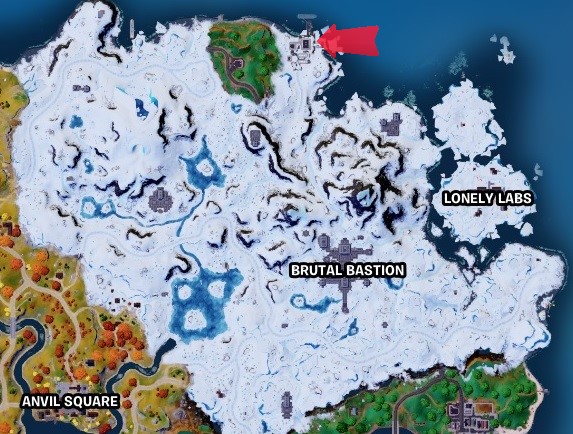
All locations are in the northern snow covered area, outside the stone structures.
Oathbound Bonus Rewards – Part 4 – Stage 2 of 5 – Start deciphering Rift gate coordinates

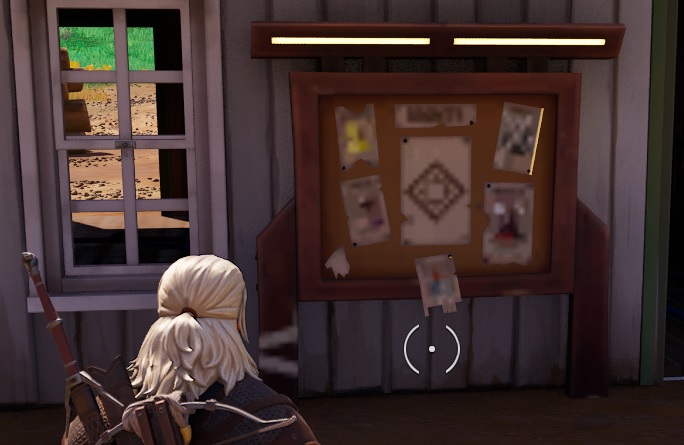
This is actualy INSIDE the snow cave. Your looking for a laptop on a desk. Access is either from north of south of the drop locations. You will find the NPC Snowheart at this location, along with the clock tower and Bounty Board.
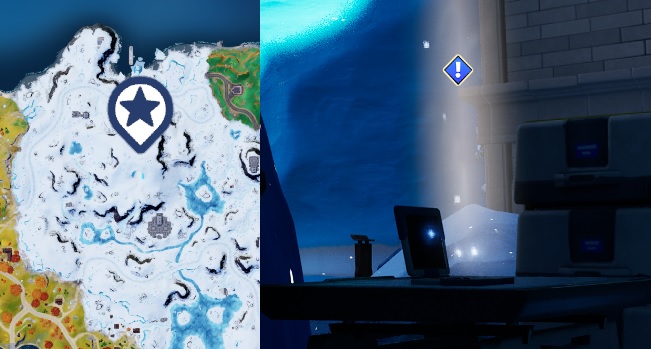
Oathbound Bonus Rewards – Part 4 – Stage 3 of 5 – Eliminate Players (3)

Oathbound Bonus Rewards – Part 4 – Stage 4 of 5 – Return to laptop to recieve Rift Gate coordinates

Back to the snow cave, find the laptop and get the coordinates
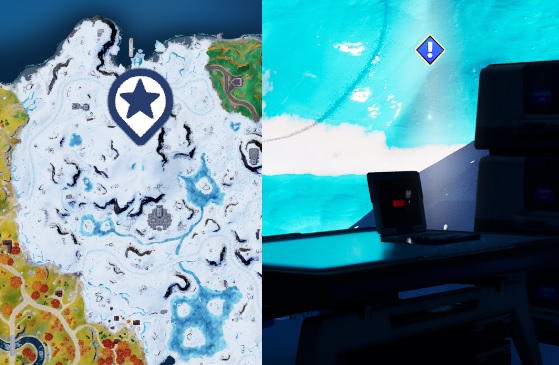
Oathbound Bonus Rewards – Part 4 – Stage 5 of 5 – Punch in coordinates at the Rift Gate Control Terminal

Head over to Lonley Labs to the northern red building, inside is the Control Terminal
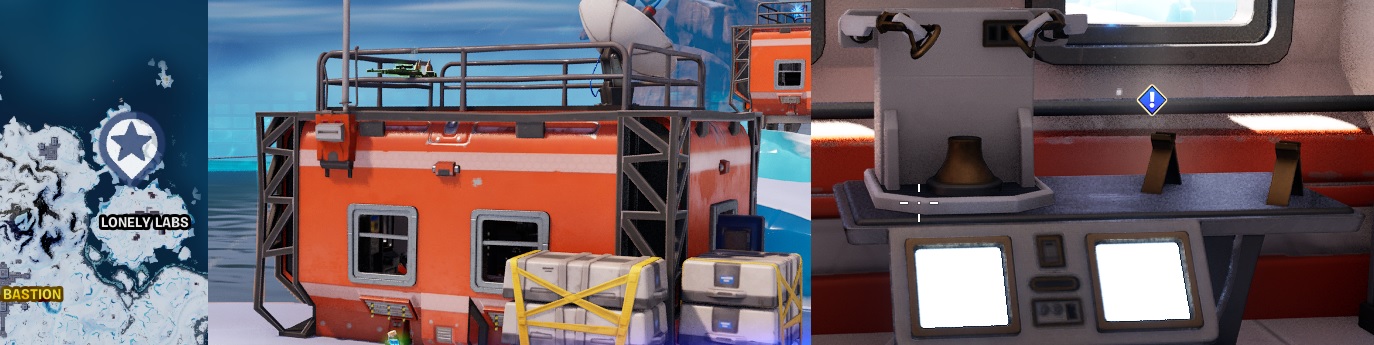
Oathbound Bonus Rewards – Part 4.1 – Stage 1 of 3 – Make Contact with Rift Warden Stellan

Pick one of the 3 locations to drop in at and listen to the message.
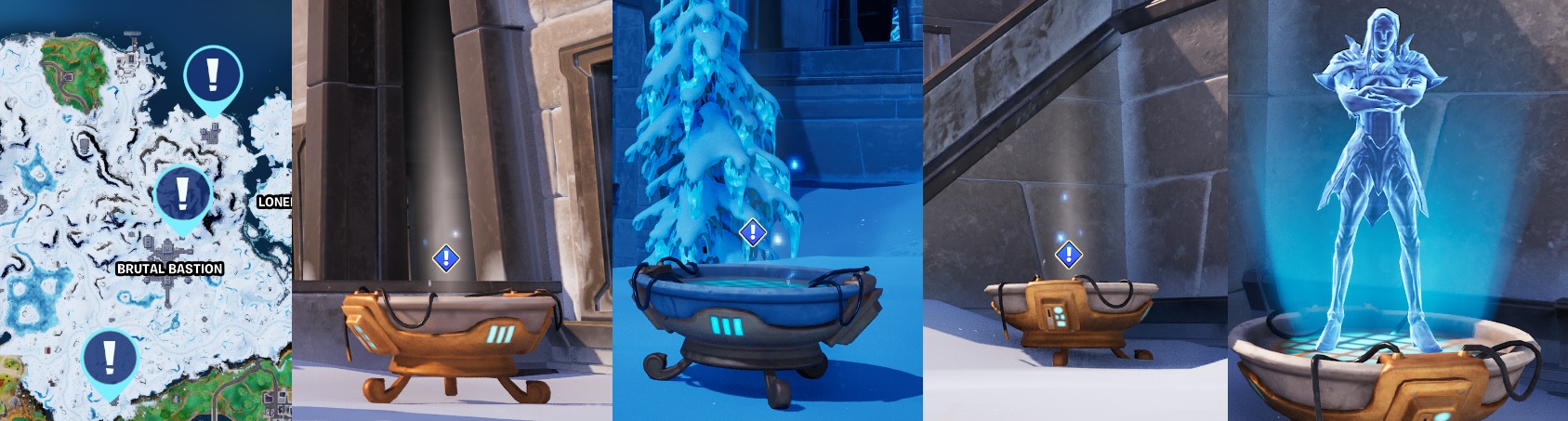
Oathbound Bonus Rewards – Part 4.1 – Stage 2 of 3 – Use the Rift Gate Control Terminal to open the Rift Gate

Back to Lonely Labs Outpost to get the next message
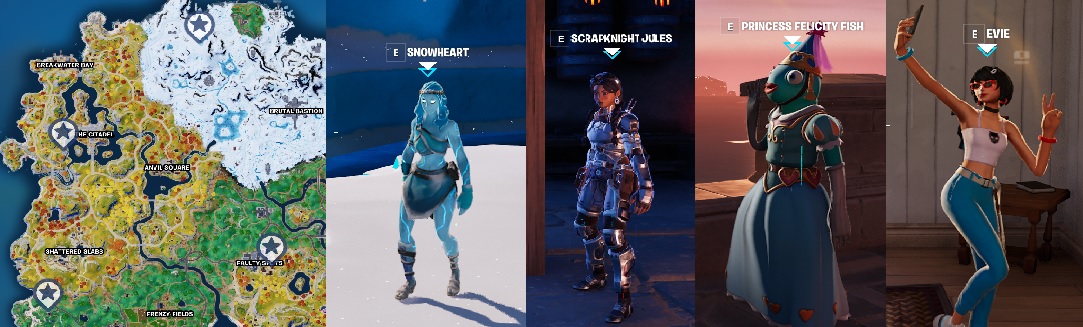
Oathbound Bonus Rewards – Part 4.1 – Stage 3 of 3 – Talk to Evie, Scrapnight Jules, Snowheart or Princess Felicity Fish

Speak to 2 of the Fortnite Characters to progress this stage
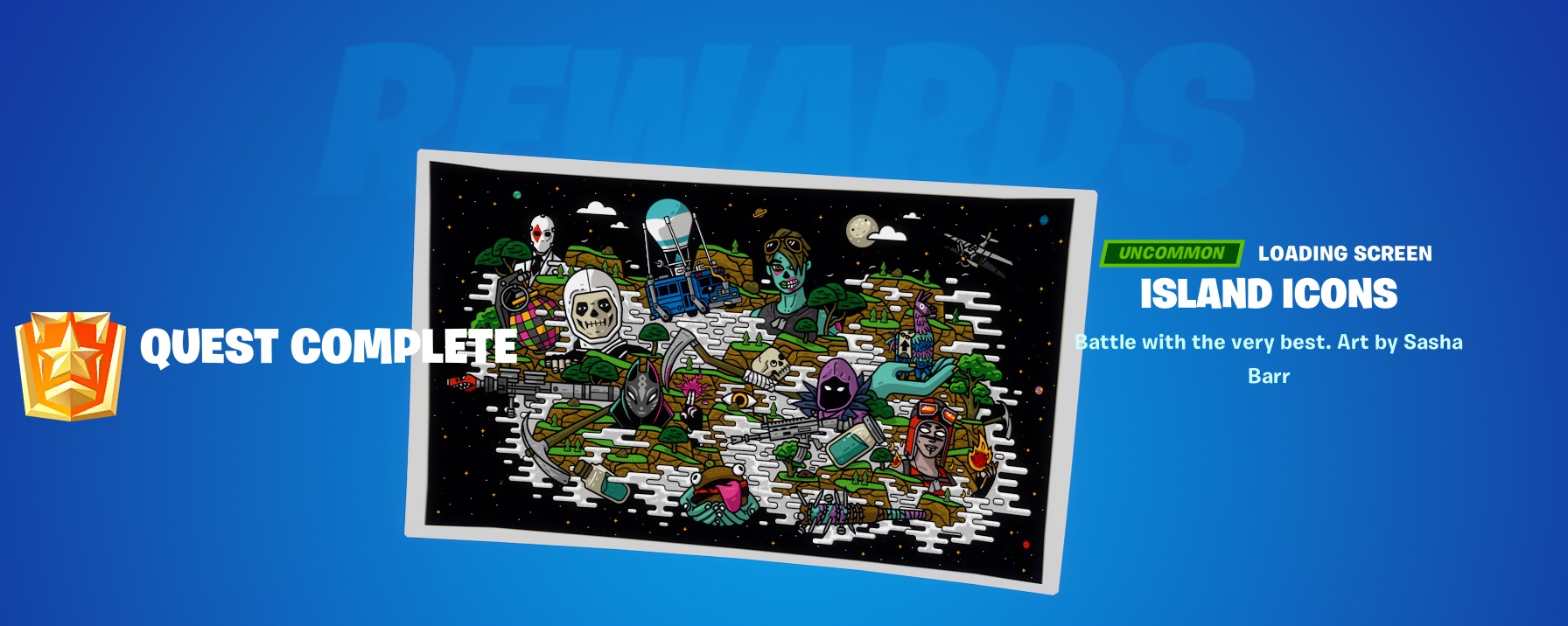
Oathbound Bonus Rewards – Part 4.1 Reward – Island Icons
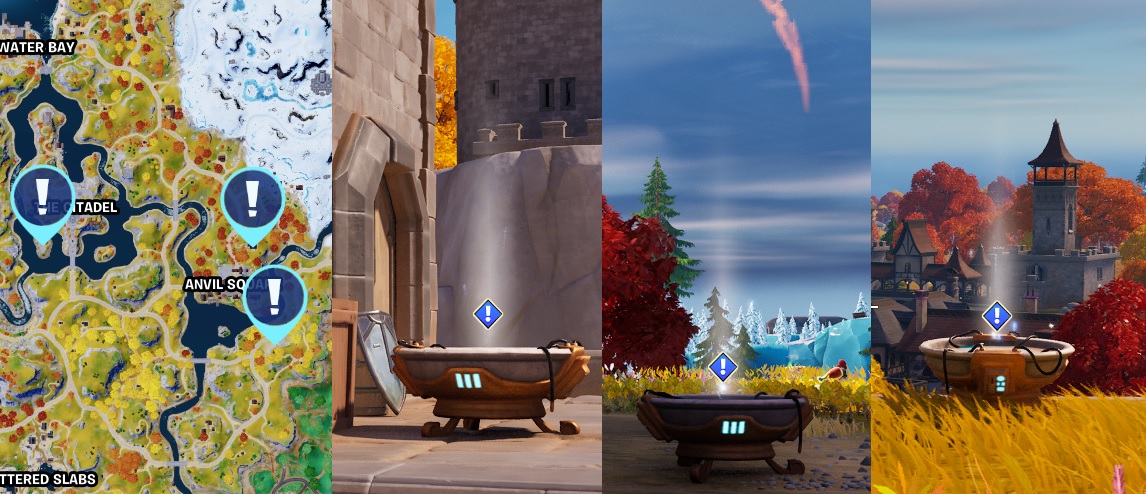
Oathbound Bonus Rewards – Part 4.2 – Stage 1 of 4 – Make Contact with Rift Warden Stellan

Another 3 locations to pick from, for easy completion head to the one on the hill, south of Anvil Square
Oathbound Bonus Rewards – Part 4.2 – Stage 2 of 4 – Damage Oathbound Chests to retrieve Hard Drives

Find any Oathbound chests on the Island, you will need to find 3 different ones. Damage them slightly with your pick axe (2 swings) and you will receive the Hard Drive. Will still work on closed and opened chests.
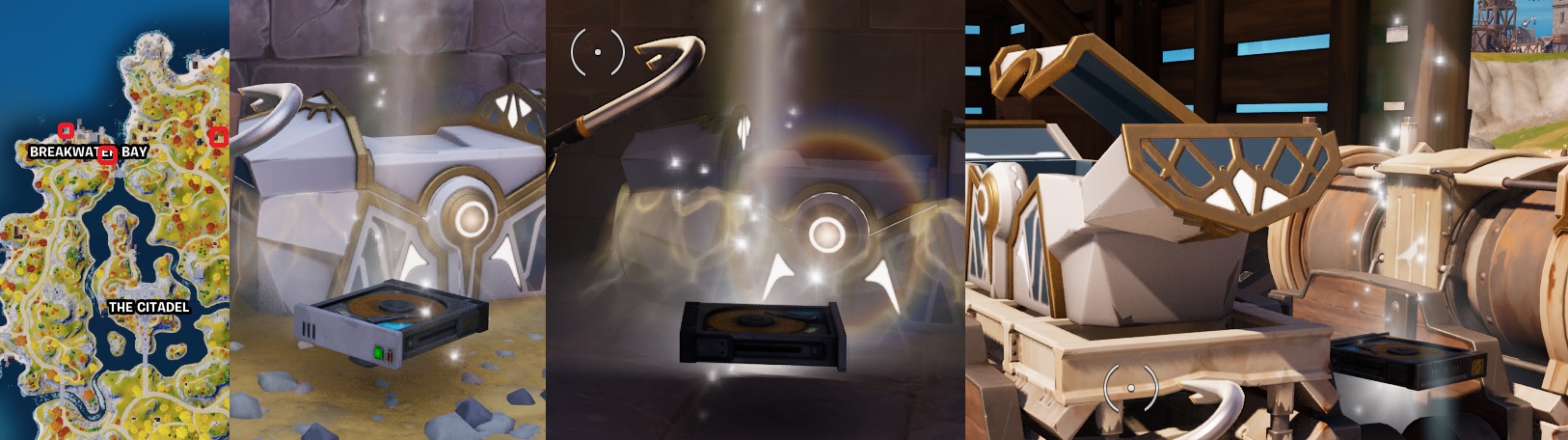
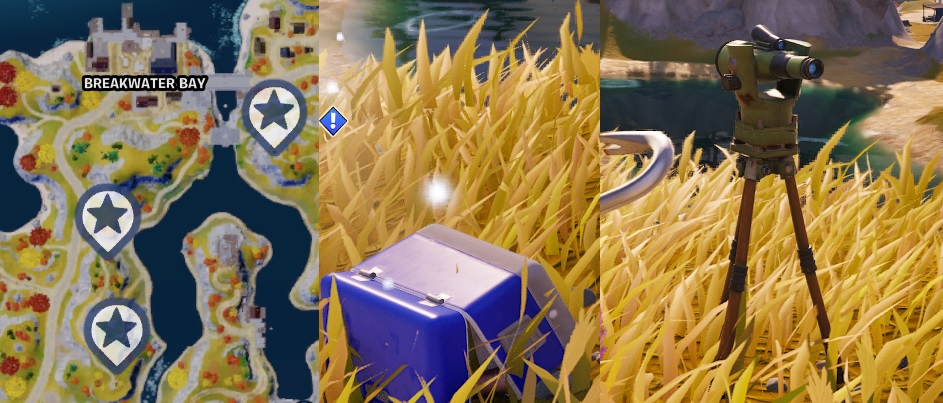
I went for the 3 Oathbound chest up at Breakwater Bay. One on the pier, one in the base of the bridge like tower and one up by the Hireable Character, Renegade Shadow
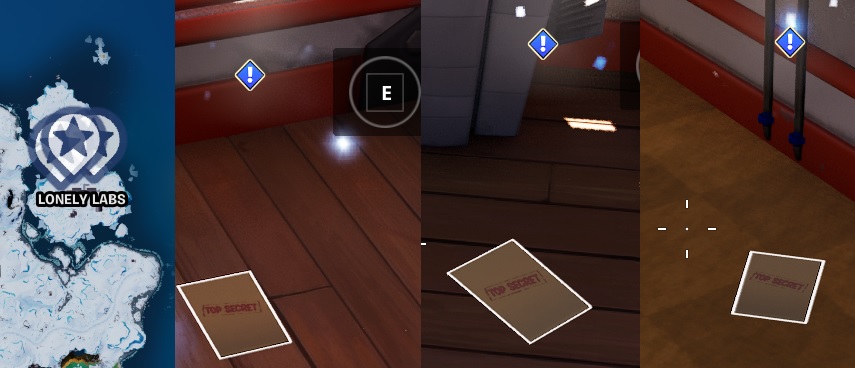
Oathbound Bonus Rewards – Part 4.2 – Stage 3 of 4 – Search papers at Lonely Labs

Head to Lonely Labs and in the Main Large Red Building, you will find the Top Secret papers on the floor.
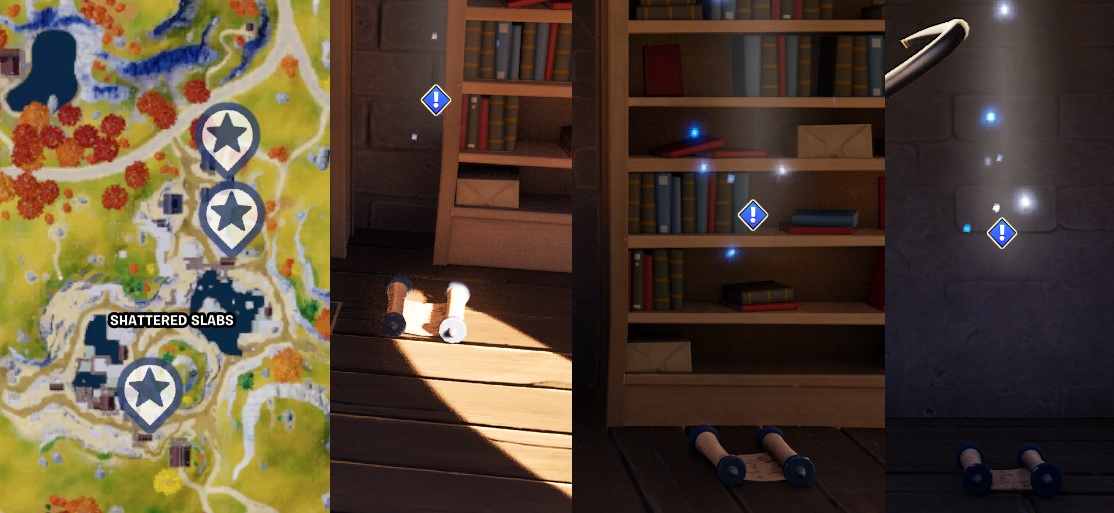
Oathbound Bonus Rewards – Part 4.2 – Stage 4 of 4 – Search for ancient text at Shattered Slabs

All the text scrolls can be found inside building at Shattered Slabs
Oathbound Bonus Rewards – Part 4.3 – Stage 1 of 3 – Make Contact with Rift Warden Stellan

Great bit of sight seeing on this quest, but more of the same, more making contact
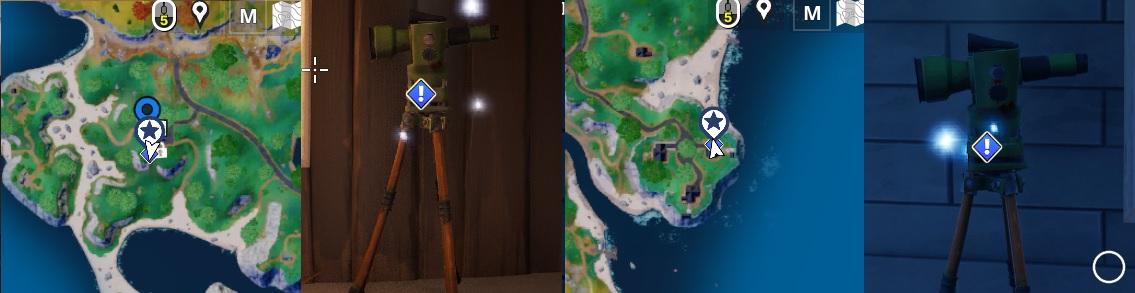
Oathbound Bonus Rewards – Part 4.3 – Stage 2 of 3 – Find a Telescope

Two locations to select from, either will work just fine. The East most location has the NPC Character, Evie. She has the Shadow Tracker (Exotic) and will sell you a Rift for a quick trip to get back inside the circle
Oathbound Bonus Rewards – Part 4.3 – Stage 3 of 3 – Clear debris and place telescope

Clear the logs and place the Telescope.
Conclusion
Well, over all the longest quest i have covered in Fortnite, it felt like it wnet on all season LOL.
Pros
- Great story line
- Visited areas i would have not normlay visited
Cons
- Poor Rewards
- Ending was a disapointment with no final reward
Some other Fortnite Guides to help you get Cracked
- How to Enable Fortnite 2FA
- How to Get FREE V-Bucks in Fortnite
- FREE Fortnite Battle Pass
- Default Fortnite KeyBinds
- Best Fortnite Keybinds
- All 150 Keybinds listed Key
- Fortnite Map Locations
- Fortnite Quest Locations
- Fortnite Characters Locations
- Fortnite Fish Locations
- Fortnite Hints, Tips and Tricks
- Fortnite Game Tactics, Old and New
- Fortnite Game Exploits or Bugs
- Fortnite Game Phrases


























You must be logged in to post a comment.