Online Game Commands
PC Gaming, Software, Hardware, Reviews and Guides
  • Fantasy MMORPG
    • Age of Conan: Unchained
      • Short Cut Hot keys
      • Slash Commands
      • Emotes
    • Dark Age of Camelot
      • Action Commands
      • Alliance Commands
      • Battle Group Commands
      • Boat Commands
      • Card Game Commands
      • Chat Commands
      • Emotes
      • Fighting / Defensive Commands
      • General Command
      • Group Commands
      • Guild Commands
      • Help Commands
      • Horse Commands
      • Housing Commands
      • PvP Commands
      • Quest Commands
      • Settings & Preferences
      • Siege Weapon Commands
    • EverQuest
      • Abbreviations
      • Alternate Advancement Abilities + Codes
      • Chat Channels
      • Class Titles
      • Console Slash Commands
      • Emotes
      • Haste Buffs
      • Haste Info
      • Leader officer Raid Commands
      • Lost Dungeons of Norrath – Merchant Locations
      • Macros / Scripts
      • Permanent Haste Items
      • Short Cut Hot Keys
      • Tweaks
    • EverQuest 2
      • Chat & Chat Channels
      • Emotes & Moods
      • Group / Guild / Raid Commands
      • Interface Commands
      • Macros
      • Slash Commands
      • Targeting and Movement Commands
      • Character Appearance
      • Combat Commands
      • Pet and Mercenary commands
      • Video/Graphical Display Commands/Settings
    • Final Fantasy XI
      • Chat Commands
      • Combat Commands
      • Emotes / Actions
      • General Commands
      • Macro Commands
      • Main Menu Commands
      • Party / Alliance Commands
      • Search Commands
      • Short Cut Keys
      • System Commands
    • Final Fantasy XIV Online
      • Emotes
      • Slash Commands
      • Targeting Commands
      • Facial Expression Emotes
    • Guild Wars
      • Emotes
      • Slash Commands
    • Guild Wars 2
      • Emotes
      • Slash Commands
    • Lineage 2
      • Chat Commands
      • Macro’s & Macro Commands
      • Short Cut Hot Keys
      • Slash Commands
      • Socials & Emotes
    • Ragnarok Online
      • Camera Controls
      • Emotes
      • Shortcut Keys
      • Slash Commands
    • Ultima Online
      • Boat and Ferry Commands
      • Chat Commands
      • Commands
      • Factions
      • Hireling Commands
      • Houses
      • Named NPC Commands
      • NPC Commands
      • Pets
      • Short Cut Hot keys
      • Shrines / Karma
      • Tweaks
      • Vendor Commands
    • World of Warcraft
      • Chat Commands
      • Combat Commands
      • Emotes
      • Group Leader Commands
      • Guild Commands
      • Shortcut Keys
      • Slash Commands
      • Voice Emotes
      • Lesser Arcanum of Constitution Quest Guide
        • Night Dragons Breath Quest Guide
        • Lung Juice Cocktail Quest Guide
      • Lord of the Rings meets World of WarCraft
  • SCI-FI GAMES
    • Anarchy Online
      • Help, Pet, System and Team Commands
      • Voice Commands
      • Organisation Commands
      • Keyboard Commands
      • Chat Commands
    • Eve Online
      • Chat Channel Commands
      • Drone Commands
      • General Slash Commands
      • Module Commands
      • Movement Commands
      • Navigation Commands
      • Window Commands
    • Planetside 2
      • Chat and General Commands
      • Commander Outfit Platoon and Squad Management
    • Skyforge
      • F key Keyboard Emotes
  • Battle Royale Games
    • Fortnite
      • 2FA Guide
      • All 150 Fortnite Keybinds
      • Best Fortnite Keybinds
      • Characters Locations (NPC’s)
      • Default PC Fortnite Keybinds
      • Events
        • Easter Event
        • Summer Event
        • Fortnite’s 5th Birthday Event
        • Halloween Event
        • Christmas Winterfest Event
      • Fish Locations
      • How to Get FREE V-Bucks
      • Free Fortnite Battle Pass
        • Battle Pass – Rewards
      • Locations
        • Gas Stations & Pumps
        • Gas Stations Locations
        • Whiplash Locations
      • Quests
        • Capture Points
        • Geyser Locations
        • Hide in a Giant Snowball
        • Search Cash Registers
        • Search Ice Machines or Cash Registers at Gas Stations
        • Search Produce Boxes
        • Travel in Whiplashes
      • Tips and Tricks
        • How to Regrow Your Reality Saplings Fruit
    • PUBG
      • Best PUBG Graphics Settings – 51 FPS Boost
      • Best PUBG Keyboard Controls
      • Default PUBG Keyboard Controls
      • FREE PUBG Skins Outfits
      • Change the PUBG Keyboard Controls
  • Gaming Hardware
    • CPU
    • GPU
      • Best Budget Graphics Cards for Gaming in 2021

Fortnite

FREE Fortnite Battle Pass (2026) V-Bucks Price Increase!

Soggydan Fortnite, Fortnite Battle Pass, Free VBucks 9 March 2026

This is a in-direct price increase as they ahve actualy reduced the number of V-Bucks but kept the price the same!

Getting a Free Fortnite Battle Pass in Fortnite is totally possible, and when I say FREE, I mean totally FREE! No local currency spent, no $$$ or £££ parted with. Its a long term project so you have to be patient and wait for a while.

If you’re interested in How to Get FREE V-Bucks in Fortnite check out my other guide or perhaps the Fortnite Battle Pass Rewards???

I am ignoring any other ways you may have received V-Bucks for the Fortnite Battle pass

  • Special Events
  • Prize Draws
  • Lotteries
  • Influencer give aways
  • Crazy YouTube Free codes that never work

This is the sure way of getting a Battle Pass and you are guaranteed to get it at the end! It’s the way I get my Battle pass!

How much is Fortnite’s Battle Pass in 2026?

The Battle Pass will now cost 800 V-Bucks and award 800 V-Bucks for completing it. Previously it cost 1,000 V-Bucks and you could earn 1,000 V-Bucks plus 500 in the Bonus Rewards.

V-Bucks Pack Tiers


Pack
PreviousNewWith Epic Rewards*
$8.99 Pack1,000 V-Bucks800 V-Bucks+$1.79 back
$22.99 Pack2,800 V-Bucks2,400 V-Bucks+$4.59 back
$36.99 Pack5,000 V-Bucks4,500 V-Bucks+$7.39 back
$89.99 Pack
13,500 V-Bucks
12,500 V-Bucks+$17.99 back
Exact Amount Pack~$0.50* for 50 V-Bucks$0.99* for 50 V-Bucks

But if you follow the guide below you can get some V-Bucks totally FREE!

How long does Fortnite Battle Pass last for?

The Fortnite Battle Pass last for the entire Season you buy the Battle Pass in, this is normally 70 – 100 Days depending on the Season. I would recommend buying the Battle Pass right at the beginning of the season so you make full use of all the items.

However, this doesn’t mean you can’t get it half way in as you will have your Battle Stars banked and you can just start unlocking items and skins as soon as you get the pass.

The Battle Pass is NOT a monthly subscription, its a one of purchase for the Season (like a Season Ticket), the season could cover 3 months. You could call it a quarterly subscription.

The Pass will expire at the end of the Season you are in, not matter when it was purchased.

Do I need Fortnite Battle Pass?

Need is a strong word here, you don’t neeeeeed a Battle Pass but if you want the coolest skins, best back bling’s, sweetest harvesting tools then you’re going to want the Battle Pass.

I would recommend you read my How to get Free V-Bucks Guide, this will also help you out a lot before progressing onto this guide. And also, my Fortnite Quest Guides as this will help you level faster.

I have been doing this for a few chapters now and as long as you stay active on Fortnite you will have a Free Battle Pass.  I am going to explain how I have achieved this so you can too. It does take a while, but if you love playing Fortnite but don’t have the $$$ for a Battle Pass, keep reading…

With Chapter 4 Season 2 just started i ahve 1900 V-Bucks from the last seasons rewards. I normaly level to 100 then buy the seasons Battle Pass so i can show you the FREE 300 V-bucks on each season.
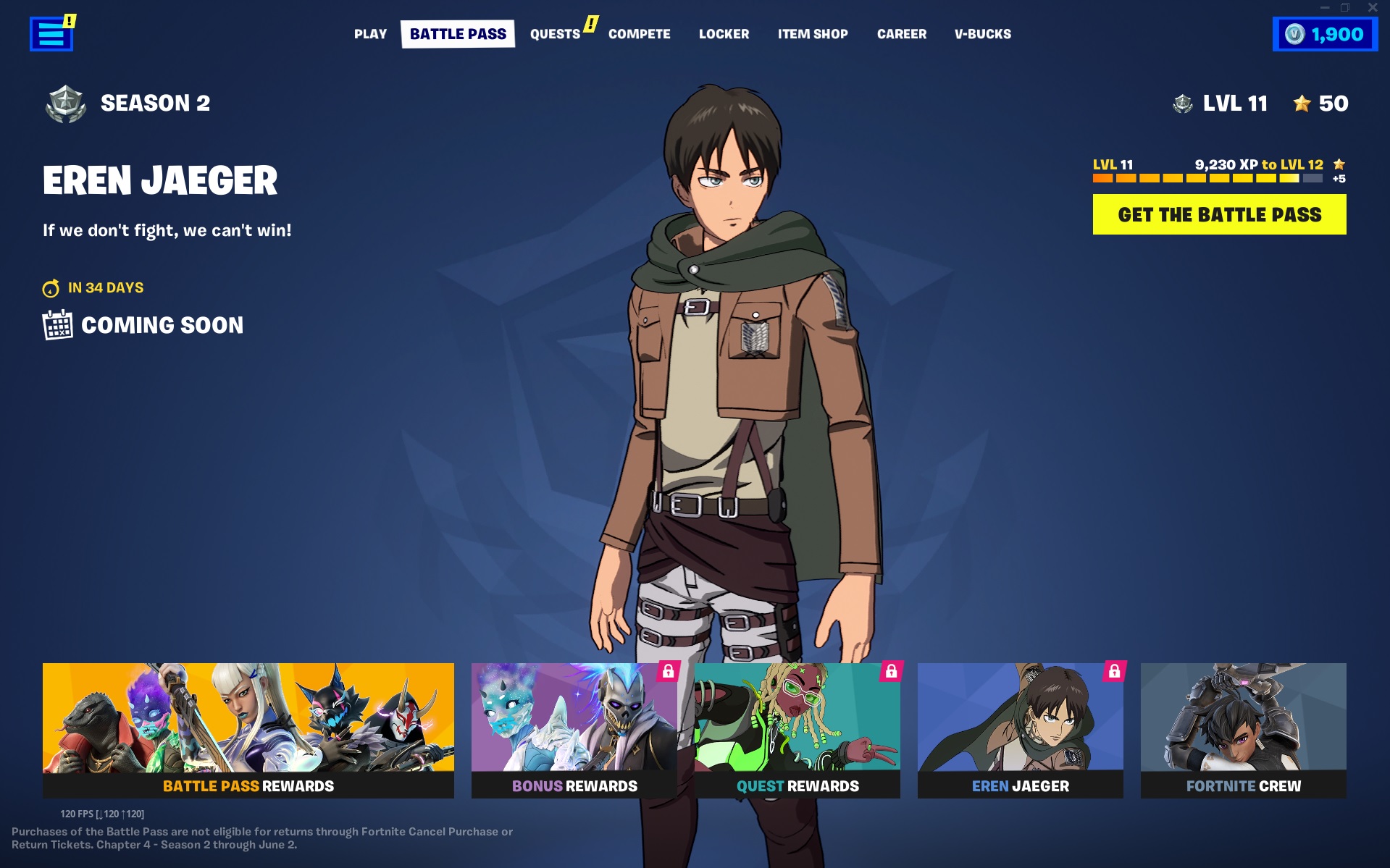
Free Fortnite Battle Pass - Chapter 4 Season 2
Free Fortnite Battle Pass – Chapter 4 Season 2

How long with it take to get a Free Fortnite Battle Pass

If you want the Totally Free Battle Pass then it’s going to take you 3 Season and 20 Levels before you see all those amazing FREE Fortnite Skins for ever (did I mention you need to keep playing), but it’s going to be totally worth it. Sounds like a long time but “time fly’s when you’re having fun”

You should also read my Fortnite Quest Guides,  these will help you level as fast as possible.

How to Get a FREE Fortnite Battle Pass in 2026

Once you have read my Free V-Bucks Guide then you have an idea of what you will need to achieve. This is based on the idea you have an account with no V-Bucks and you’re starting off from Zero.

If you have a few V-Bucks from already completed Chapters then you have already started your journey to Free Battle Pass

It’s also assume you have some self-control and won’t spend the V-Bucks as you earn them, lol

  • Your First Season – Level best you can to level 100 and collect 300 V-bucks as per my Free V-Bucks Guide. 300 V-Bucks banked
  • Your Second Season – Level best you can to level 100 and collect another 300 V-bucks as per my Free V-Bucks Guide. 600 V-Bucks banked
  • Your Third Season – Level best you can to level 100 and collect another 300 V-bucks as per my Free V-Bucks Guide. 900 V-Bucks banked
  • On your Fourth Season – Level to 20 for another 100 V-Bucks banked and you now have 1000 V-Bucks and it’s time to Buy that Battle Pass.

Buying the Battle Pass with my 1000 FREE V-Bucks

Yes, it takes 9 months to get the FREE Battle Pass, but as a casual player that plays other games (OMG) or that may not have the funds for the Battle Pass this could be an alternative.

After reaching level 20 (I was 76 by the time I got round to buying it lol), I had my FREE V-bucks, it was time to go shopping!
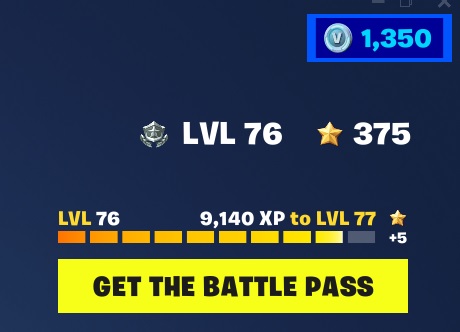
Totaly FREE Fortnite V-bucks from Chapter 3

This is the 3rd FREE Battle pass I have purchased as once you have V-Buck for one Battle Pass, you can earn enough V-Bucks in that season to buy next Season Battle Pass. You just need to be careful with your spending

How to Buy the Fortnite Battle Pass

Click on the GET THE BATTLE PASS in the top right of the main menu, as show in the pic above.

  • Click on BUY BATTLE PASS, 950 V-Bucks,
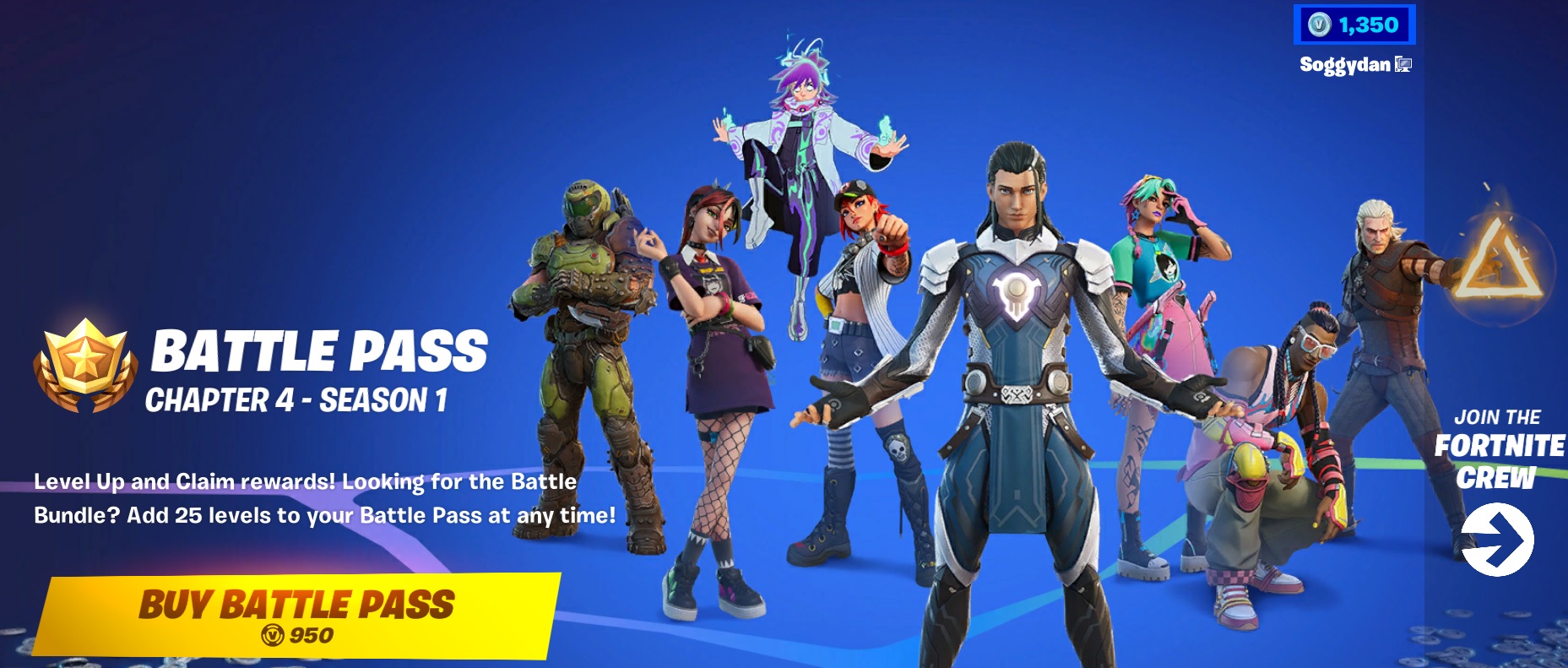
Fortnite - Buy Battle Pass Chapter 4 Season 1
Fortnite – Buy Battle Pass Chapter 4 Season 1


  • Next, click on Confirm Purchase, you will need to HOLD down your button to complete the purchase
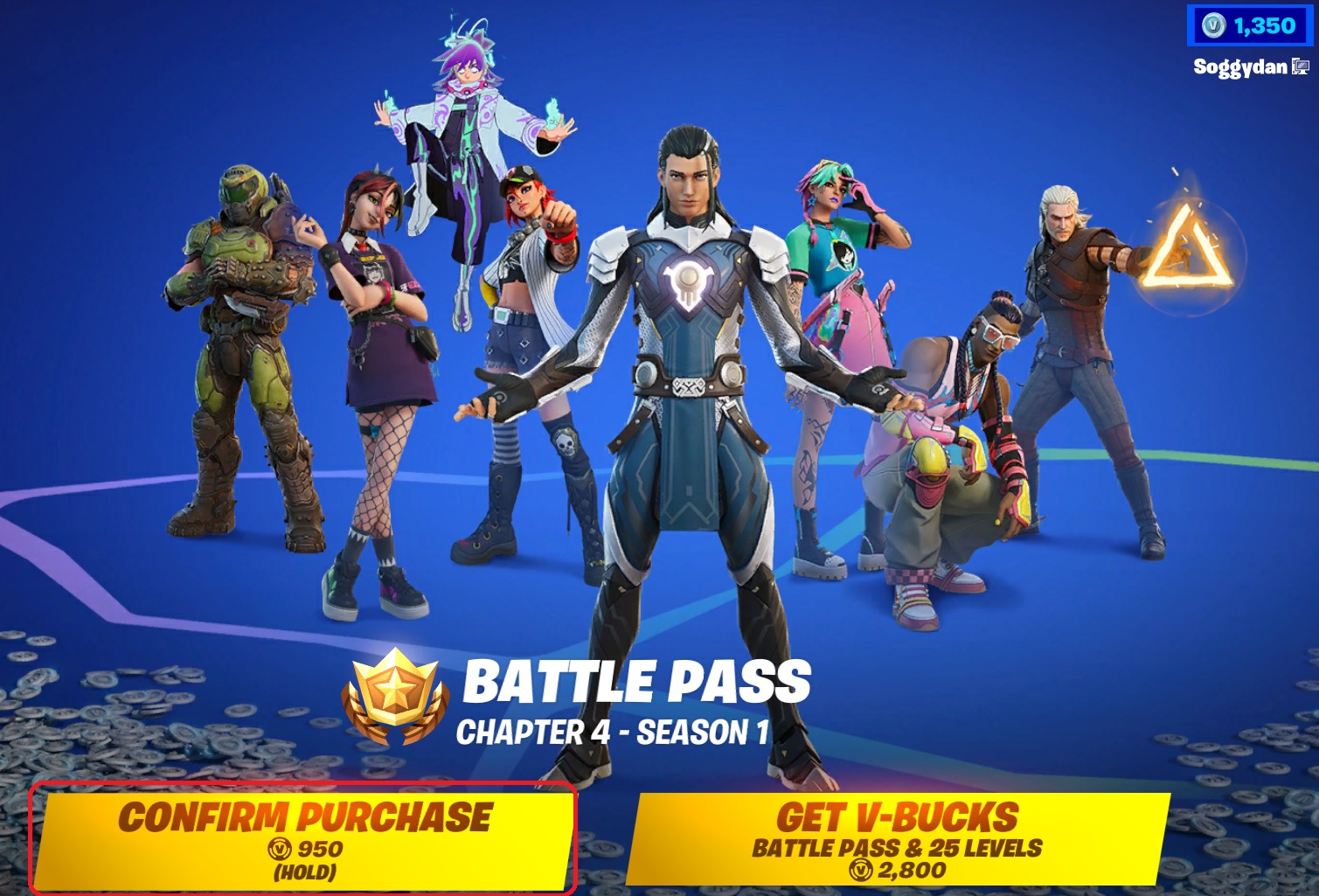
Fortnite - Purchase Battle Pass Chapter 4 Season 1
Fortnite – Purchase Battle Pass Chapter 4 Season 1


  • On the next screen you should receive your confirmation that Battle Pass Upgraded!
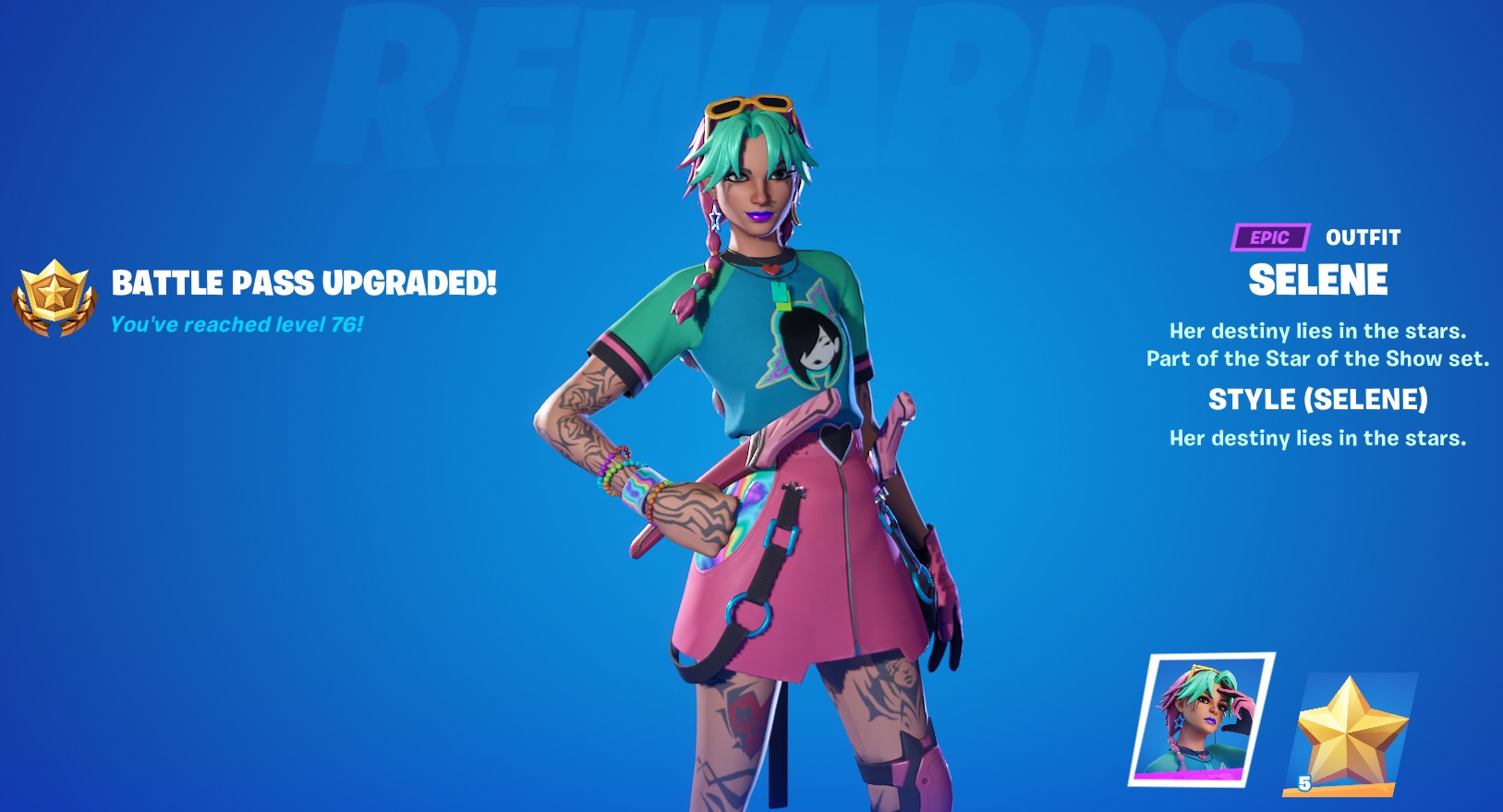
Fortnite - Purchased Battle Pass Chapter 4 Season 1
Fortnite – Purchased Battle Pass Chapter 4 Season 1

I have a Free Fortnite Battle Pass, What now?

Once you have a Battle Pass, either by the method above or by buying 1000 V-Bucks and then purchasing the pass, you are now in a great position to keep getting the pass every season.

You can achieve this as within the Full Battle Pass you can earn a further 1200 V-Bucks (plus the 300 that doesn’t need the full pass) from levelling up and buying V-Bucks with battle Stars.

I then spent the 950 Free V-Bucks on the Chapter 4 Season 1 Battle Pass. I received those V-Bucks from the Chapter 3 Season 4 Battle Pass, I can now start receiving may Battle Pass rewards by spending my Battle Stars I have earned so far this season.
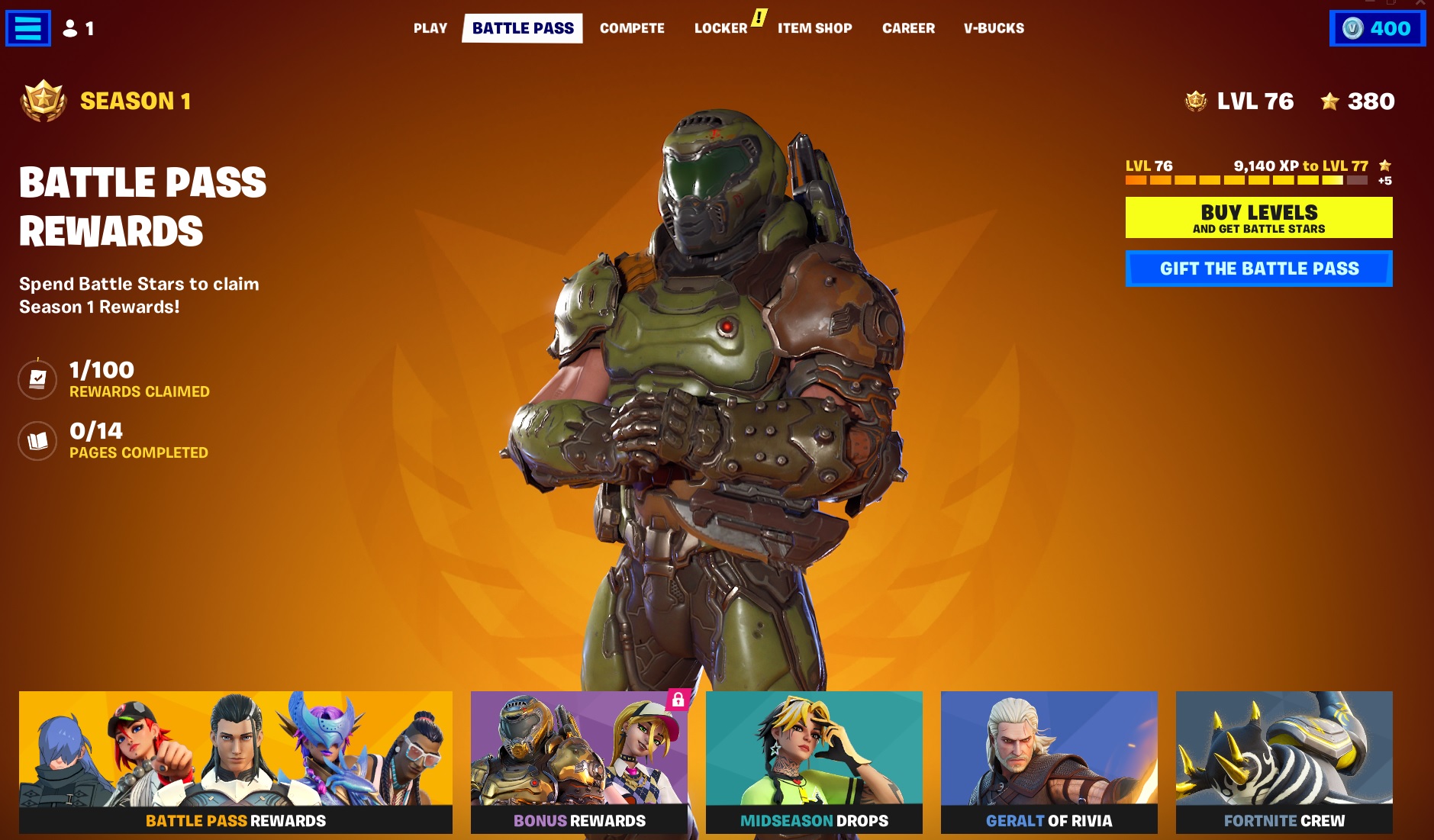
Free Fortnite Battle Pass - Chapter 4 Season 1
Free Fortnite Battle Pass – Chapter 4 Season 1

I can now buy all the Skins, back bling, Axe’s, emotes etc with the Battle Stars I have already earnt and the most important part, the newly unlocked FREE V-Bucks.

Once all the levels are unlocked i will have MORE FREE V-bucks and I can save those for the next seasons Battle Pass. I will then have some left over so I can get something with the extra or wait until next season and save up more V-Bucks! I’ll be on the lookout for that truly cool emote.

If you keep playing from now on, even if you just power level to 100 to get the Free V-Bucks from the Battle Pass, this then gives you enough V-Bucks for next Seasons Battle Pass.

You can just keep on buying the Battle Pass every Season, getting FREE V-bucks and you can keep going until Epic change the setup and nerf this process.

If you then keep the V-Bucks banked then you will have all you need each season to renew the Battle Pass and some bucks left over for other items and skins. All with not spending any $$$ or £££

How much V-Bucks does the Free Battle Pass give?

If you have not yet purchased the Battle Pass then you can actualy collect 300 FREE V-bucks each chapter.  Collecting these over 3.5 chapters can actualy earn you enough V-Bucks to buy a Battle Pass tatally FREE

Fortnite Guides to help you get Cracked

  • How to Enable Fortnite 2FA
  • How to Get FREE V-Bucks in Fortnite
  • FREE Fortnite Battle Pass
  • Default Fortnite KeyBinds
  • Best Fortnite Keybinds
  • All 150 Keybinds listed Key
  • Fortnite Map Locations
  • Fortnite Quest Locations
  • Fortnite Characters Locations
  • Fortnite Fish Locations
  • Fortnite Hints, Tips and Tricks
  • Fortnite Game Tactics, Old and New
  • Fortnite Game Exploits or Bugs
  • Fortnite Game Phrases

PUBG

Best PUBG Graphics Settings – 51 FPS Boost

Soggydan PUBG, PUBG GPU Settings 5 February 2026

The Best PUBG Graphics Settings is very subjective and is ultimately down to the PC Spec you have, what monitor you are using and what your personal choices are around your viewing preferences. All these options will be covered in this guide so you will have the best experience on YOUR PC, not the ideal setup on some high-end professional gaming rig.

Increase your Best PUBG Graphics Settings FPS by as much as 45% (51 FPS Boost) over default Settings!

Thats right, after applying the changes in this guide my gaming setup increased by 50FPS, thats 44% on my setup.  Could be more on YOURS!  LFG!

I will cover all the points you need to know to have the best setup, no matter the spec of your PC/laptop, and I’ll explain as easy as possible. All the settings for PUBG Graphics are from the top right “cog” menu then click “settings” then “Graphics” You will see a Basic Tab and Advanced TAB. We will cover all the settings in this area but first let’s cover some basics about FPS and resolutions.

Best PUBG Graphics Settings

What are the PUBG System Requirements?

The official PUBG Systems requirements can be found on the Steam: PUBG Page, about half way down. Even though the MIN spec may run PUBG your game play experience will not be as great as if you used the recommended spec.  Even the recommended spec is too low in my opinion, I feel they should show another spec level and call it Optimal

I run PUBG on a spec that is much higher than the recommended and yet I can’t come anywhere close to the high detail settings PUBG has to offer, even at 60FPS (Some players aim for 144FPS or even 240FPS) BTW 60FPS should be the min speed you need to achieve to get a great gaming experience. 30FPS can feel sluggish at times and the delay created by 30FPS will hinder online gaming in any game.

You can use a GPU and CPU comparison site to check how you think PUBG may run on your system, here are mine compared to the PUBG recommended system requirements.

Intel Core i7 3770K vs Intel Core i5 6600K

Nvidia RTX 3060 vs Nvidia GTX 1060 6GB

I run Windows 10 on 16GB RAM with RAID Zero, SSD drives.  What I am trying to explain is, if you want to play PUBG at 60FPS or more and want to have it look great, you need way more than the recommended spec.

What Resolution is best for PUBG?

Ideally you want to be using at least a 1920x 1080 resolution but you may be stuck with the resolution your monitor will provide. If you’re on a laptop you may be using 1366x 768 or even lower. Whatever is the MAX resolution for your monitor set it to this.  Also set the Hz of your monitor to the MAX it will natively support.

IE the highest in the drop-down menu, 60, 75, 120, 144, 240 could be some of the values on offer.

The Hz of your monitor is tied in with the MAX FPS you will be able to delivery to your eyes.  If your monitor can do 144FPS then great, set it to 144Hz, if not then set it to the max. Mine is just 60Hz so max 60FPS on the monitor for me.

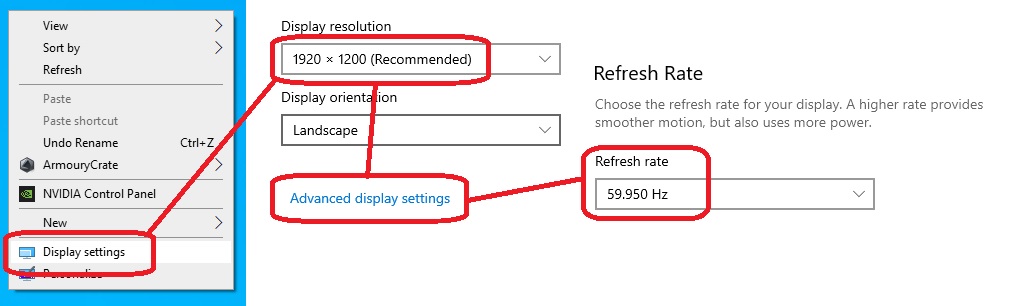
  • Right click your desktop and select “Display Settings”
  • Scroll down and set your resolution highest your monitor will support (Apply and check this works)
  • Scroll down further and click “Advanced Display Settings”
  • Check the “Refresh Rate” and see what the max Hz your monitor supports at the highest resolution
Setting Windows Resolution and Hz

You should now be running all windows apps and games at the highest resolution at the highest Hz the monitor will support. This is now the best settings for YOUR rig, so Let’s GO!! FPS next


Does High FPS Matter in PUBG?

Let’s start with the easy answer here: YES, you will need at least 60FPS for casual gaming in PUBG, 144FPS for a serous gamer wanting to finish top 10 or enter organised matches. Anything over 144FPS if you’re wanting to be in the top 1% of players in the world.

WackyJacky101 creates some great videos and they have made one about FPS even if your monitor can’t support the FPS Speed. Remembers FPS on the monitor is equivalent to the Hz of the screen, IE  60Hz screen will only display 60FPS.   The FPS counter may show 150+ FPS but this just means your GPU is running this speed but the monitor will not be able to keep up and so you get Screen tearing

Nvidia also have some great reports and tests they ran on the effect of FPS on high paced games like PUBG and Fortnite, these are well worth a read to help you understand the high FPS benefits

Gain A Competitive Edge in PUBG with 144+ FPS Gameplay
Unlock Your Full Potential – How Higher Frame Rates Can Give You An Edge In Battle Royale Games

How do I maximize Best PUBG Graphics Settings for FPS Boost?

With the monitor resolution set correctly (as per above guide) then Max FPS = set the PUBG Graphics Settings all to minimum.  That’s it…  or is it?  Alas NOT, read further to find out why!

Getting the most from your system will be different for rig to rig and person to person. Some players will ignore the Screen tearing for some more FPS, while others will not. Some players like more detail and can deal with dropping a few frames while others want MAX PUBG FPS Boosts Possible! It’s about finding that balance between performance and quality.

Which Resolution gives most FPS Boost?

The lowest resolution with the lowest detail settings will give you the most FPS in any game. But do you really want to play at 800 x 600???  It’s so low you won’t see the detail in the buildings, terrain or more importantly you won’t spot the other players until it’s too late. Also, your monitor may not even be able to handle a high frame rate. It’s all about what spec the monitor will actually display to you.

It’s also best to set your resolution and refresh rate in windows to the same setup as what your monitor can output. This gives you the best quality, sharp, in-focus picture possible, you can then tune the final out put with the GPU settings on offer.

Display Resolutions will help you understand the difference in resolutions and how big 8K really is. The GPU has to render all those small pixels, the more pixels the fast GPU you need or the lower settings you can have!

A better question would be, what is the best FPS setup I can get on my system?

How to Display the Steam FPS counter in PUGB

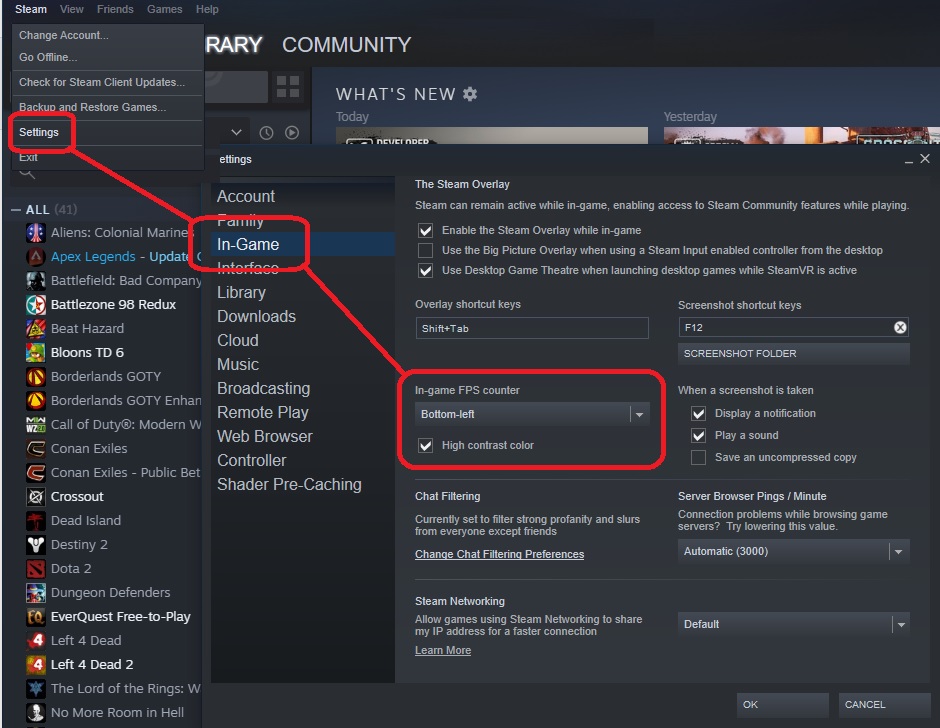
You are going to need an FPS counter to check your results. As PUBG is run/loaded from Steam we can use the Steam FPS counter, here is how to enable it. This counter will work with many games via the Steam interface.

Open Steam, from Top left drop down menu, click Settings, In-Game, Then In-game FPS counter. Select from the drop-down menu the location you want and I would recommend ticking High contrast color.

How to Enable Steam FPS Counter

What is the Max FPS in PUBG I can get on my System?

This is where the fun starts, for the Best PUBG Graphics Settings, tuning your system will display the max amount of FPS as possible, but keeping some detail so it still looks great.

We start off with the Windows settings, (you have already set the monitor from the guide above) I only use Nvidia GPU so that’s what i am covering here.  Make sure you are on the latest version of your GPU driver as possible, not matter if its Intel CPU GPU, ATI or Nvidia.  Updates are released all the time from GPU manufacturers and PUBG so it’s always best to check at least once a month.

Intel and ATI may have a similar setup to Nvidia but I can’t guide you on these yet, but it maybe similar.

  • Right click on the desktop and open the Nvidia Control Panel Settings, you will get a screen like the one below, click on Manage 3D Settings
  • To start, click Restore to set the GPU to defaults. This will ensure you don’t get a clash with the settings we are about to cover.
  • Assuming you have set the FPS counter as covered above, Launch PUBG from Steam
  • Go to the Cog in Top right, Settings, and on both Basic and Advanced under Graphics, reset them all to default.
  • Change the Display Mode to Full Screen – I have found this to be the most stable and fastest display setting
  • Change the Lobby and In-Game FPS to Unlimited
  • Disable Smooth Frame Rate – This is a setting similar to V-sync 
  • Save and Restart the Lobby

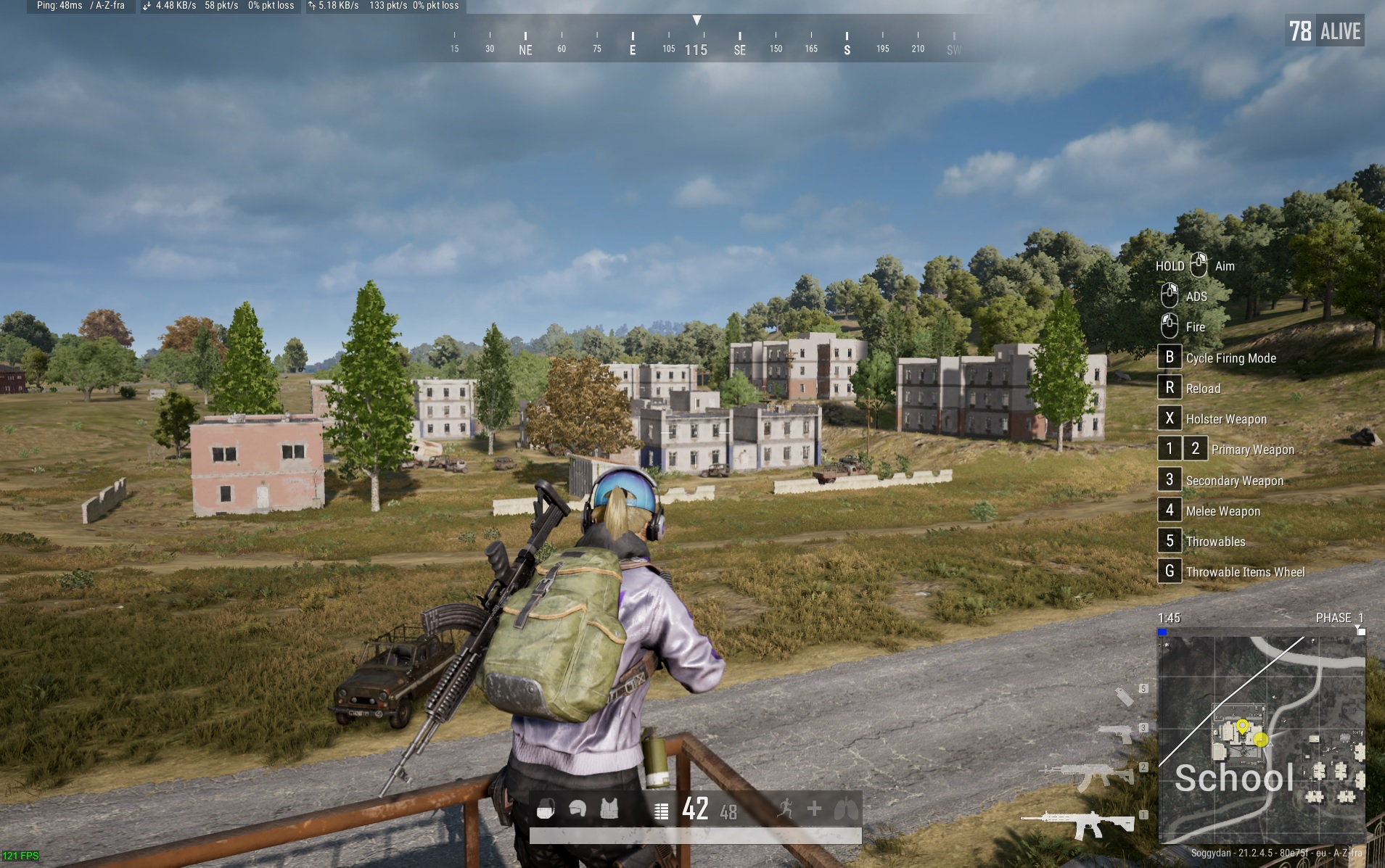
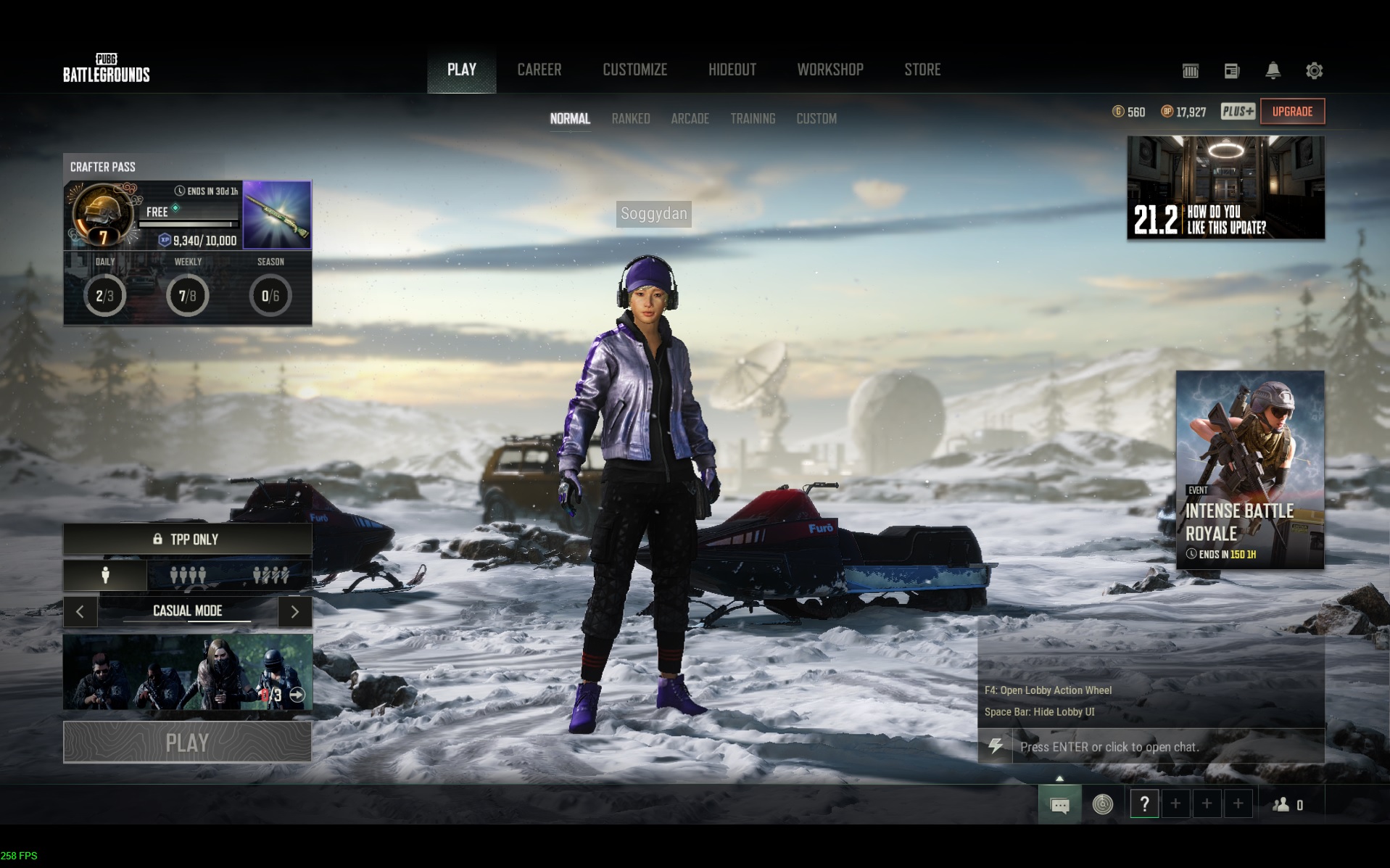
For reference, you could screen shot your Lobby screen showing your FPS, mine is about 230 FPS.  Now enter the game, find a nice spot somewhere to take another screen shot (always use same spot, mine was top of the school, good central place) and do the same, this is your Default FPS Baseline. In-game I achieved 112 FPS using the Windows/Nvidia and PUBG default settings

You can click on all the picture for bigger versions, so you can compare. FPS shown in bottom left corner.

PUBG Lobby 230 FPS Before tuning
PUBG In Game 112 FPS Before Tuning


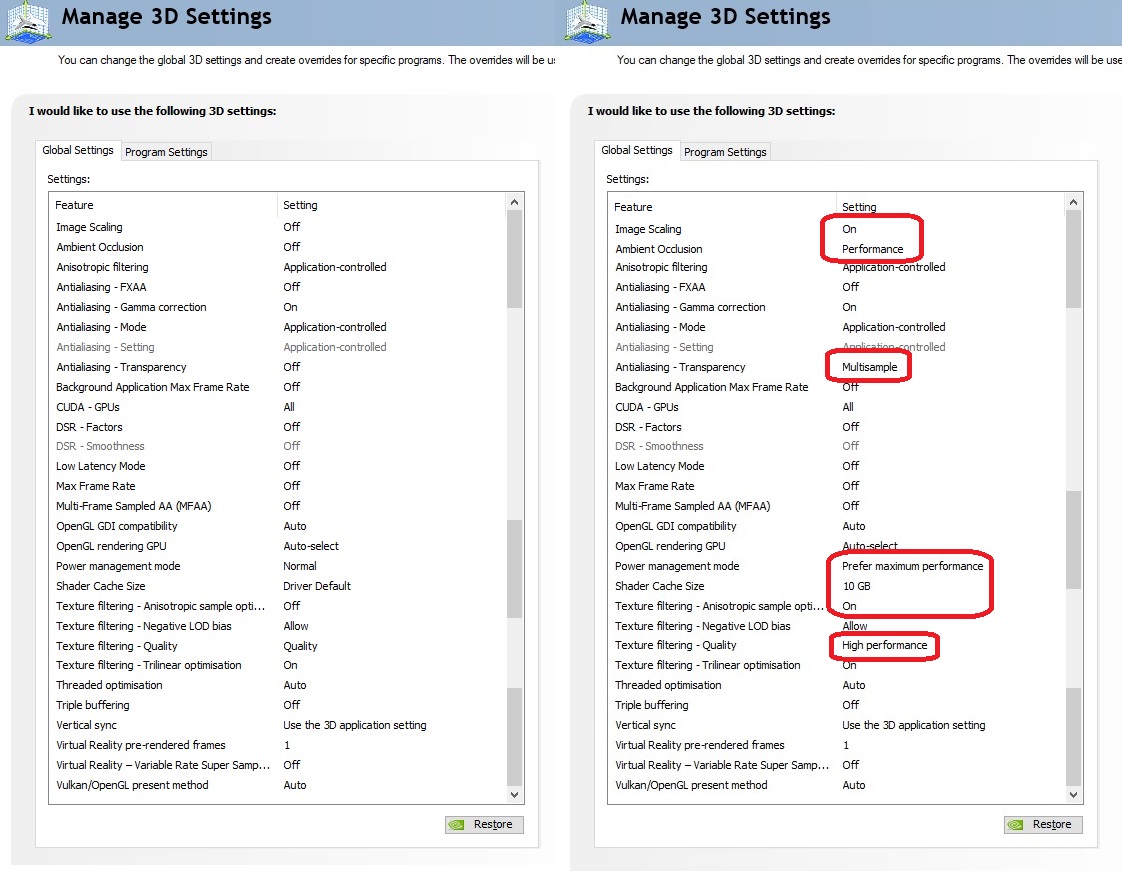
PUBG FPS Boost, on the Nvidia Control Panel, change the following:

These are generally good settings for all fast-paced games demanding high FPS, more settings can then be tuned in-game. These are very worthy of change to get the Best PUBG Graphics Settings and FPS Boost

Click on images to compare them, note the FPS Counter in the bottom left corner

  • Image Scaling = On
    • FPS Boost – do not change while in game – it will crash
PUBG In Game 121 FPS - Image Scaling ON
PUBG In Game 121 FPS – Just Image Scaling ON
  • Ambient Occlusion = Performance
    • FPS Boost
  • Antialiasing – Transparency = Multisampling
    • FPS Boost
  • Power management mode = Prefer maximum performance
    • Ensures GPU has all the power it needs
  • Shader Cache Size = 10GB
    • Default is 1GB, this help prevent stuttering while graphics load.  If you can spare 100GB, make it so!
  • Texture filtering – Anisotropic sample optimisation = On
    • FPS Boost – For DirectX Apps only
  • Texture filtering – Quality = High performance
    • FPS Boost
PUBG Lobby 235 FPS After tuning

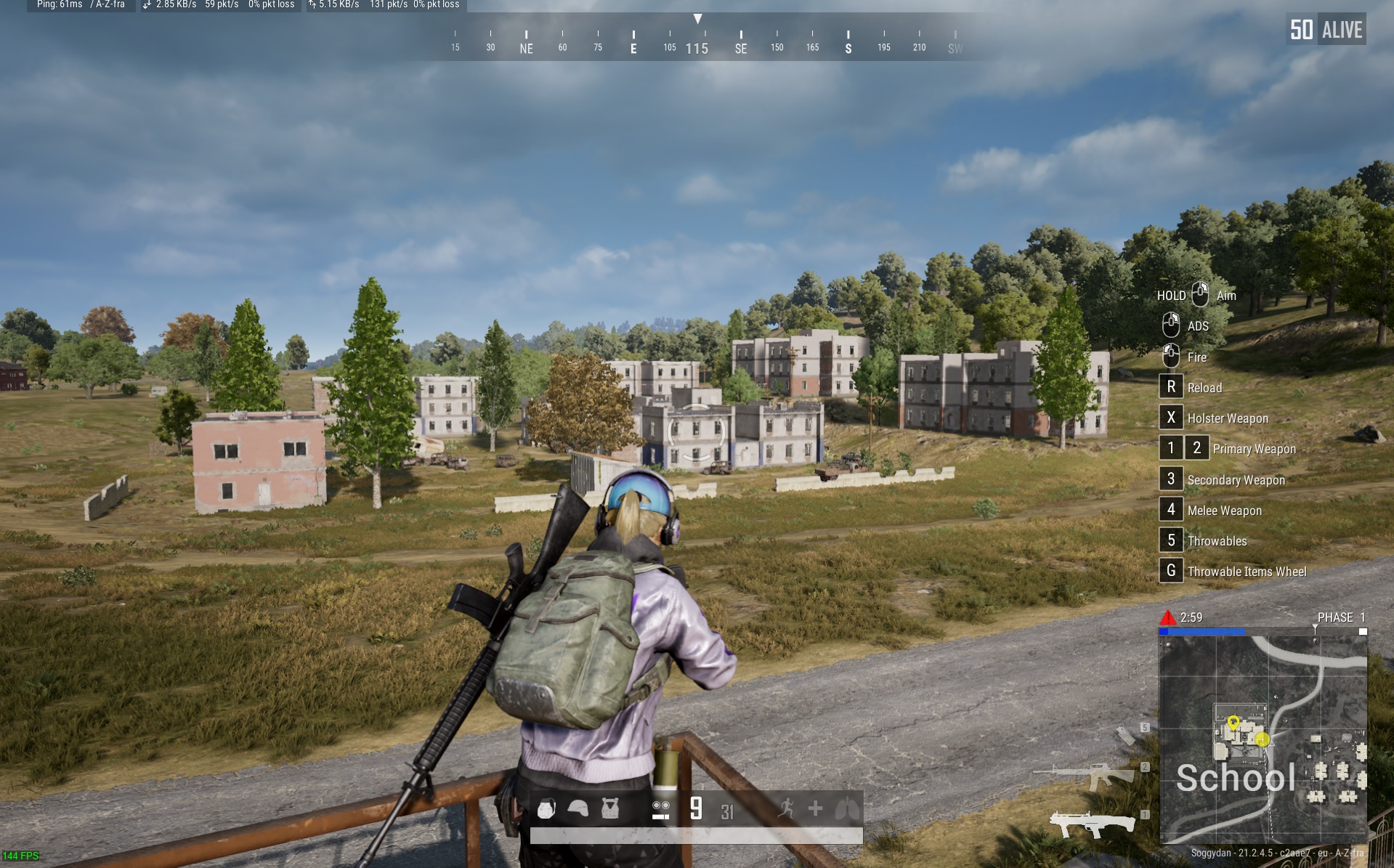
You can see here that after changing the Nvidia Control panel settings the lobby only got an FPS Boost of 5 FPS but in game got HUGE 32 FPS boost!

PUBG In Game 144 FPS -  Nvidia Settings
PUBG In Game 144 FPS –  Nvidia Settings


Windows Nvidia GPU - Manage 3D Settings
Windows Nvidia GPU – Manage 3D Settings


PUBG FPS Boost, in Windows Graphics Settings, change the following:

Other changes you can make to get best FPS PUBG Graphics Settings are to the Windows 10/11 Graphics settings. Yep, there is literally a toggle switch to enable gaming mode!  This setting doesn’t boost all GPU / CPU combos but it’s worth doing and you might see an increase.

In the windows search bar type “graphics settings”, toggle the option from Off to On and Leave the App selector too Desktop app to cover all your games

Windows 10/11 Graphics Setting

NOTE:  This can cause screen tearing on your windows desktop, so test it and make your choice if you want the extra FPS or screen tear.


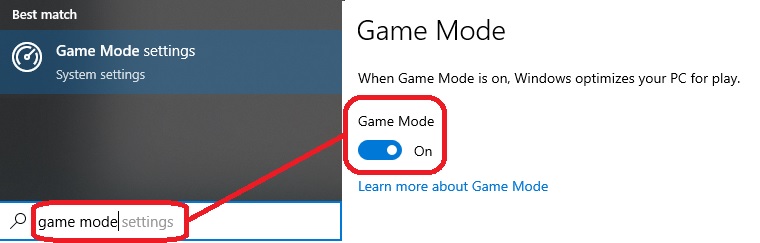
You should also check Game Mode Settings, this should be enabled as a standard windows setting, but it’s worth checking

Windows 10/11 - Game Mode Setting
Windows 10/11 – Game Mode Setting

What are the Best PUBG Graphics Settings?

With all the Windows settings completed, it’s time to look at the in-game Best PUBG Graphics (GPU) Settings to get a further FPS Boost. In-PUBG, navigate via the cog in top right to Graphics, Settings then advanced. Set the Overall Graphics Quality to Ultra-Low then click on Apply.

You will now be running PUBG at the best possible FPS Graphics Settings you can possibly get on YOUR system to run at!

PUBG In-game Overall Graphics Quality - Ultra Low
PUBG In-game Overall Graphics Quality – Ultra Low

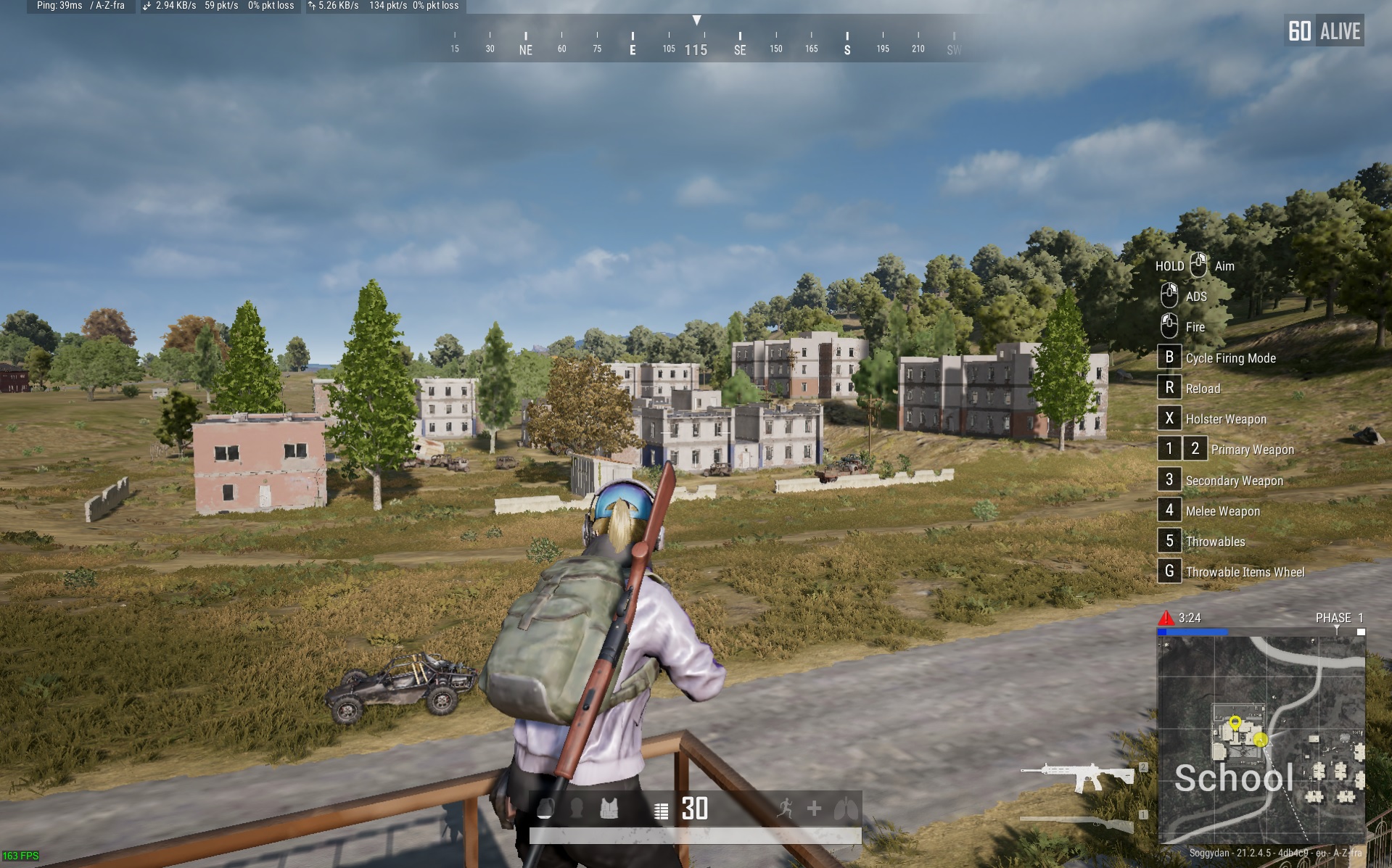
After change the PUBG Graphics setting to ultra-low I got an FPS Boost from 144FPS to 163FPS In-game and the lobby went to 258FPS!

PUBG Lobby 258 FPS - Low GPU Settings
PUBG Lobby 258 FPS – Low GPU Settings

In-Game I got a tidy 163 FPS, that’s a 51FPS Boost over my default settings.

PUBG In Game 163 FPS - Low Settings
PUBG In Game 163 FPS – Low Settings

What DirectX Version should i use for PUBG FPS Boost?

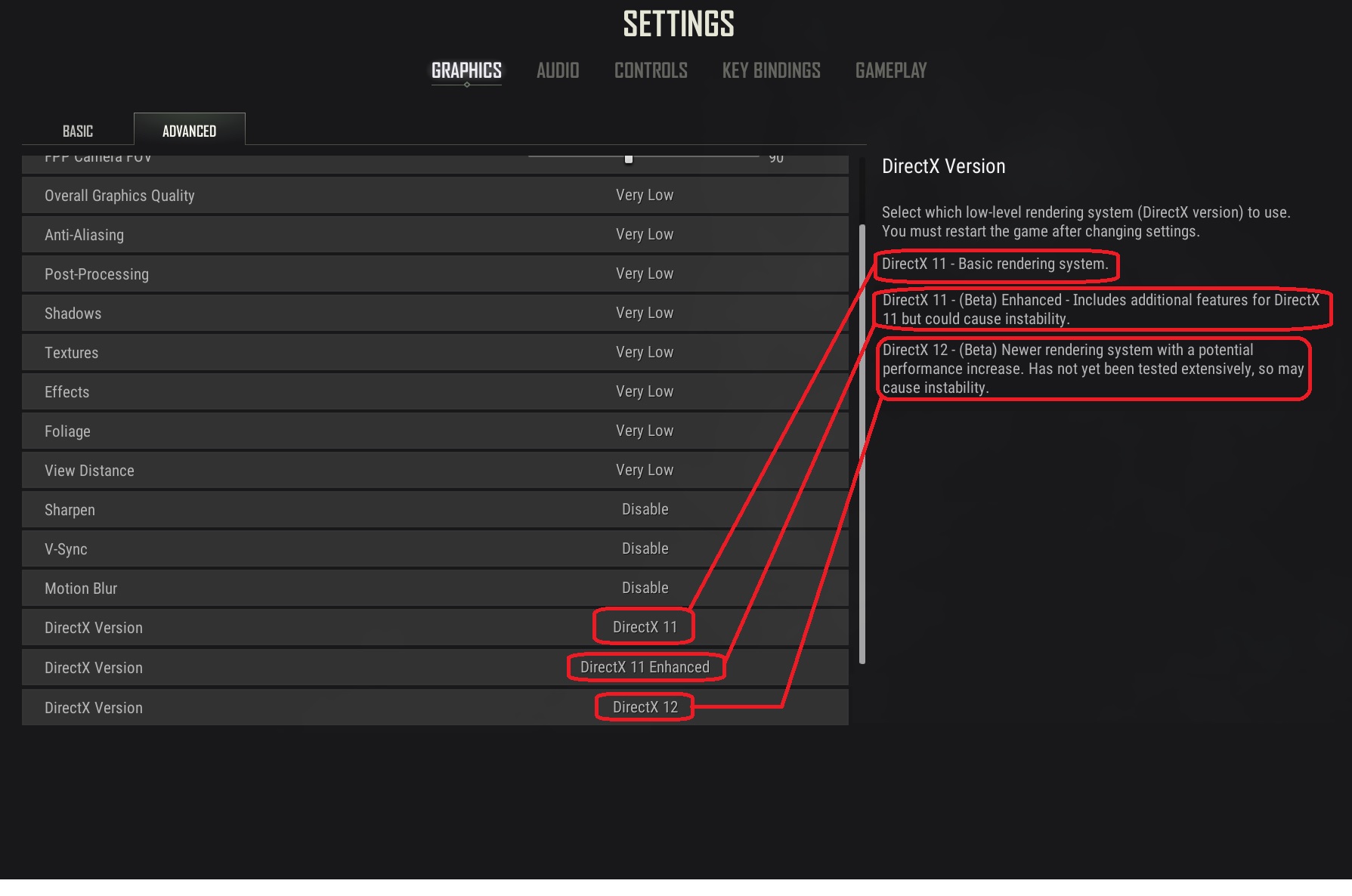
For a possible FPS Boost and better-looking graphics for the Best PUBG Graphics Settings, you can test the DirectX level version within the Graphics settings. Options are:

  • DirectX 11 – The default PUBG rendering engine
  • DirectX 11 Enhanced – Enhanced render engine – You should see a graphics improvement. Maybe unstable, roll back to default 11 if you get a lot of crashes
  • DirectX 12 – latest graphics engine and better FPS and graphic improvements.  Maybe unstable, roll back to enhanced 11 if you get a lot of crashes
PUBG DirectX Graphics Settings


You will need to test the different options on your system, if it crashes a lot, just select the previous DirectX version.

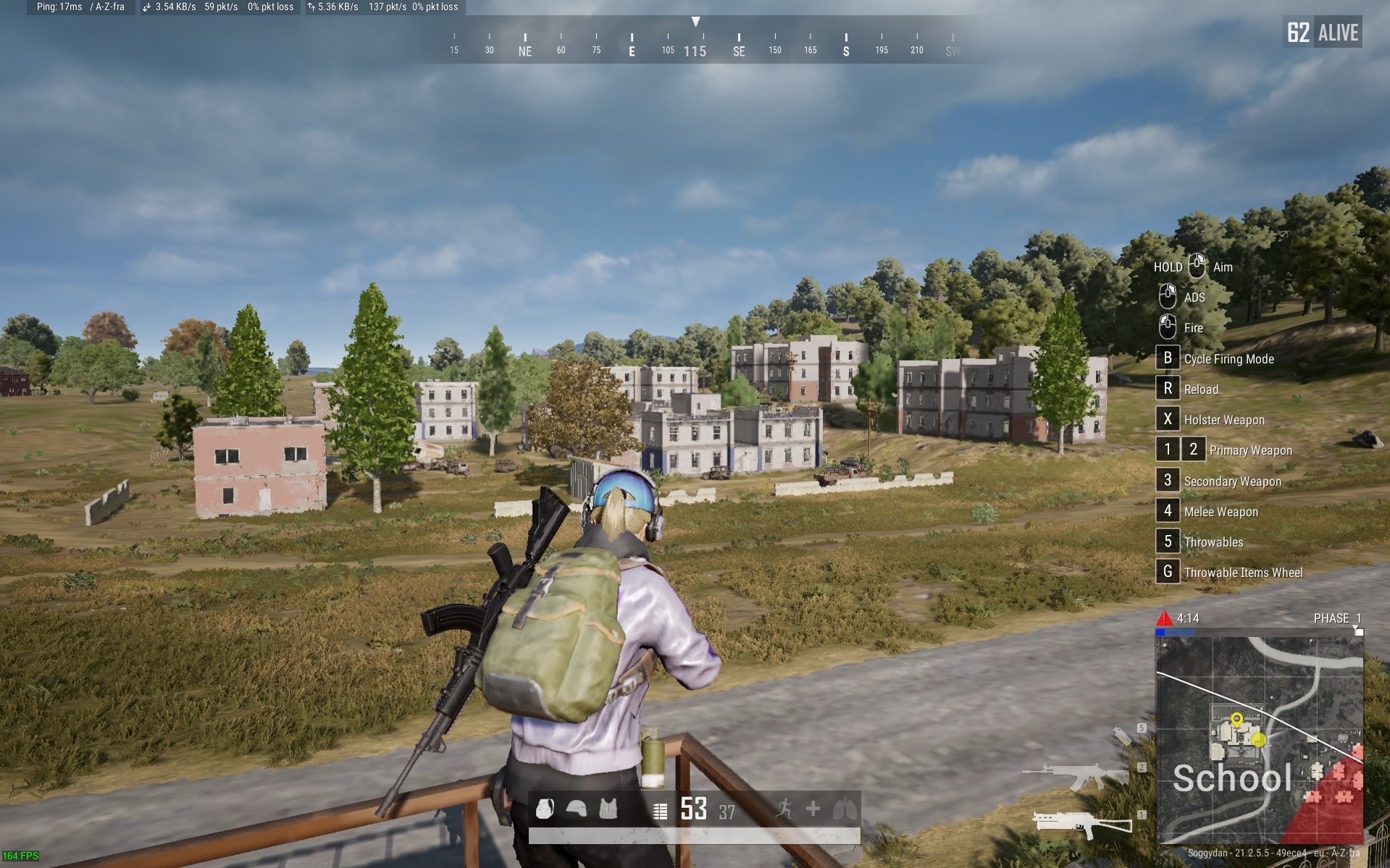
With the enhanced DirectX 11 enabled I actually got an FPS drop on the lobby but in-game remained the same at around 164 FPS BUT…  everything did look a little better, trees, grass and bushes defiantly look much better.

PUBG In Game 164 FPS - DirectX 11 Enhanced
PUBG In Game 164 FPS – DirectX 11 Enhanced

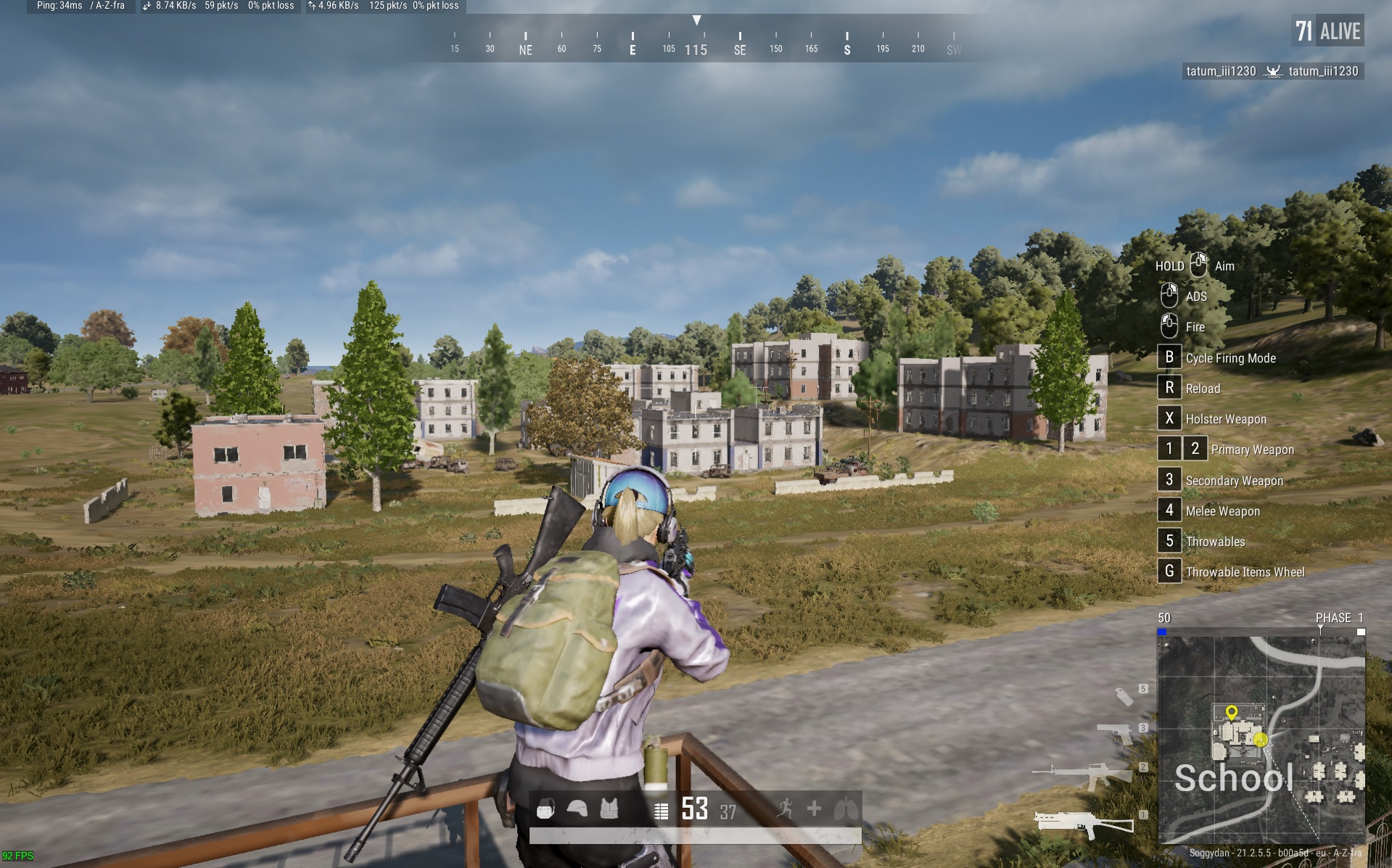
With DirectX 12 now enabled my FPS tanked down to 92FPS, but is did look a little better graphics wise, grass, trees and maybe the buildings all looked like they have more detail. But is it worth the drop in FPS?  If i was on a 144Hz monitor i would say no, but as iam on a 60Hz i may just leave it like this…

PUBG In Game 92 FPS - DirectX 12
PUBG In Game 92 FPS – DirectX 12


What to do with 163FPS on a 60Hz Monitor playing PUBG?

This is a good question, if my monitor is only 60Hz but my GPU can output 163 FPS what should I do? Well, you have a few options

  • Play on ultra-low or low details with that sweet 163FPS on your 60Hz, it will feel very smooth
    • If you’re a hard-core gamer, this is where you want to be (but with a better monitor)
  • If your GPU can delivery you 163 FPS, you could buy a new 144Hz monitor. A 240Hz monitor would be a waste until you have a faster rig
    • FPS will dip down in some busy situations, so always aim for a rig setup that can deliver more than the monitor
  • Increase the PUBG Graphics settings until the FPS reduces to around 90FPS. I have found anything over 90FPS on a 60Hz screen you can’t really notice the FPS increase anymore
    • This is what I have done, even in high settings, my rig still archives 120FPS in-game, well above what my monitor can even display
  • Cherry pick the graphics details you want/like and increase those.
    • You might want View Distance to be increased
    • Shadows and textures are always nice to increase for better looking graphics


Other PUBG Battlegrounds Guides

Introduction to PUBG Battlegrounds

Best PUBG Graphics Settings

Best PUBG Keyboard Controls

Default PUBG Keyboard Controls

FREE PUBG Battlegrounds skins outfits

How to Change the PUBG Keyboard Controls


Fortnite Battle Royale

Battle Royale/ Fortnite

Fortnite – Battle Royale is Amazing and my No1 Game

Soggydan Battle Royale, Fortnite 26 January 2026

Fortnite is an amazing game that keep players hooked within minutes of playing it. There is 100’s of games to play once inside the Fortnite system, with the most well-known being the Battle Royale

What is a Battle Royale?

For me Fortnite – Battle Royale is basically the game version of the Japanese film from 2000 of the same name,  Battle Royale  It follows a group of middle school children (16-20 maybe) that are trouble makers and classed as too unruly, and the government has nowhere else to put them.

The teenagers are forced to compete in a battle to the death after being dropped onto an island that has zones marked out on it, last one standing can leave the island. Sound familiar?


What is Fortnite Battle Royale?

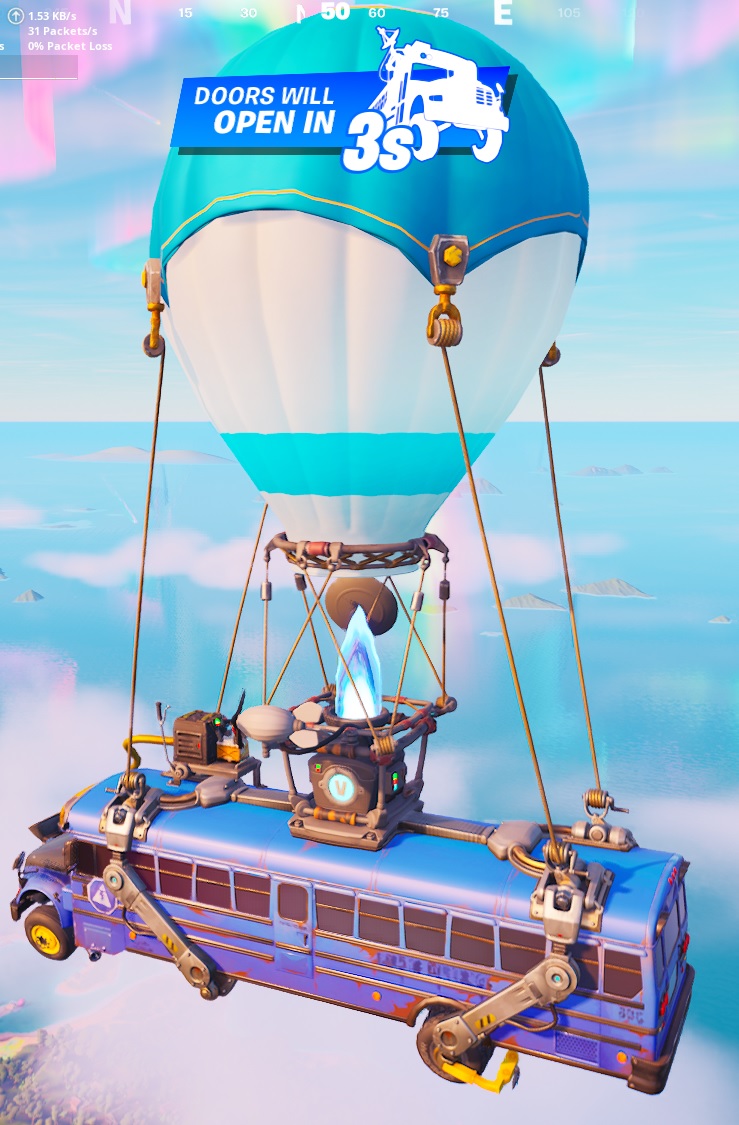
Fortnite is an action game where you and 99 other players jump from a floating Hot Air “Battle Bus” (see the first 8 seconds of the trailer). You sky dive down onto an ever-changing island that is constantly evolving over time, you only have a glider and a pick axe to your name when you land.

Fortnite Battle Bus
Fortnite Battle Bus

The idea is to survive as long as possible by eliminating other players as quickly as possible. You can collect a huge range of guns, first aid kits and shield boosts to help you survive and win. At the same time as your fighting for that first place, a storm is coming, it starts of as a large circle around the island then every few minutes it closes in. If you are caught in the storm, you start taking damage, the longer the battle lasts, the higher the damage taken. Eventually the “safe zone” is the equivalent of less than 50meters.

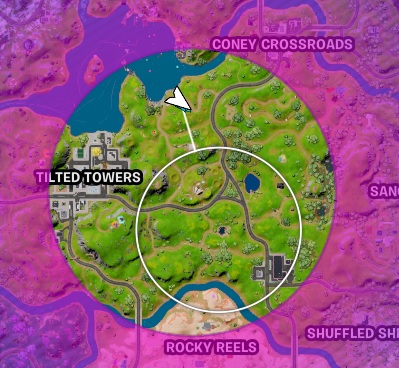
The pinkish area is the storm, it will slowly close onto the white ring, this is the safe zone. We are currently at the white arrow, so we need to act fast before getting hit by the storm.

Fortnite Storm Ring
Fortnite Storm Ring

Epic, the game creators, keep the content fresh by constantly updating the landscape with new revamped zones/areas, new weapons and even new characters. But the biggest attraction seems to be the skins or characters that you can choose from.

Is Fortnite Free to Play?

Yes, technically its FREE.  You can create an Epic Account (Select a account name carefully as this will be your name in the game or sometimes called “Gamertag”. Then install the Epic game launcher  Select Fortnite from the huge list of games they have on offer and wait for it to download.  Its currently about 30Gb so may take a while to download, so take this into account when getting setup.

Once you are up and running and logged in you can play for absolutely nothing, won’t cost you anything. I have played on and off for a few years now and still paid nothing.

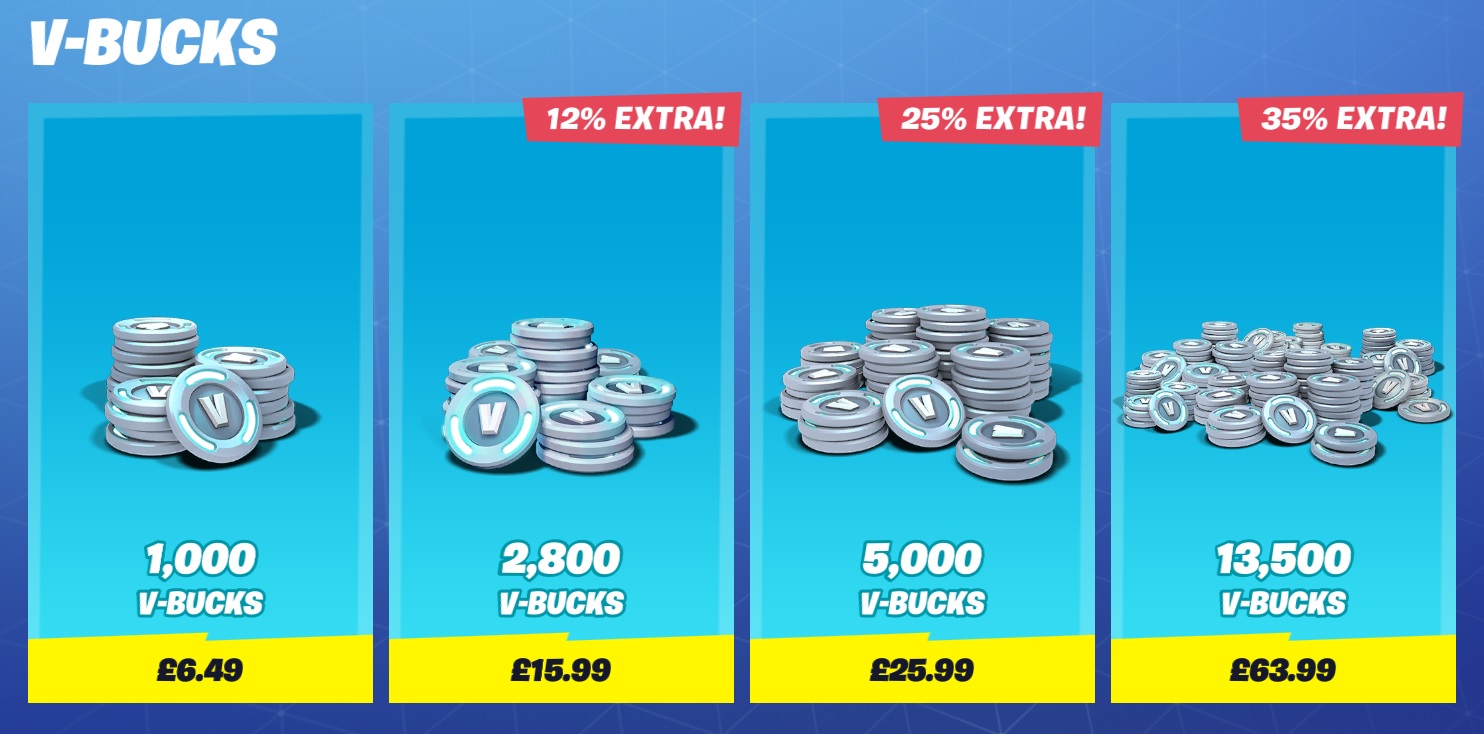
What they do offer is In-Game Purchases. This is in the form of V-Bucks or just a direct payment via Credit Card in local currency.

What are V-Bucks?

V-Bucks are Virtual Bucks that can be purchased in-game with your local currency via a credit or debit card.  Once you have your V-Bucks you can then purchase in-game items such a Fortnite skins, the Battle Pass or special item all from the Item Shop. Check out my guide to How to get FREE V-bucks in Fortnite for more info

Fortnite V-Bucks
Fortnite V-Bucks

What are Fortnite Skins?

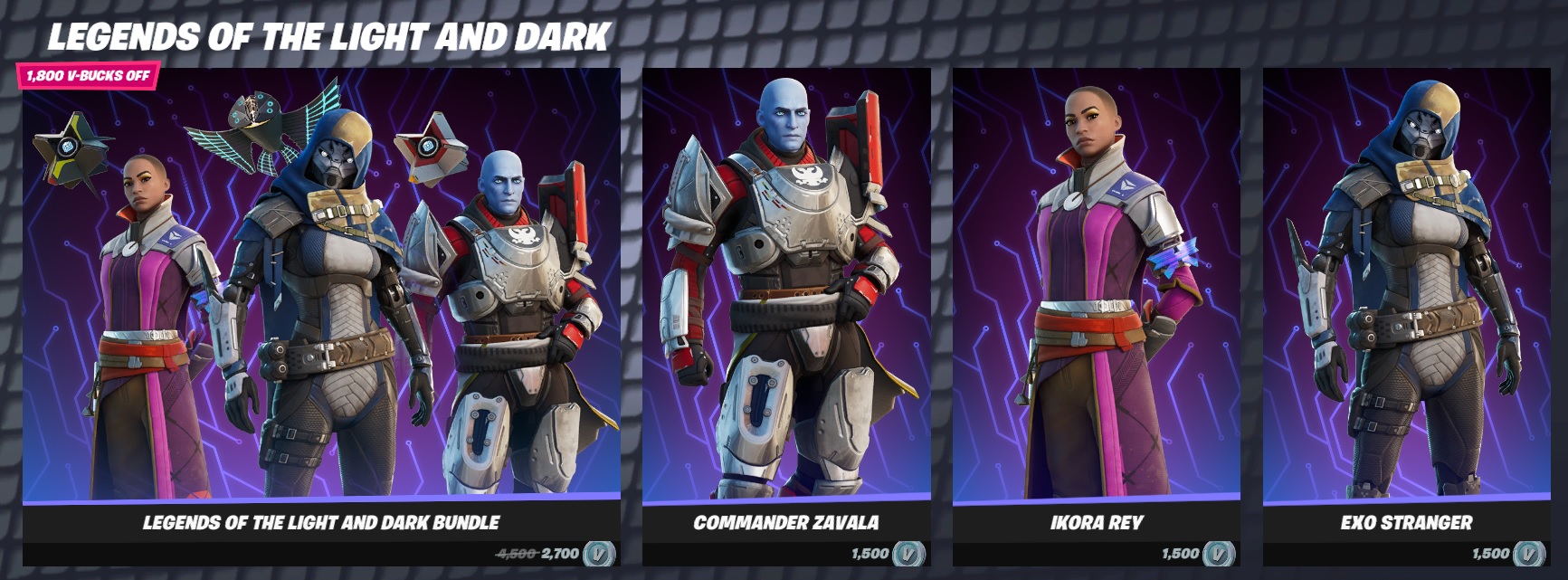
Fortnite skins are basically outfits that your Avatar can wear.  They are normally very topical at the point of release like when a new Star Wars films is released, they will release a Star Wars pack with Skins and items Star Wars themed. You can get Melee weapons, Themed Glider, back bling and emotes. All these costs anything from a few hundred V-Bucks to as much as 1000s of V-Bucks. Check out my guide to How to get FREE V-bucks in Fortnite for more info

Fortnite Skins
Fortnite Skins

What is the Fortnite Battle Pass?

The Fortnite Battle Pass will allow you to gain lots of extra goodies as you level through a season. The pass only lasts for the season you’re purchasing it in and then you will need to repurchase it again on a new season, so I would recommend buying one at the beginning of a new season to get the full benefits from it.

For 950 V-Bucks I think this is the best value for money from the In-game shop.  As you level up by winning matches and completing Fortnite Quests to earn XP, more items will be available to you. Once you reach level 100 in the current season you will have all the items available to you that the Battle Pass offers. On the new season start you will need to purchase a new Battle Pass and you start again at level 1.

You will also need Battle Stars to help unlock items, Battle Stars are easy to achieve and are earnt during matches. Battle Stars are not normaly an issue when purchasing items via the Fortnite Battle Pass

Fornite Battle Pass Season 3 Chapter 4

You will find the Battle Pass in the Item Shop on the Main Lobby Screen. Checl out my How to Get FREE V-Bucks in Fortnite Guide before you make a purchase.

Fortnite - Buy Battle Pass Chapter 4 Season 1
Fortnite – Buy Battle Pass Chapter 4 Season 1

Below is the Chapter 3 Season 4 Battle Pass screen, as I am level 5 (first day)  I wont have all the Battle Pass items yet, I will have to level up a bit to buy all the items with Battle Stars. As I don’t have the Battle Pass, I have a limited number of items I can buy, I will not get access to the cool Fortnite Skins like Darth Vader, but I will get low end items like spray paint, pick axes, songs and loading screen wallpaper. I may even get access to some FREE V-bucks


Fortnite Guides to help you get Cracked

  • How to Enable Fortnite 2FA
  • How to Get FREE V-Bucks in Fortnite
  • FREE Fortnite Battle Pass
  • Default Fortnite KeyBinds
  • Best Fortnite Keybinds
  • All 150 Keybinds listed Key
  • Fortnite Map Locations
  • Fortnite Quest Locations
  • Fortnite Characters Locations
  • Fortnite Fish Locations
  • Fortnite Hints, Tips and Tricks
  • Fortnite Game Tactics, Old and New
  • Fortnite Game Exploits or Bugs
  • Fortnite Game Phrases
PUBG

How to Change the PUBG Keyboard Controls – 2026

Soggydan PUBG, PUBG Keyboard Controls 4 January 2026

All of the PUBG Keyboard Controls can be customized under the Settings menu, here is a quick guide on how to change your settings to meet your game style. Most players will be familiar with the Common PUBG Keyboard Controls but there are a few differences due to some special PUBG features.
I would always recommend using the WASD Keybind layout as this is the most popular and all the top games use this a default, after those keys you may need to tweak a few to your liking.

What does WASD mean in games?

WASD Keys are the group of Keyboard Controls used by most games. They are located to the left side of the keyboard and utilise the top 2 rows of letters just below the numbers. Most games use this set of keys and so it’s easy, once learnt, to switch to other similar games.

How to Change the PUBG Keyboard Controls

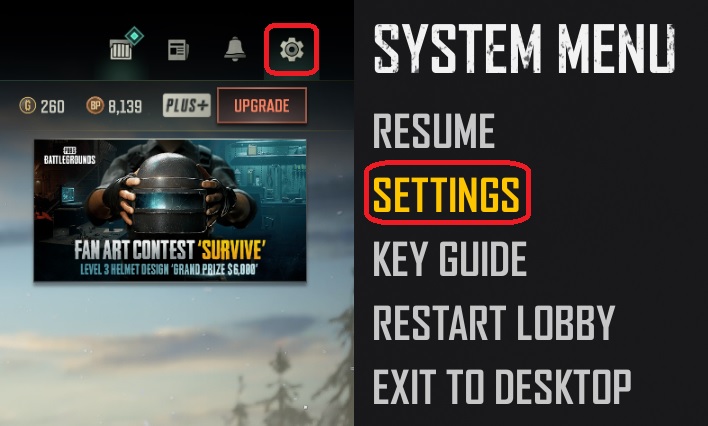
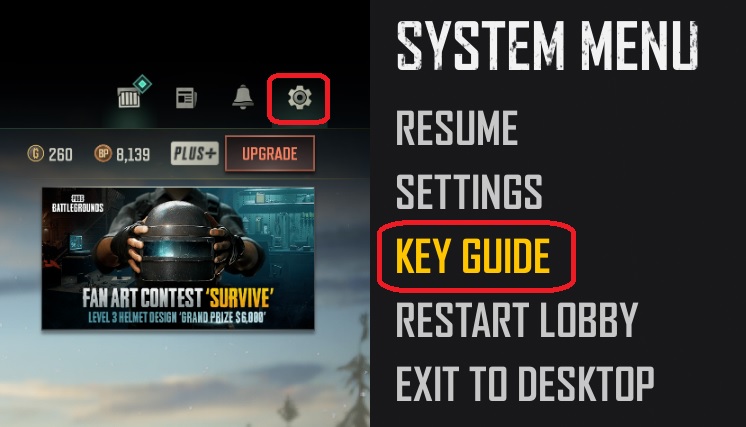
From the main menu screen, the one with your character looking about, click the Cog Symbol in the top right and then click Settings.

PUBG Keyboard Controls - Key Bindings
PUBG Keyboard Controls – Key Bindings

On this new menu, click Key Bindings. You will now have 4 options to select from. Under these headings you will be able to change all the keys to either new keybind or add a 2nd keybind to an already bound action.

  • Common
  • Combat
  • Vehicle
  • Spectate
PUBG Keyboard Controls - Settings - Key Bindings
PUBG Keyboard Controls – Settings – Key Bindings

Once you have navigated to these sections, find the PUBG Keybind you want to change, I would recommend adding the keyboard control you want to use to the second column rather than replace the first column. Find the Key, on that row click into the 2nd column and then hit the key you want to bind.

NOTE: Remember to Click on SAVE at the bottom of the screen to keep the settings.

What are the Default PUBG Keyboard Controls

The default keys are the ones original set in the game, these can be reset back to default using the Rest to Default option. If you want to easily review the default PUBG keybinds then check out my other guide, Default PUBG Keyboard Controls. There you will find all the default keybinds and some slides that you can print out, while you’re learning these are good to keep handy while you’re playing.

Changing PUBG Keyboard Controls – Common

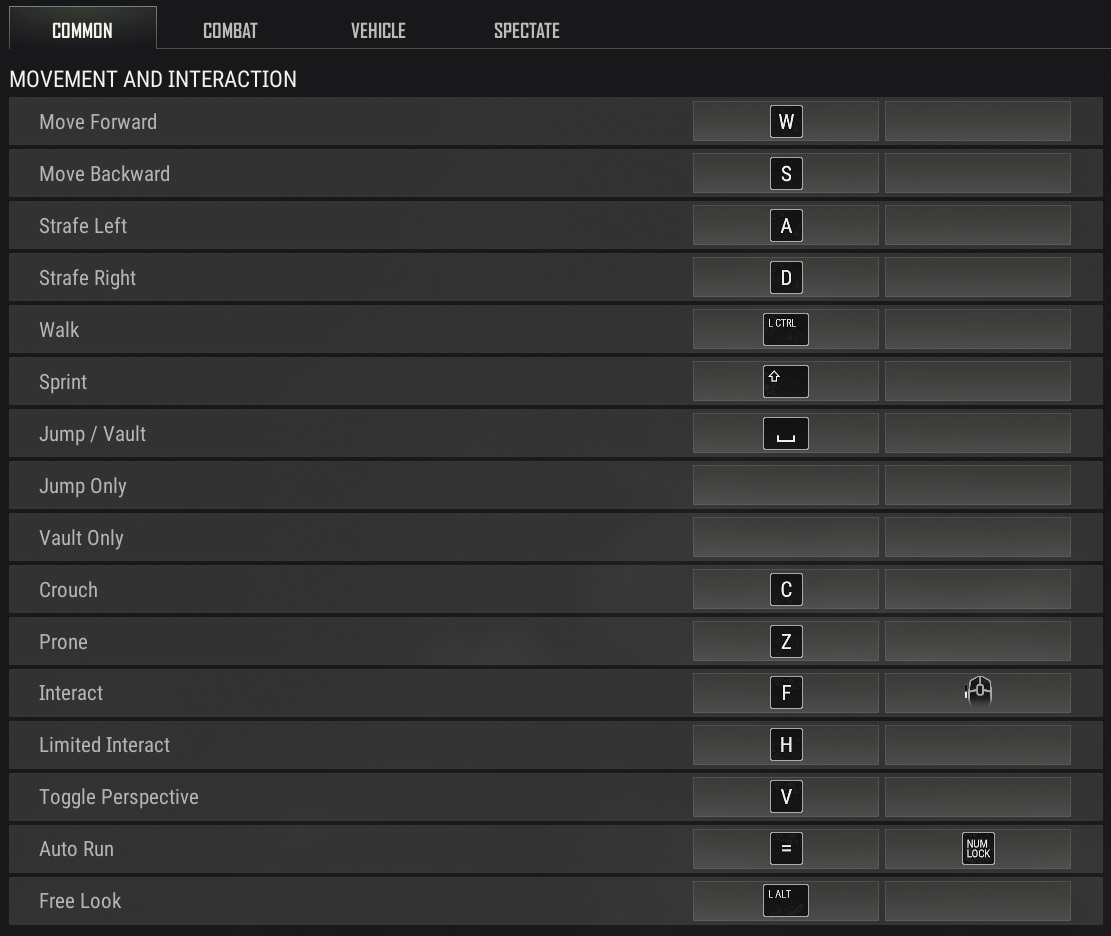
Under the Common menu you will find all the most used keys that are essential to know. Use this area to remap keys that are not comfortable for you. Find the Keybind you want to change, click in the second column, choose a new key to add, then save the changes.

PUBG Keyboard Controls - Movement and Interaction
PUBG Keyboard Controls – Movement and Interaction
PUBG Keyboard Controls - Swimming
PUBG Keyboard Controls – Swimming
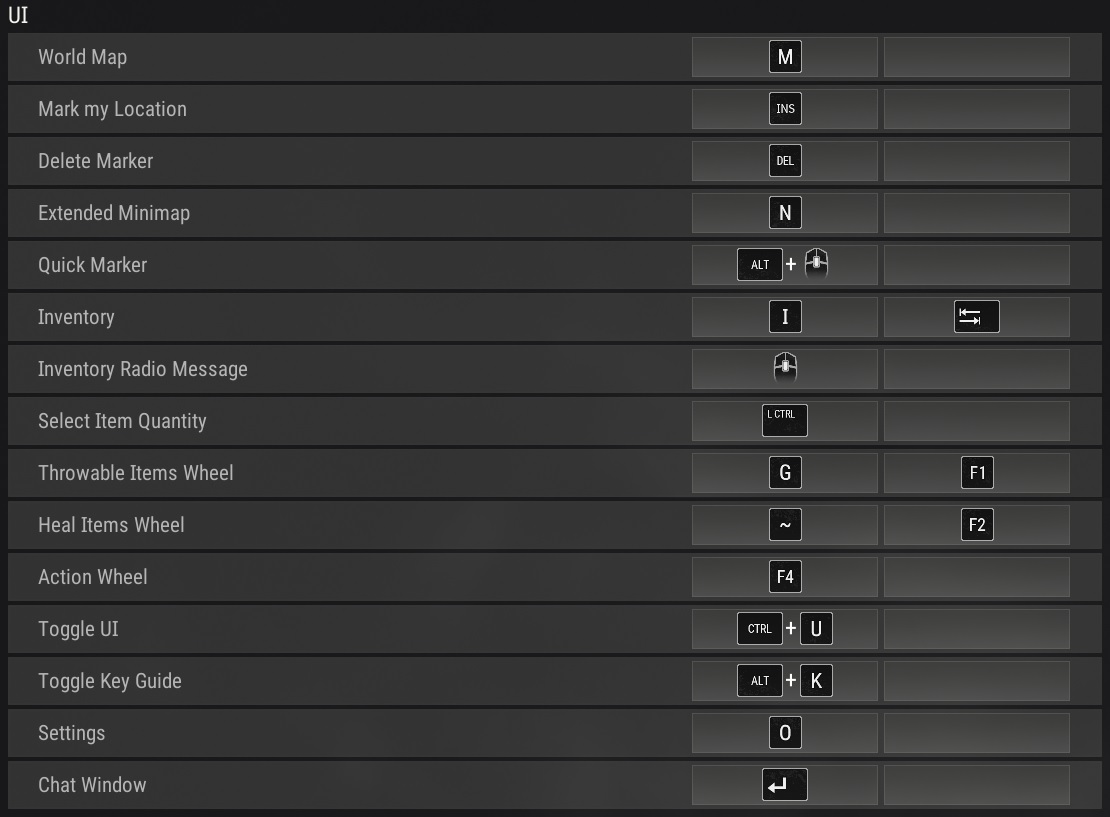
PUBG Keyboard Controls - UI
PUBG Keyboard Controls – UI
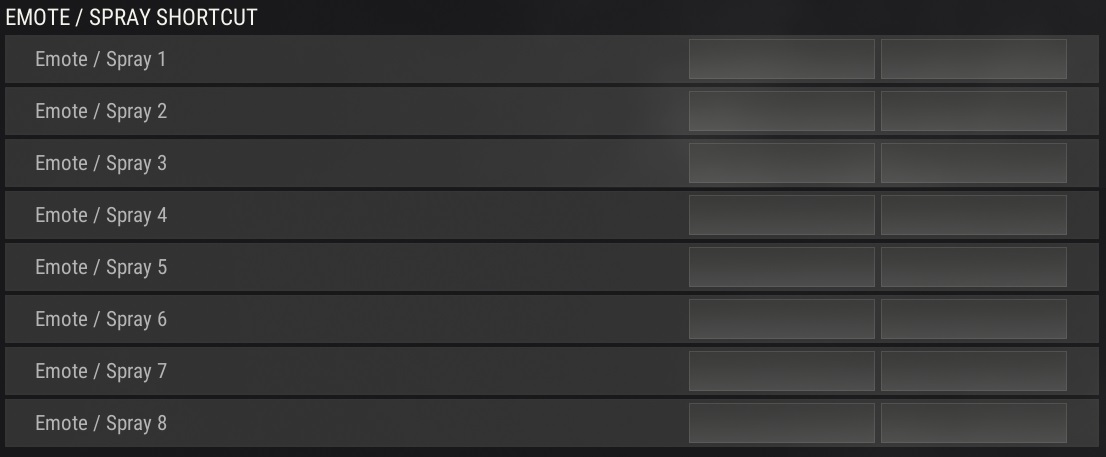
PUBG Keyboard Controls - Emote / Spray
PUBG Keyboard Controls – Emote / Spray
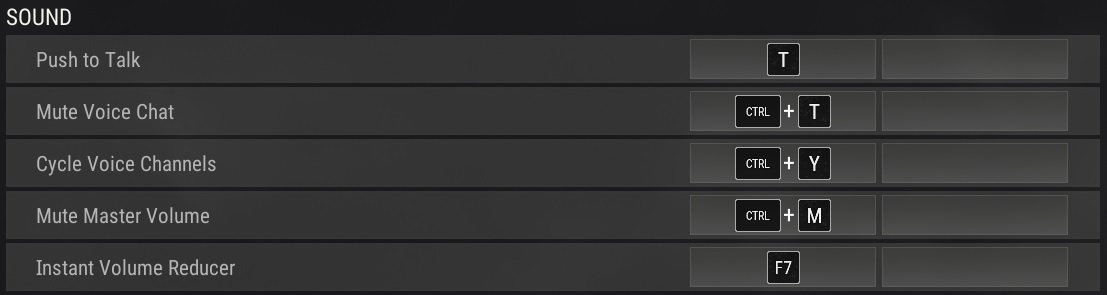
PUBG Keyboard Controls - Sound
PUBG Keyboard Controls – Sound

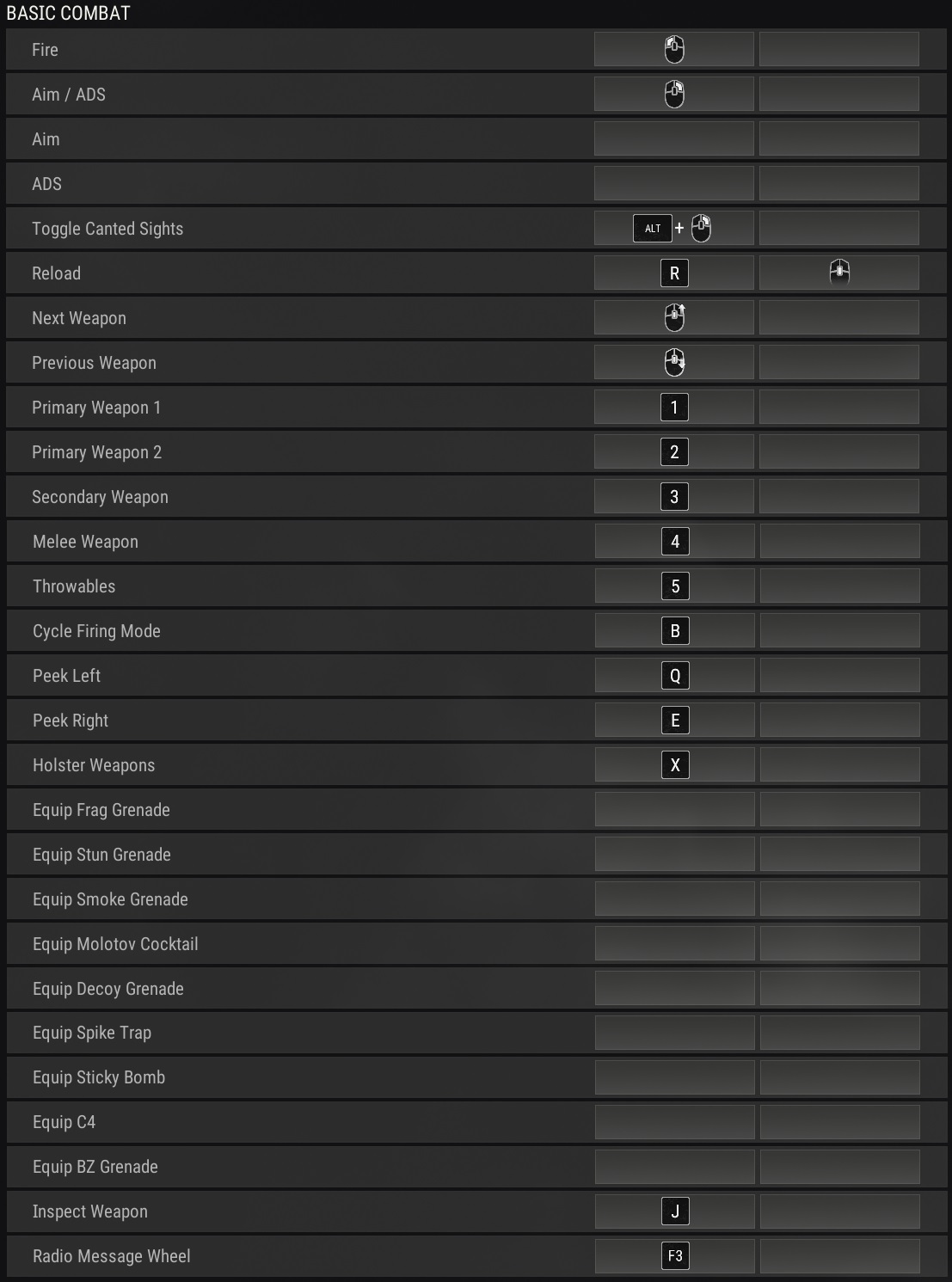
Changing PUBG Keyboard Controls – Combat

PUBG Keyboard Controls - Combat - Basic
PUBG Keyboard Controls – Combat – Basic

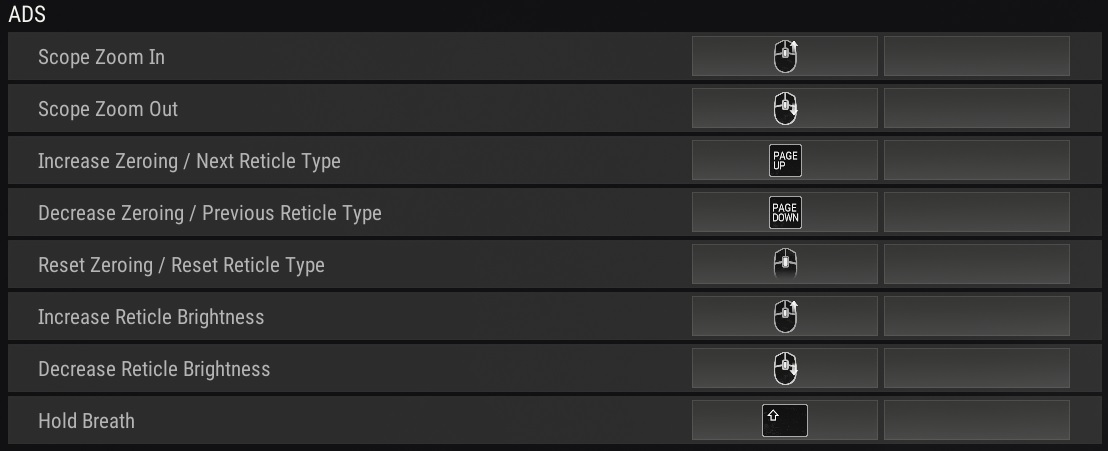
Aim Down Sight (ADS) is a very powerfull set of controls and a must to learn, if you want to be play the distance game and become that elite sniper

PUBG Keyboard Controls - Combat - ADS
PUBG Keyboard Controls – Combat – Aim Down Sights (ADS)
PUBG Keyboard Controls - Throwing
PUBG Keyboard Controls – Throwing

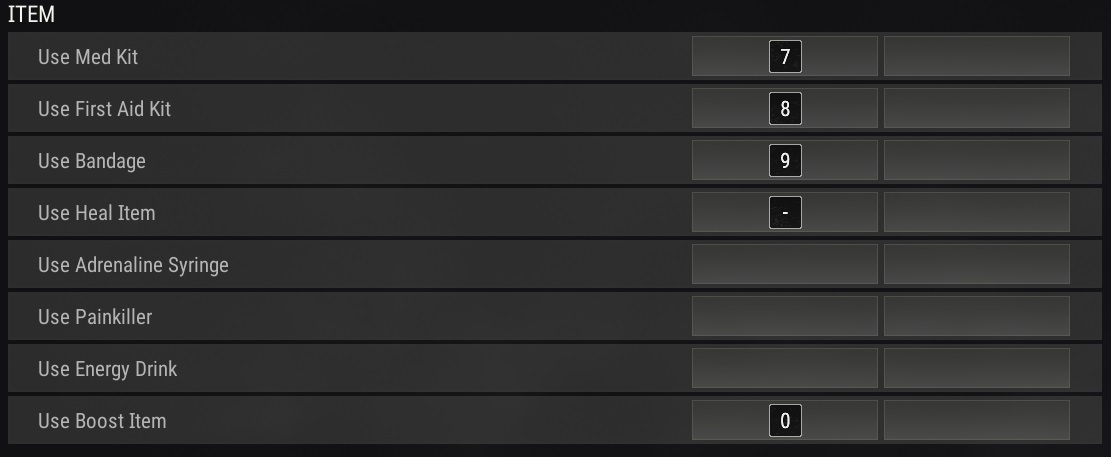
These item keybinds are well handy and i would recommend binding the Adrenaline, Painkillers and Energy drinks to some unused keys. Quick recover could save your life, and makes it easy to consume them as you can use them while walking.

PUBG Keyboard Controls - Items
PUBG Keyboard Controls – Items

Changing PUBG Keyboard Controls – Vehicle

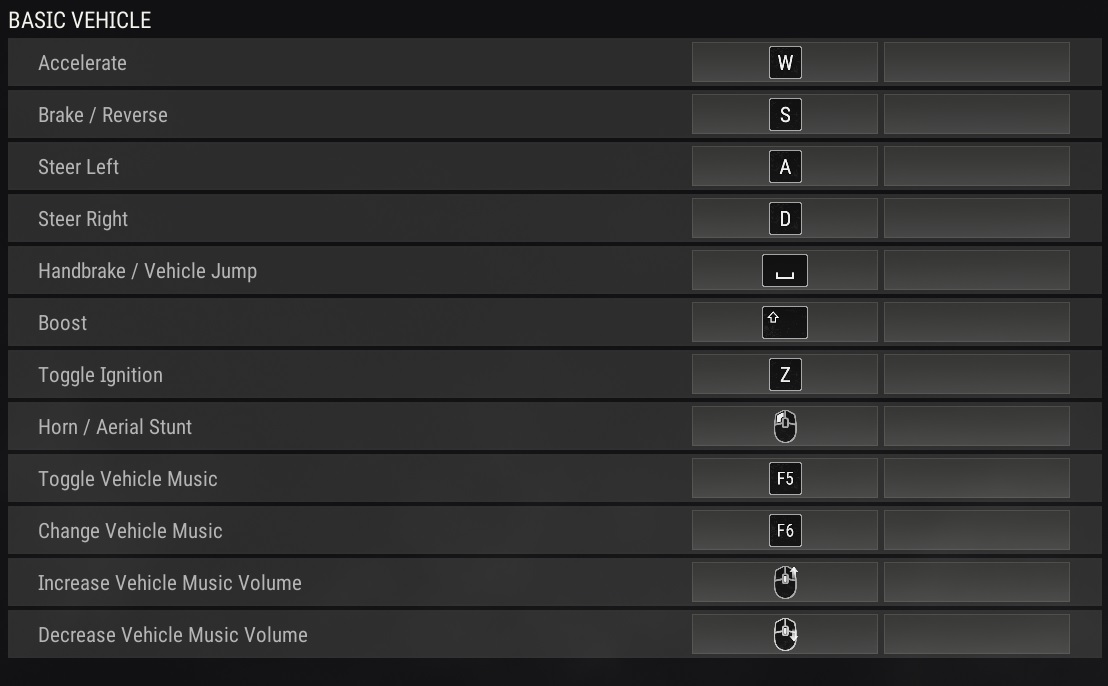
PUBG Keyboard Controls - Basic Vehicle
PUBG Keyboard Controls – Basic Vehicle
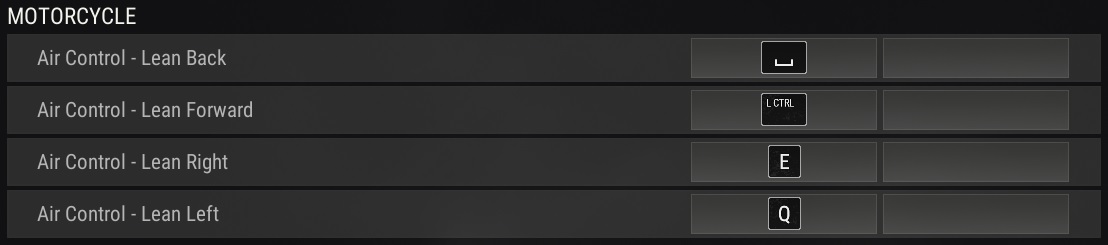
PUBG Keyboard Controls - Motocycle
PUBG Keyboard Controls – Motocycle
PUBG Keyboard Controls - Dirt Bike
PUBG Keyboard Controls – Dirt Bike
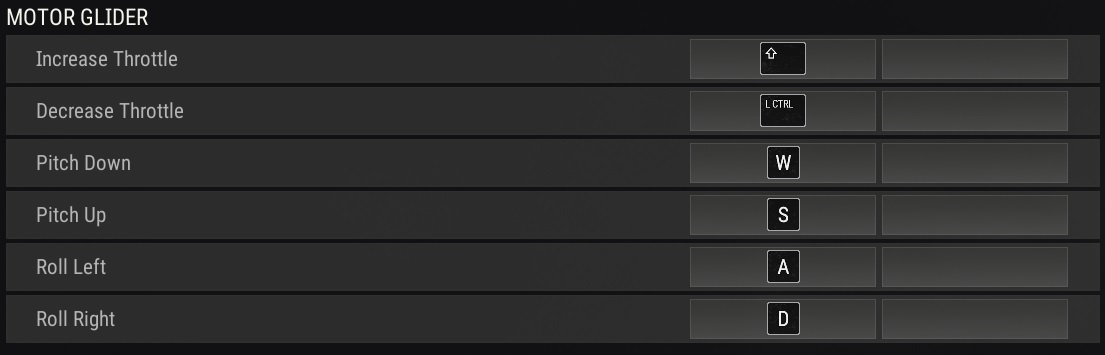
PUBG Keyboard Controls - Motor Glider
PUBG Keyboard Controls – Motor Glider
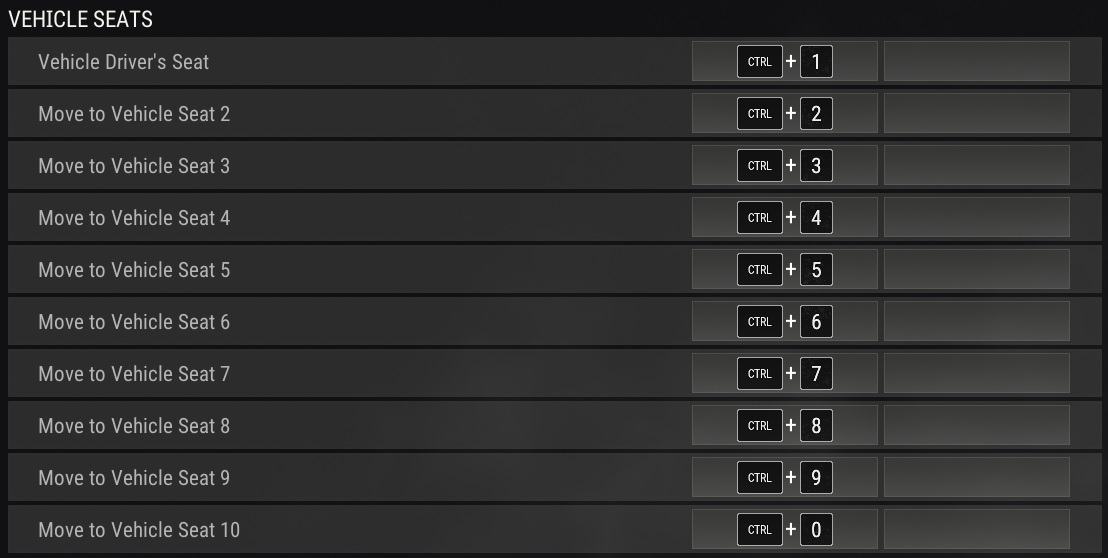
PUBG Keyboard Controls - Seat Numbers
PUBG Keyboard Controls – Fast Switch Seat Numbers

Changing PUBG Keyboard Controls – Spectate

PUBG Keyboard Controls - Spectator Mode
PUBG Keyboard Controls – Spectator Mode
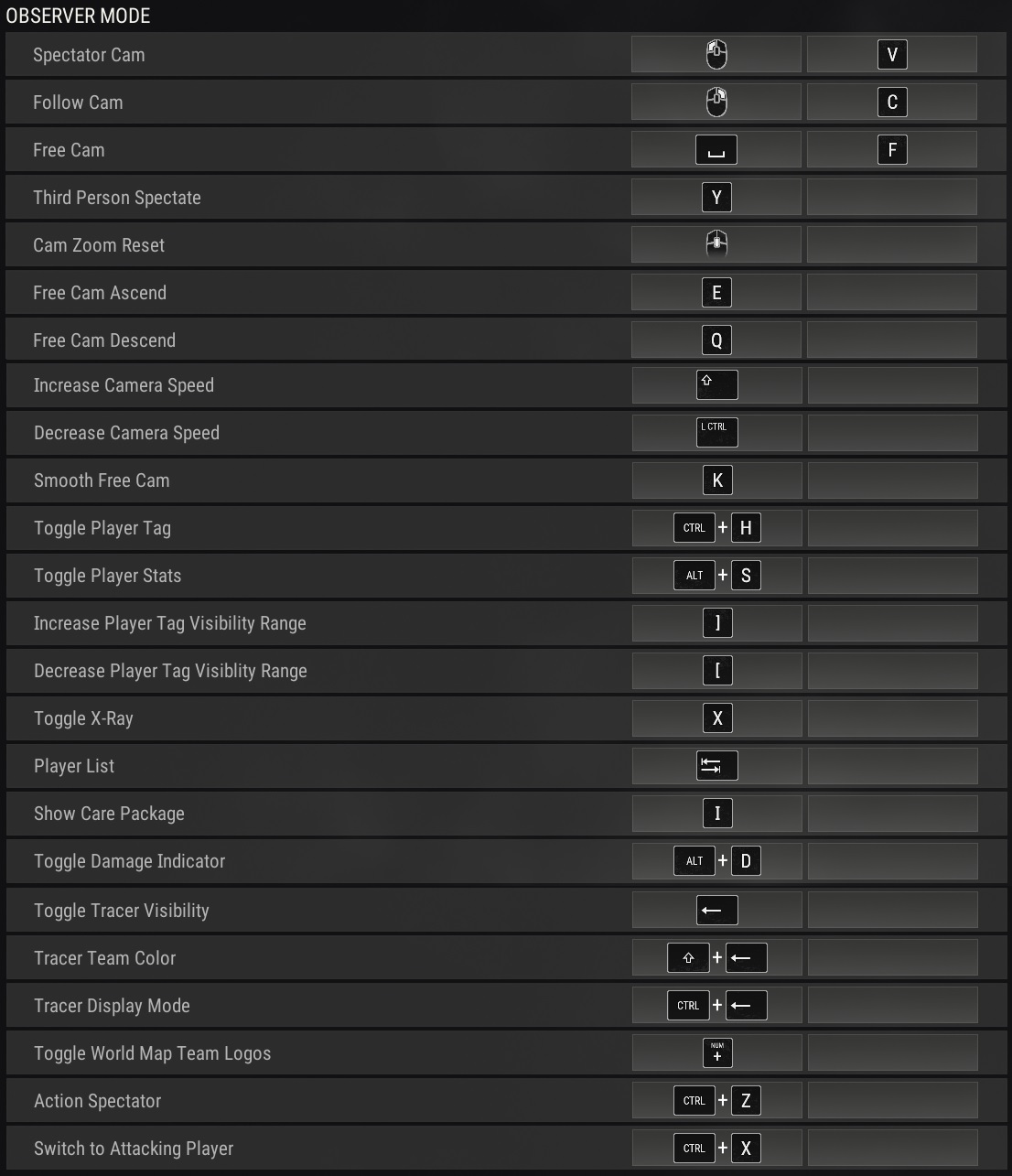
PUBG Keyboard Controls - Observer Mode
PUBG Keyboard Controls – Observer Mode
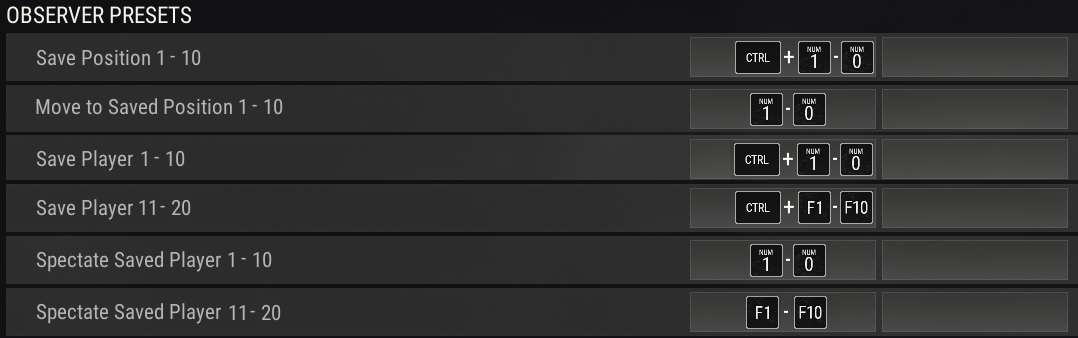
PUBG Keyboard Controls - Observer Presets
PUBG Keyboard Controls – Observer Presets
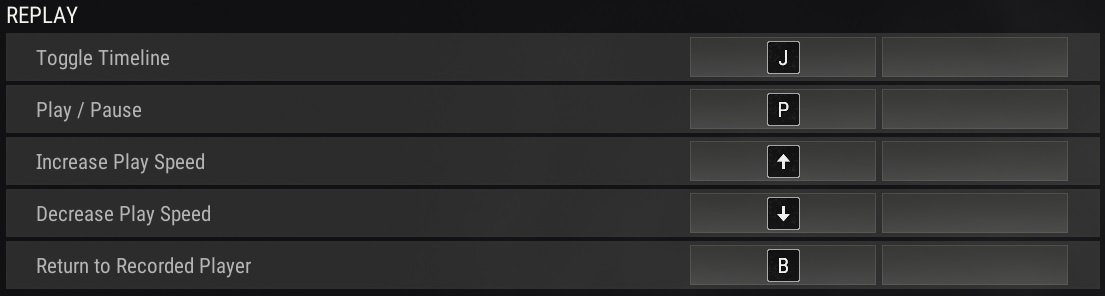
PUBG Keyboard Controls - Replay
PUBG Keyboard Controls – Replay

Other PUBG Battlegrounds Guides

Introduction to PUBG Battlegrounds

Best PUBG Graphics Settings

Best PUBG Keyboard Controls

Default PUBG Keyboard Controls

FREE PUBG Battlegrounds skins outfits

How to Change the PUBG Keyboard Controls


PUBG

Default PUBG Keyboard Controls – 2026

Soggydan PUBG, PUBG Keyboard Controls 4 January 2026

PUBG Keyboard Controls Guide, listed here in an easy-to-read format for quick reference. Keyboard controls can be a bit of a personal preference thing and so I feel it’s best to start of learning the default keyboard controls.

I would recommend learning/using the WASD keyboard controls as these are pretty standard across lots of games with only small variations. If you learn the PUBG keyboard controls then it’s an easy transition to Apex Legends or Fortnite. Doing this means you will not need to learn a new layout apart from one or two keys.

What does WASD mean in games?

WASD Keys are the group of Keyboard Controls used by most games. They are located to the left side of the keyboard and utilise the top 2 rows of letters just below the numbers. Most games use this set of keys and so it’s easy, once learnt, to switch to other similar games.

What are the default PC PUBG Keyboard Controls / Keybinds

All the PUBG Keyboard Controls can be viewed via the Settings, Key Guide page and are listed below. If you manually change any keyboard controls / bindings then they will be reflected here. This is covered in How to change the PUBG Keyboard Controls

  • Click the Cog in the top right corner
  • Click Key Guide
PUBG Keyboard Controls - Key Guide
PUBG Keyboard Controls – Key Guide

You will then be presented with 8 Tabs for configuring the PUBG Keyboard Controls.

  • Common
  • Combat
  • Combat Advanced
  • Vehicle
  • Vehicle Advanced
  • Swim
  • MAP
  • UI
PUBG Keyboard Controls - Key Guide
PUBG Keyboard Controls – Key Guide

How to change the PUBG Keyboard Controls

If you wish to change the PUBG Keyboard Controls then this is covered in my separate guide:  How to change the PUBG Keyboard Controls.  The Best thing is to keep trying different layouts until you find the Best PUBG Keyboard Controls

I have included the Secondary Key slot in the tables below, alongside the default key as there are sometimes situations that it’s good to have 2 keys bound for a single action. Maybe if your used to Fortnite Keybinds and crouch using L Ctrl

How do you reset PUBG Keyboard Controls to Default

If you change your PUBG Default Keyboard Controls but then don’t like them and wish to roll back to the original controls, check on the Settings Menu, and on the bottom of each page you will see  APPLY   BACK   DEFUALT.   Click Default to return to standard.

Defualt PUBG Keyboard Controls

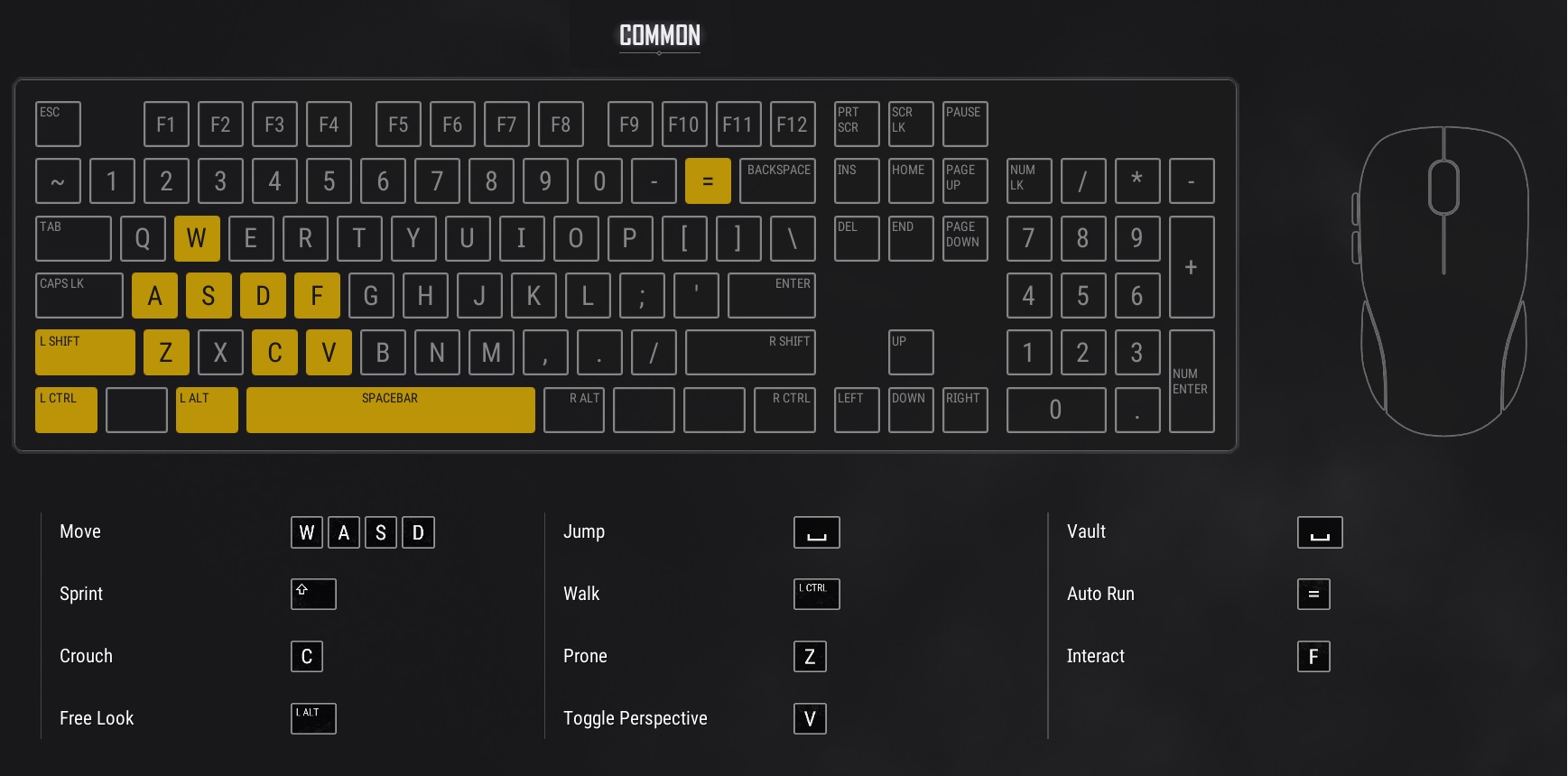
Common PUBG Keyboard Controls

These are the most commonly used keys by most of the top games, if you keep with at least these keys as default then you will find it easier to transition quicker to other games. Of course, there is always exceptions to the rules and you should have your keyboard controls as comfortable as possible.

After playing Fortnite, where Crouch is Left Ctrl, and coming to PUBG is C and so this felt a bit odd at first but I now remap my Fortnite Keybinds to C. Use whatever Keyboard Control suit you best and feels comfortable.

PUBG Keyboard Controls - Common Keys
PUBG Keyboard Controls – Common Keys

ActionPrimary KeySecondery Key
Move ForwardWUp Arrow
Move LeftALeft Arrow
Move BackwardSDown Arrow
Move RightDArrow Right
Jump / VaultSpace Bar
SprintLeft Shift
Auto RunEquals
=
Num Lock
CrouchC
Free LookL Alt
WalkL Ctrl
Prone (Lay down)Z
Toggle PerspectiveV
InteractF

Combat PUBG Keyboard Controls

PUBG Keyboard Controls - Combat Keys
PUBG Keyboard Controls – Combat Keys

ActionPrimary KeySecondery Key
1Primary Weapon 1
2Primary Weapon 2
3Secondary Weapon
4Melee Weapon
5Throwables
QPeek (Lean) Left
EPeek (Lean) Right
RReload
XHolster Weapons (Allows for faster running)
BCycle Firing Mode (Single/Auto)
Mouse Button 1Fire
Mouse Button 2ADS (Aim Down Sights)

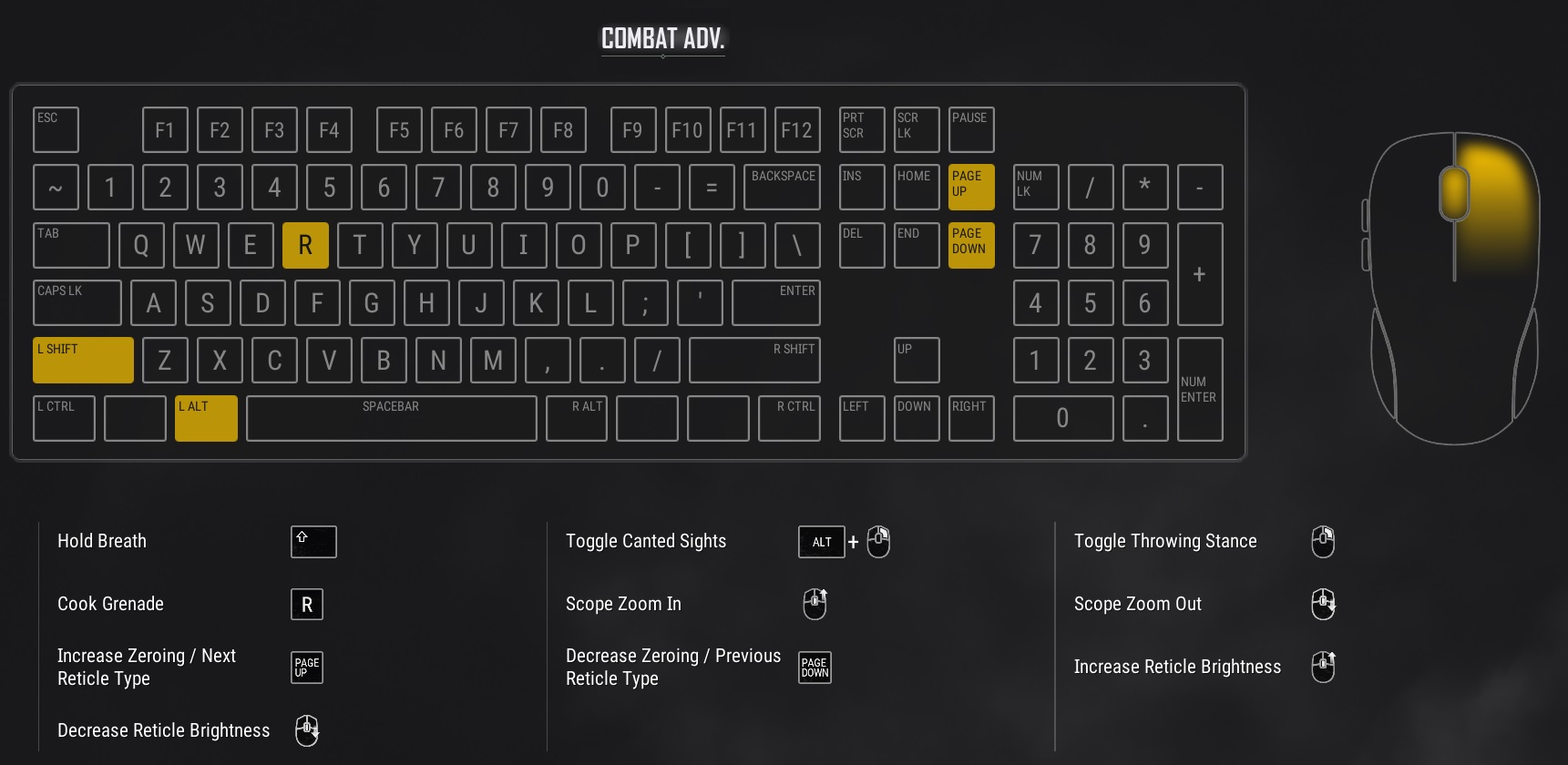
Combat Advanced PUBG Keyboard Controls

PUBG Keyboard Controls - Combat Advanced Keys
PUBG Keyboard Controls – Combat Advanced Keys

ActionPrimary KeySecondery Key
RCook Grenade
L ShiftHold Breath (Helps with aim)
L Alt
Page UpIncrease Zeroing
Page DownDecrease Zeroing
Mouse Wheel UpScope Zoom In
Increase Reticle Brightness (While Aiming)
Mouse Wheel DownScope Zoom Out
Decrease Reticle Brightness (While Aiming)
Right ClickToggle Canted Sights (Toggle sight settings)
Toggle Throwing Stance

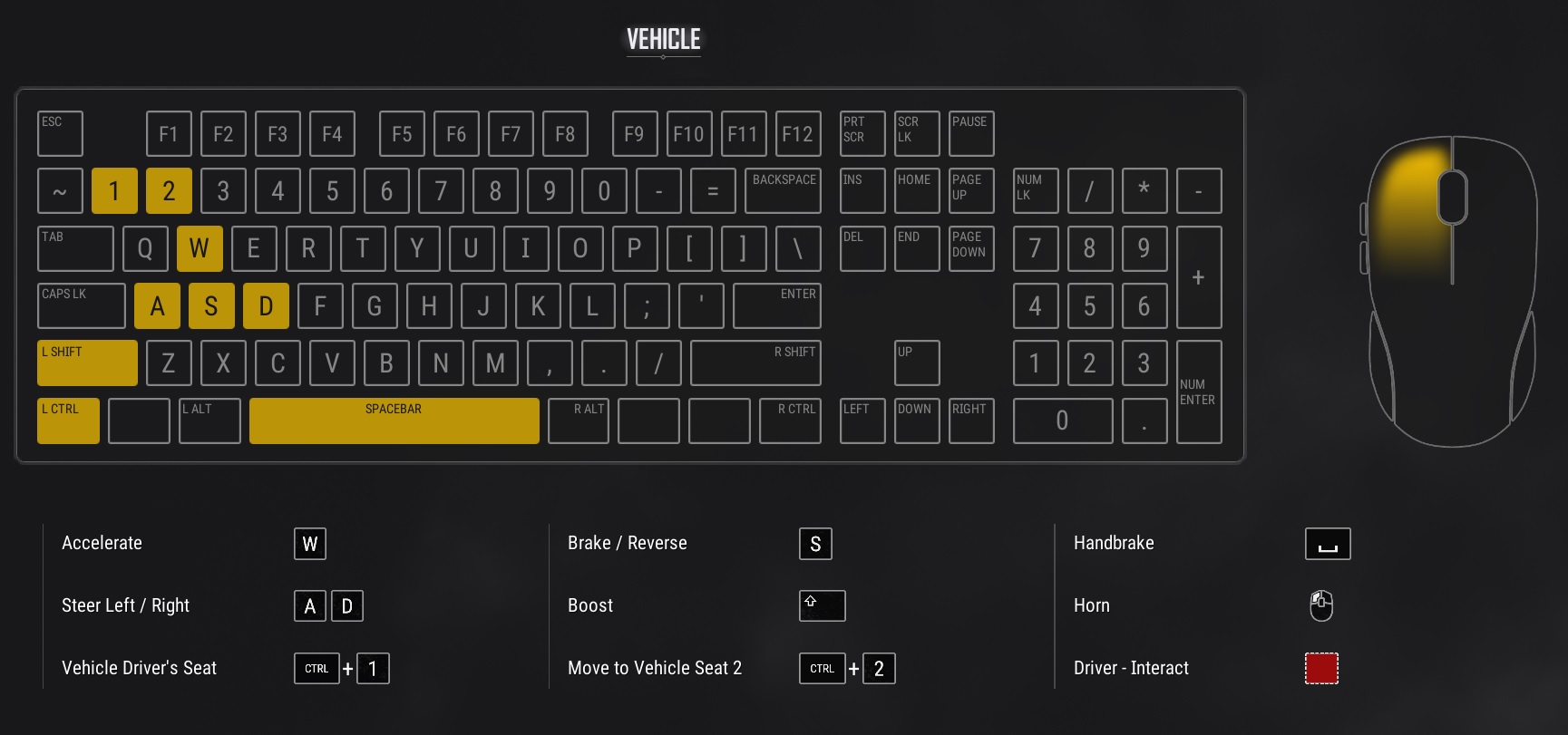
Vehicle PUBG Keyboard Controls

PUBG Keyboard Controls - Vehicle Keys
PUBG Keyboard Controls – Vehicle Keys

ActionPrimary KeySecondery Key
Ctrl + 1Vechicle Driver's Seat
Ctrl + 2Move to Vehicle Seat 2
WAccelerate
ASteer Left
SBrake / Reverse
DSteer Right
L ShiftBoost
SpaceHandbrake
Left Mouse ButtonHorn (Beep, Beep)

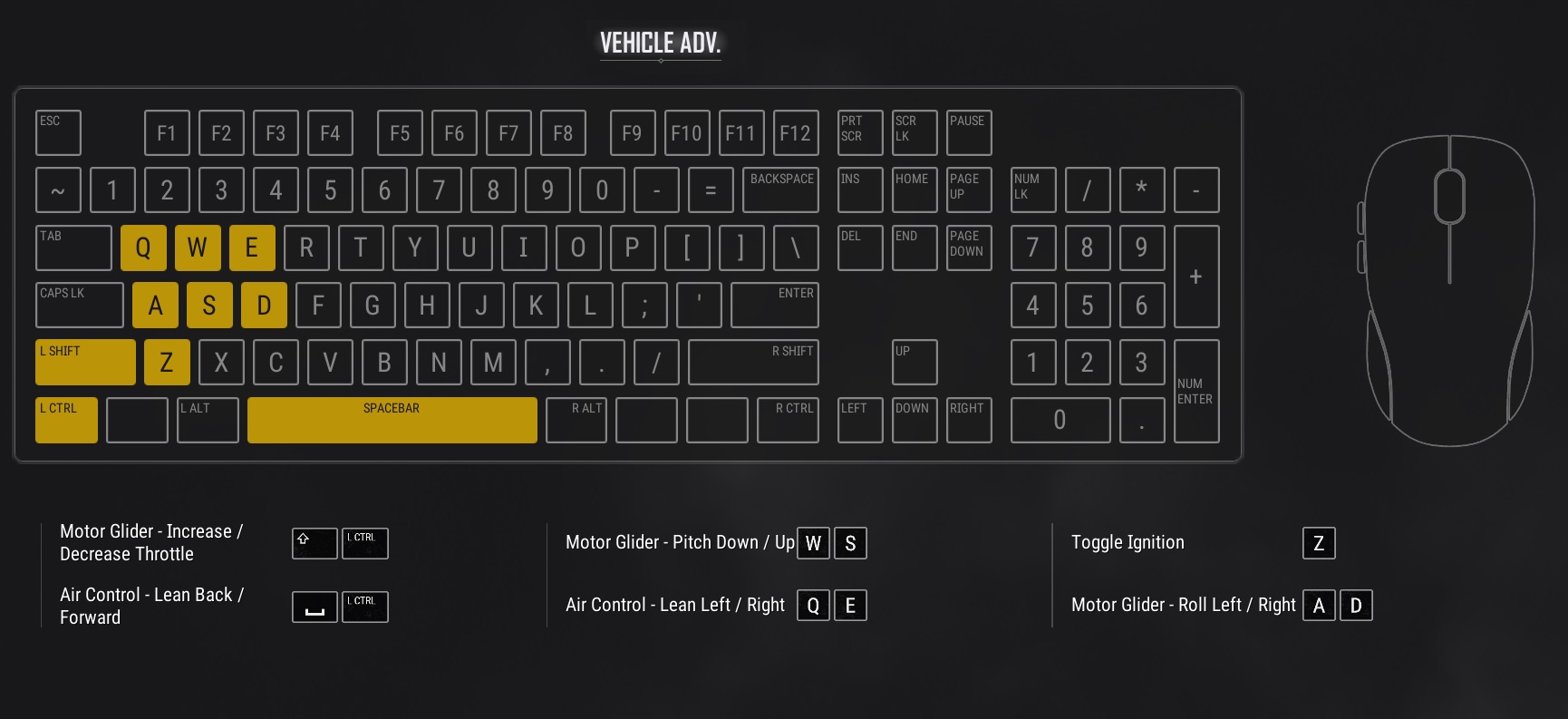
Vehicle Advanced PUBG Keyboard Controls

PUBG Keyboard Controls - Vehicle Advanced Keys
PUBG Keyboard Controls – Vehicle Advanced Keys

ActionPrimary KeySecondery Key
QAir Control - Lean Left
WMotor Glider - Pitch Up
EAir Control - Lean Right
AMotor Glider - Roll Left
SMotor Glider - Pitch Down
DMotor Glider - Roll Right
L ShiftMotor Glider - Increase Throttle
ZToggle Ignition
L CtrlMotor Glider - Decrease Throttle
SpaceAir Control - Lean Back
R Ctrl ???Air Control - Lean Forward

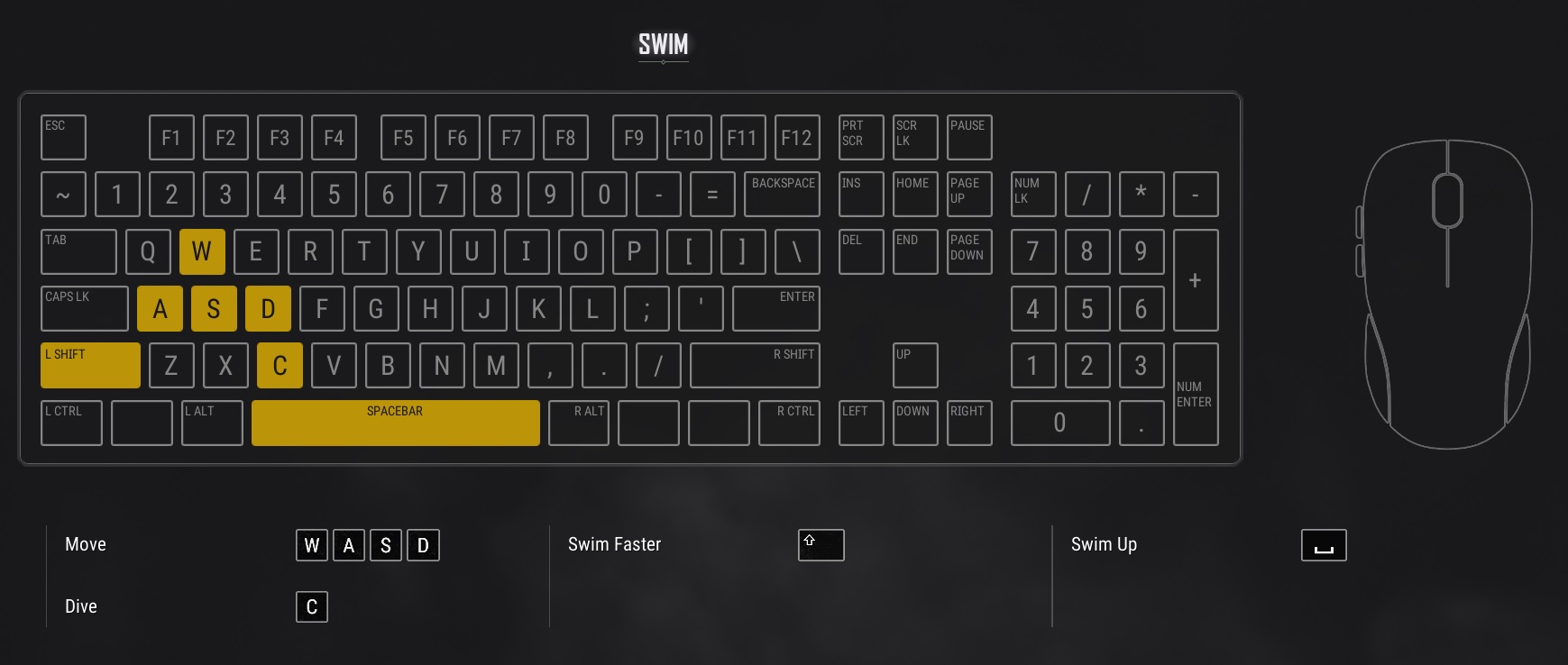
Swim PUBG Keyboard Controls

PUBG Keyboard Controls - Swim Keys
PUBG Keyboard Controls – Swim Keys

ActionPrimary KeySecondery Key
WSwim Forward
ASwim Left
SSwim Right
DStop, Swim Backward
L ShiftSwim Faster
CD
SpaceSwim Up

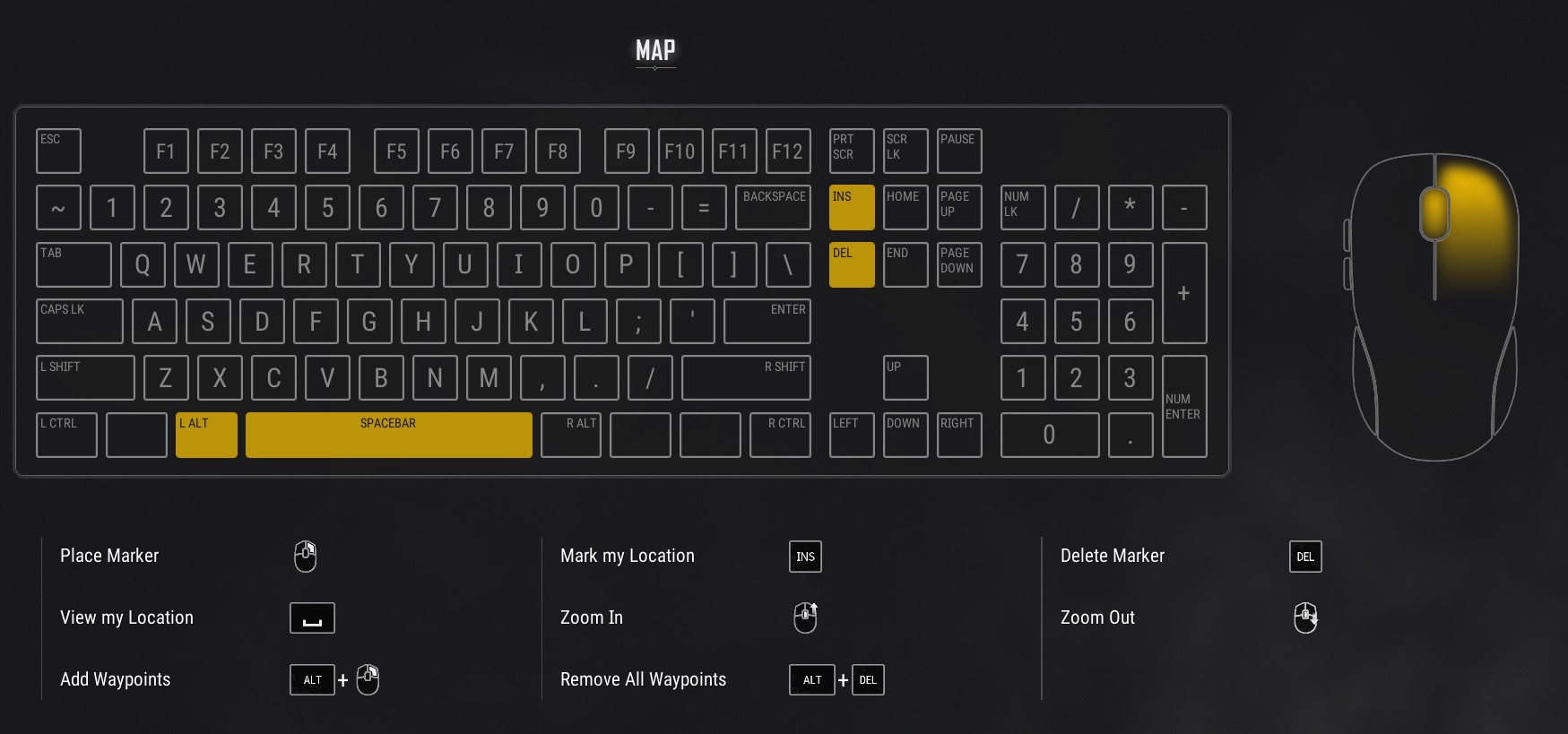
MAP PUBG Keyboard Controls

PUBG Keyboard Controls - Map Keys
PUBG Keyboard Controls – Map Keys

ActionPrimary KeySecondery Key
InsertMark my Location
DeleteDelete Marker
SpaceView my Location
Wheel UpZoom In
Wheel DownZoom Out
Right Mouse ButonPlace Marker on Map
Alt + Right Mouse ButtonAdd Waypoints
Alt + DeleteRemove all Waypoints

UI PUBG Keyboard Controls

PUBG Keyboard Controls - UI Keys
PUBG Keyboard Controls – UI Keys

ActionPrimary KeySecondery Key
F3Radio Message Wheel
F4Action Wheel
~Heal Items Wheel
Ctrl + UToggle UI
IInventory
GThrowable items Wheel
NExtended Mini-map
MMap

Other PUBG Battlegrounds Guides

Introduction to PUBG Battlegrounds

Best PUBG Graphics Settings

Best PUBG Keyboard Controls

Default PUBG Keyboard Controls

FREE PUBG Battlegrounds skins outfits

How to Change the PUBG Keyboard Controls


1 2 3 4 ›»

Search the Site

Tags

Battle Royale Best Gaming Chair Fortnite Fortnite 2FA Fortnite Battle Pass Fortnite Chrome Fortnite Discord Fortnite Events Fortnite Guides Fortnite Keybinds Fortnite Locations Fortnite Paradise Fortnite Quests Fortnite Tips Free to Play Free VBucks GPU MMORPG Privacy Policy PUBG PUBG GPU Settings PUBG Keyboard Controls Secret Lab

Categories

  • Battle Royale (60)
    • Fortnite (54)
    • PUBG (6)
  • Browser Games (2)
  • Fantasy MMORPG (120)
    • Age of Conan (4)
    • Anarchy Online (6)
    • Dark Age of Camelot (19)
    • EverQuest (15)
    • EverQuest 2 (12)
    • Final Fantasy XI (11)
    • Final Fantasy XIV (5)
    • Guild Wars (3)
    • Guild Wars 2 (3)
    • Lineage 2 (6)
    • Ragnarok (5)
    • Skyforge Online (2)
    • Ultima Online (14)
    • World of Warcraft (14)
  • Hardware (7)
  • SCI-FI Games (13)
    • Eve Online (9)
    • Planetside 2 (3)

Archive

  • March 2026
  • February 2026
  • January 2026
  • January 2025
  • January 2024
  • March 2023
  • February 2023
  • January 2023
  • December 2022
  • November 2022
  • October 2022
  • September 2022
  • August 2022
  • July 2022
  • June 2022
  • May 2022
  • January 2022
  • July 2021
  • November 2020
  • October 2020
  • June 2020
  • May 2020
  • April 2020
  • March 2016
  • February 2016

Back to Top

Latest Tweets

Socials

  • Twitter Twitter
  • Home
  • About the Games I Play
  • Contact Information
  • Disclaimer
  • Privacy Policy
© Online Game Commands 2026